Last Updated: September 29, 2026
A second webcam turns a talking head into a show. One camera for your face and another pointing at your desk, whiteboard or product lets you demonstrate, teach or stream with the kind of cuts viewers expect from produced video. Getting two webcams to run reliably on one computer takes a little planning around USB bandwidth, software and naming. This guide walks through the full setup.
📄 In This Review
Common dual-webcam layouts
| Layout | Camera 1 | Camera 2 | Used for |
|---|---|---|---|
| Face + overhead | Eye level, head-and-shoulders | Arm above desk, pointing down | Crafting, cooking, unboxing, handwriting |
| Face + side angle | Front, eye level | 45 degrees to one side | Podcasts, interviews, streaming variety |
| Face + whiteboard | Desk, eye level | Room wall, wide | Teaching and tutoring |
| Wide + tight | Wide room shot | Tight close-up | Workshops, music lessons |
Step 1: Plan USB bandwidth
See also: Best Reclining Chairs: Nine Recliner Listings Compared by Mechanism, Fabric and Space Needs • Best Roku Streaming Deals Reviewed
Webcams reserve USB bandwidth even when idle. Two 1080p cameras on the same USB 2.0 controller often fail with errors like “device in use” or a black preview, because uncompressed or lightly compressed video fills the 480Mbps bus. Solutions:
- Plug each webcam into a different USB controller. On desktops, use one front and one rear port, or a rear port and a PCIe USB card.
- Use USB 3.0 (5Gbps) ports for cameras that support it.
- Set cameras to MJPEG or H.264 at 1080p30 rather than uncompressed modes if bandwidth is tight.
- Avoid running both cameras through a single cheap bus-powered hub.
Step 2: Choose cameras
Matching models makes colour grading and switching seamless. Two different models work, but you will need to match white balance and exposure manually. For overhead shots, a camera with a tripod thread is essential, and one with a document or desk mode, such as the Insta360 Link’s DeskView, simplifies things. Fixed-focus cameras like the original Elgato Facecam work well overhead because they do not hunt when hands move in and out of frame.
Step 3: Mount them
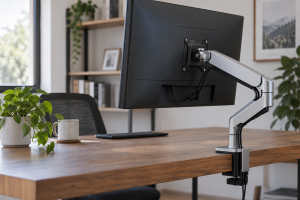
Put the face camera at eye level on the monitor or an arm. For overhead, use an articulating arm clamped to the desk edge or a boom stand, with the camera 50-80cm above the work surface. Secure cables along the arm with Velcro so they do not swing into frame.
Step 4: Configure software
OBS Studio
Add each webcam as a Video Capture Device in its own scene, or combine them in one scene as picture-in-picture. Set resolution and frame rate manually for each. Use hotkeys or a Stream Deck to switch scenes, then enable OBS’s Virtual Camera to send the result to Zoom, Teams or Meet as a single camera.
Meeting apps without OBS
Zoom lets you share a second camera as content through Share Screen, Advanced, “Content from 2nd Camera.” Other apps generally allow only one camera per participant, though you can join from a second device as a separate participant.
Step 5: Match the images
- Lock white balance on both cameras to the same value, for example 5000K.
- Lock exposure so moving between scenes does not cause brightness jumps.
- Use the same frame rate on both, usually 30fps, to avoid stutter when switching.
- Light the overhead area separately so the desk is not darker than your face.
Troubleshooting
If Windows shows two identical camera names, OBS may swap them after a reboot. Plug cameras into the same ports every time; some camera apps also let you rename devices. If one camera goes black when the other starts, move it to another USB controller or lower its resolution. If CPU usage spikes, set OBS to use hardware encoding and reduce preview rendering.
FAQ
Can a laptop run two webcams?
Yes, including the built-in camera plus an external one, or two external cameras. Laptops often route several ports through one USB controller, so use a USB 3.0 port for each camera and keep resolution at 1080p30 if you run into bandwidth errors.
Do I need a capture card for two webcams?
No. USB webcams connect directly. Capture cards are only needed for HDMI cameras like mirrorless or camcorders.
Bottom line
A dual-webcam setup needs separate USB controllers, sturdy mounts, OBS for switching and locked camera settings so both angles match. Done right, it adds production value to teaching, streaming and demos for the price of a second webcam and an arm.