Last Updated: September 29, 2026
A second monitor doubles more than screen space. It adds a power cable, a video cable, often a USB upstream cable for the monitor’s built-in hub, and sometimes an audio lead. With a laptop, a webcam and a dock in the mix, a two-screen desk can easily have ten or more cables converging behind the displays. Hiding them helps, but the smartest dual-monitor cable management starts one step earlier: reducing how many cables you need in the first place.
📄 In This Review
Idea 1: Cut the cable count before you tidy
Daisy-chain over DisplayPort
Many business monitors support DisplayPort Multi-Stream Transport (MST), with a DP-out port that feeds the second screen. One video cable runs from the computer to monitor A, and a short cable links A to B. Check both the monitor’s spec sheet and your computer: Windows PCs generally support MST, while macOS does not support MST for extended displays, so Mac users need a different approach.
Use USB-C monitors with power delivery
A USB-C monitor with power delivery (commonly 65–96 W) can charge a laptop, carry video and act as a USB hub over one cable. Pair two of those with daisy-chain support and a laptop setup can drop to a single cable at the computer end.
Consolidate through a dock
A Thunderbolt or USB4 dock with two display outputs keeps the video cables short and parked behind the monitors rather than snaking toward wherever the laptop sits. Confirm how many external displays your laptop supports; some base-model laptop chips support only one external display natively.
| Approach | Cables at the computer | Watch out for |
|---|---|---|
| Two separate video cables | 2 video + power | Most clutter, simplest compatibility |
| DisplayPort MST daisy chain | 1 video + power | Not supported for extended desktops on macOS |
| USB-C monitor with passthrough | 1 cable total for many laptops | Check wattage matches your laptop |
| Dock with dual outputs | 1 cable to the laptop | Laptop display-count limit, dock price $150–$350 |
Idea 2: Let the monitor arm do the routing
See also: Best Reclining Chairs: Nine Recliner Listings Compared by Mechanism, Fabric and Space Needs • Best Roku Streaming Deals Reviewed
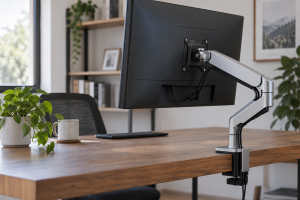
Dual monitor arms usually include clip-on covers or channels along each arm segment. Run power and video from each screen along its arm, down the pole and through the clamp or grommet base. Leave slack at every joint equal to the arm’s full swing; a tight cable will pull the monitor off its preferred angle over weeks. Gas-spring arms need a little more slack than static arms because they travel further vertically.
One pole, one exit
If both screens share a single pole, the cables from both arms converge in one place. Wrap them in a short braided sleeve from the pole base down through the desk or grommet. That single tidy column is far cleaner than two separate arms with separate drops.
Idea 3: Park bricks behind or under the screens
Monitors with external power bricks are the worst offenders. Use a small adhesive shelf or a VESA-mounted accessory plate behind one monitor, or put the bricks in an under-desk tray directly below the gap between the screens. Keeping bricks near their devices keeps DC leads short.
Idea 4: Centre the drop between the screens
Place the grommet, cable pass-through or tray entry point directly behind the join between the two monitors. Cables from the left and right screens then converge symmetrically and disappear in the middle, which is also where they are hardest to see from the front. On desks without a grommet, a clamp-on cable pass-through tray at the rear edge does the same job without drilling.
Idea 5: Tame the monitor USB hubs
Each monitor’s USB hub needs an upstream cable to the computer. If you do not use the ports, skip that cable entirely. If you do, pick one monitor as the “hub” monitor for the keyboard, mouse and webcam, and leave the other monitor’s upstream unplugged.
Idea 6: Label both ends
Dual-monitor setups get re-cabled whenever you swap which screen is primary or add a laptop. Small wrap labels on each end reading “L-power”, “R-DP” and so on turn a 20-minute puzzle into a two-minute job.
FAQ
Can I daisy-chain two monitors from a MacBook?
Not with standard DisplayPort MST for an extended desktop. Mac users usually need two separate video outputs, a Thunderbolt dock with dual outputs, or Thunderbolt displays that support chaining. Check the specific laptop’s supported external display count first.
Are right-angle connectors worth it?
Yes, when monitors sit close to a wall or on an arm with little clearance. A right-angle DisplayPort or power plug lets the cable drop straight down instead of bending sharply, which reduces strain on the port.
Bottom line
With two monitors, the tidiest setup is the one with the fewest cables: use MST, USB-C passthrough or a dual-output dock where your hardware supports it, then route what remains along the arms to a single central drop. Hiding ten cables well is harder than hiding four.