Last Updated: September 29, 2026
Spreadsheet work is hard on a mouse hand in ways that general office work is not. You scroll horizontally across wide sheets, select long ranges with click-and-drag, jump between tabs, and click tiny cells precisely, all day long during month-end close or budget season. Accountants, analysts and bookkeepers often spend more time moving through data than typing it. The right mouse cuts those repeated motions: better scrolling, programmable buttons for common commands, and a shape that keeps the forearm relaxed over long sessions.
📄 In This Review
What makes a mouse good for spreadsheets
Horizontal scrolling
Wide sheets are the defining spreadsheet problem. A dedicated thumb wheel or a tilting scroll wheel lets you move sideways without dragging the scroll bar or holding Shift while scrolling. It sounds minor until you have used one for a week.

UGREEN Ergonomic Wireless Mouse, Bluetooth & 2.4G Wireless, Quiet Clicks
Included for 'Best mouse for accountants and spreadsheet work' because the listing specifies Bluetooth & 2.4G Wireless and Quiet Clicks, details this guide uses to compare options.
View on AmazonFast, controllable vertical scrolling
Thousands of rows demand fast scrolling, but precise positioning demands control. Scroll wheels that switch between free-spin and ratcheted modes give you both.
Programmable buttons
Assigning commands such as Copy, Paste Values, Undo, or switching sheets (Ctrl+Page Up/Down) to side buttons saves thousands of keyboard reaches over a week.
Precision
A sensor that tracks accurately at moderate DPI (around 1,000-2,000) combined with adjustable pointer speed makes selecting exact cells easier. Very high DPI is rarely useful for spreadsheets.
Mouse options compared
See also: Best Reclining Chairs: Nine Recliner Listings Compared by Mechanism, Fabric and Space Needs • Best Roku Streaming Deals Reviewed
| Mouse | Horizontal scroll | Vertical scroll | Ergonomics | Best for |
|---|---|---|---|---|
| Logitech MX Master 3S | Dedicated thumb wheel | Electromagnetic wheel that switches between free-spin and ratchet | Contoured right-hand shape, thumb rest | Heavy spreadsheet users with medium to large hands |
| Logitech MX Anywhere 3S | Hold a side button while scrolling (configurable) | Fast-scroll wheel | Compact, portable | Laptop users and smaller hands |
| Logitech MX Ergo S (trackball) | Wheel tilt left/right | Standard wheel | Stationary, 0 or 20-degree tilt | People with shoulder or arm strain |
| Kensington Expert Mouse Wireless (trackball) | Varies by version; newer model adds side wheels | Scroll ring around the ball | Ambidextrous, finger-operated | Left-handed users, precision selection |
| Vertical mice (e.g. Logitech Lift) | Usually via software or button combos | Standard wheel | Reduces forearm twisting | Users with wrist or forearm discomfort |
Check each model’s current spec sheet; features change between versions.
Useful button assignments for Excel and Google Sheets
- Back/forward buttons: switch to the previous or next sheet tab (Ctrl+Page Up/Page Down).
- Gesture button: Paste Values, or Undo.
- Middle click: toggle between free-spin and ratchet scrolling.
- Thumb wheel: horizontal scroll by default; some users map it to zoom in large models.
Logitech’s Options+ software supports per-application profiles, so these assignments only apply inside your spreadsheet app, leaving your normal browser behaviour intact.
Ergonomics for long closes
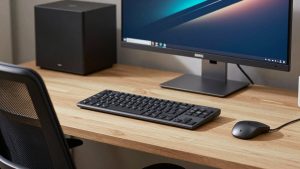
Spreadsheet work involves many small, precise movements with the mouse held still, which creates static load in the forearm and shoulder. A few habits help: keep the mouse right beside the keyboard at the same height; use a compact or tenkeyless keyboard to bring the mouse closer; move from the elbow rather than flicking with the wrist; and use keyboard shortcuts for navigation where possible. If you already feel strain, a trackball or vertical mouse can reduce the load substantially.
Pointer speed and precision settings
Most people set pointer speed too high for spreadsheet work, then overshoot small cells. Try a moderate DPI (around 1,000-1,600) with operating-system acceleration on, so slow movements are precise and fast flicks still cross a wide screen. If your mouse has a DPI button, set a lower “precision” level for detailed selection and a higher level for moving between monitors. On ultrawide or dual-monitor setups, this two-speed approach reduces both overshooting and large arm movements.
FAQ
Is the MX Master 3S worth it for Excel?
For heavy spreadsheet users, yes. Its thumb wheel for horizontal scrolling, fast-scroll main wheel and application-specific button profiles directly address the most repetitive spreadsheet motions. Smaller hands may prefer the MX Anywhere 3S.
Are trackballs good for spreadsheets?
Trackballs are excellent for precise cell selection once you adapt, and they remove arm movement entirely. Expect one to two weeks of adjustment, and consider a model with a scroll ring or tilt wheel for horizontal movement.
Bottom line
For accountants and spreadsheet-heavy work, prioritise horizontal scrolling, a switchable free-spin wheel and programmable buttons, then choose a shape that suits your hand. The MX Master 3S is the easiest all-round recommendation; trackballs and vertical mice make sense when arm or wrist strain becomes part of the picture. Spend ten minutes setting up app-specific buttons and you will feel the difference by the next close.