Last Updated: September 29, 2026
Video editing at home stresses a workspace in ways ordinary office work never does. Your eyes need to judge colour and exposure accurately, your ears need to catch a faint hum or a clipped consonant, your computer needs to move gigabytes of footage without stuttering, and your hands repeat the same scrubbing and trimming motions thousands of times a day. A video editor’s home office is part studio, part workstation. Getting it right starts with controlling the room, not with buying the most expensive monitor.
📄 In This Review
Control the room before you trust the screen
A colour-accurate monitor is only accurate relative to the light around it. Strong daylight from a window changes how you perceive contrast and colour throughout the day, which is why grades done at noon can look different at night. Position the desk so windows are to the side, not behind or in front of the screen, and add blackout or dimout blinds. Neutral grey or white walls behind the monitor avoid colour casts; a saturated accent wall reflects tint onto your perception.

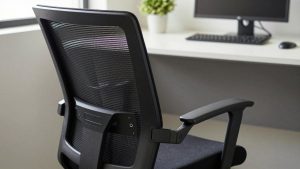
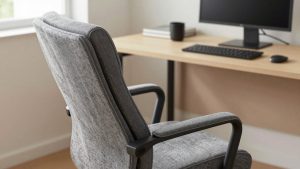
HUANUO Ergonomic Office Chair with 3D Armrests and Lumbar Support
Included for 'Home office setup for video editors' as a relevant option in this category; details come from the product listing.
View on AmazonBias lighting
A strip of neutral 6500K light behind the monitor at low brightness reduces eye strain in a dim room and gives your eyes a stable reference. Choose a bias light with a high CRI so it does not throw a green or magenta tint onto the wall.
Displays: accuracy first, size second
See also: Best Reclining Chairs: Nine Recliner Listings Compared by Mechanism, Fabric and Space Needs • Best Roku Streaming Deals Reviewed
| Tier | What to look for | Typical price range | Good for |
|---|---|---|---|
| Entry | IPS, near-100% sRGB, factory calibration report | $250–$500 | Web and social delivery |
| Prosumer | 4K, 95%+ DCI-P3, hardware calibration support | $600–$1,500 | Client work, HDR previews |
| Professional reference | True HDR, local dimming or OLED, wide gamut, reference modes | $2,000+ | Broadcast and high-end grading |
| Second UI monitor | Any decent 1440p or 4K screen | $200–$400 | Timeline, bins and scopes |
A two-monitor layout is standard: one accurate screen for the viewer and a second for the timeline and panels. Calibrate the main screen with a hardware colorimeter every month or two; consumer colorimeters typically cost $150–$300.
Storage and computing
Editing performance depends as much on storage as on the processor. Keep the operating system and applications on one fast NVMe drive, active project media on a second fast SSD, and cache or proxy files on a third if possible. A Thunderbolt or USB4 external SSD enclosure provides fast project storage for laptop editors. For archiving, a NAS or large external hard drives in a redundant setup protect finished projects; a single external drive is not a backup.
Memory and graphics
For 4K timelines, 32 GB of RAM is a practical starting point and 64 GB helps with complex effects, multicam and heavy colour work. GPU acceleration matters in editors like DaVinci Resolve and Premiere Pro, so check your software’s hardware recommendations before choosing a machine.
Audio monitoring
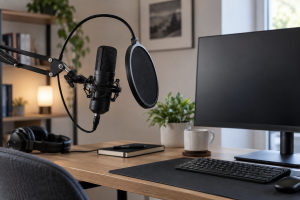
Laptop speakers and gaming headsets hide problems. Use a pair of closed-back or open-back studio headphones for detail work, and if space allows, a pair of small nearfield monitors placed at ear height and equal distance, forming a triangle with your head. Soft furnishings, a rug and a bookshelf behind you reduce the echo that makes dialogue sound worse than it is.
Control surfaces and input
Editing involves repetitive micro-movements: scrubbing, nudging, trimming. Dedicated controllers such as the Blackmagic DaVinci Resolve Speed Editor or programmable devices like the TourBox Elite put jog wheels and shortcuts under your hand, cutting mouse and keyboard work. A large mouse pad or desk mat and a mouse with extra buttons help too. If you already feel forearm tension, a pen tablet is worth trying for scrubbing and masking work.
Desk, chair and ergonomics
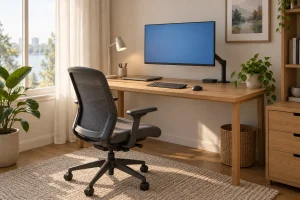
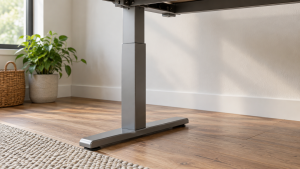
Two monitors plus speakers and a controller need a desk at least 140–160 cm wide and 70–80 cm deep. Editors sit still for long sessions while concentrating, so a fully adjustable chair and a sit-stand desk are genuine health investments. Put the main viewer directly in front of you and the timeline screen to the side or below, so you do not twist your neck for hours.
FAQ
Can I edit on a MacBook screen alone?
For many web projects, yes; recent MacBook Pro displays are highly regarded. For client colour work, an external calibrated display and a controlled room make results far more consistent.
How important is a UPS for editing?
Very useful. An uninterruptible power supply gives you minutes to save and shut down during an outage, protecting renders and drives. Size it to your computer and monitors’ combined draw.
Bottom line
Build an editing office around trustworthy perception: control the room’s light, calibrate an accurate main display, monitor audio properly, and give your footage fast, redundant storage. Then reduce repetitive strain with a controller and a well-planned two-screen layout.
Related Reviews & Guides
Best Reclining Chairs: Nine Recliner Listings Compared by Mechanism, Fabric and Space Needs
Logitech MX Keys/MX Mechanical