Last Updated: November 27, 2026
Searching for the best 1080i monitors for drawing usually starts with a simple assumption: that 1080i is a kind of monitor, like 1080p or 4K, and that choosing the right one is a matter of comparing models side by side. The real decision is different, and it is worth getting right before spending anything. The letter after the number describes how a picture is drawn on the screen, not how sharp it is, and reading that label the wrong way can send an artist toward a panel that fights their work instead of supporting it.
This guide is for illustrators, comic artists, design students, and hobbyists who draw with a pen tablet and want a standalone monitor that shows color honestly. It explains what 1080i actually means, why no drawing monitor is sold on that specification, and what to look for instead: panel type, color coverage, size, and a desk setup that keeps long drawing sessions comfortable.
As an Amazon Associate we earn from qualifying purchases.
📄 In This Review
What 1080i Actually Means for a Drawing Monitor
The term 1080i describes an interlaced video signal with a frame of 1920 by 1080 pixels. Interlaced means the picture is drawn in two alternating passes: first the odd-numbered lines, then the even-numbered lines, with each pass arriving a fraction of a second apart. That technique comes from broadcast television, where it let early high-definition broadcasts fit into limited bandwidth. A still image on an interlaced display can shimmer at fine edges, because the two halves of each frame are captured at slightly different moments, and fast movement can show a comb-like tear where the halves do not line up.
A progressive signal, written as 1080p, draws every line of the frame in order, top to bottom, in a single pass. Every computer monitor sold today is a progressive panel: the graphics card sends a progressive signal and the panel shows it that way. There is no interlaced computer monitor on the market, and no manufacturer builds a drawing monitor around an interlaced panel, because an artist staring at fine lines for hours is exactly the person who would notice the flicker and softness that interlacing introduces. When a shopping listing shows the label 1080i on a monitor, it is describing an input the panel can accept, or it is simply a catalog mistake, not the way the panel itself works.
That mistake is easy to find once you know to look for it. Research for this guide turned up several ordinary 1080p monitors carrying a 1080i label in a specification field. A renewed Samsung 27-inch curved monitor has 1080i in its title, yet its own specification table lists FHD 1080p, a 1920 by 1080 VA panel, and a 4 millisecond response time. An NEC 23-inch office monitor and an HP EliteDisplay 27-inch monitor show the same pattern: a 1080i entry in one field and a plain 1920 by 1080 progressive panel underneath. None of the three is a drawing monitor. The Samsung is a curved VA gaming-style screen with narrow color coverage, the NEC and HP models are office screens from an older product generation, and none of them is sold as a tool for artists. The label is a listing error, not a feature, and treating it as a buying criterion would point a buyer at the wrong products.
So there is no shortlist of genuine 1080i drawing monitors to rank, because the category does not exist. Anyone searching with that exact phrase is really looking for one of two things: a sharp, color-honest 1080p monitor to pair with a pen tablet they already own, or a pen display they can draw on directly. The rest of this guide covers the first of those purchases, which is the one most artists actually need, and the situations section at the end explains when the second choice makes more sense.
How to Choose
See also: Best Staples Desks for Home Offices (November 2026) • 4 Best Laptop Workstation Accessories (November 2026)
Panel type decides whether color stays honest
Panel type is the first decision, and it matters more than any number in a listing title. IPS panels keep color and brightness steady when you lean in or slide your chair to one side, which is how people look at a drawing in progress. VA panels provide deeper blacks and stronger contrast, but their color shifts with viewing angle, and the curved VA screens common in budget gaming monitors are the worst culprits for judging color. TN panels are fast and cheap, but their color washes out quickly off-axis, so skip them for drawing. A matte coating is also worth seeking out, because it cuts reflections from desk lamps and windows that hide fine lines.
Color coverage and calibration matter more than resolution
A drawing monitor earns its place by showing color you can trust, and that comes down to coverage and calibration rather than pixel count. Look for a panel that covers the full sRGB color space, the baseline for digital illustration, web work, and most print shops. Artists who sell prints should look further, toward panels with wider gamut coverage and a factory calibration report. Calibration is the step most buyers skip: a hardware calibrator measures what the screen shows and corrects it, and without one, two monitors can display the same file in visibly different colors. Avoid screens that lock you into a single vivid mode, tuned to look bright in a store rather than accurate at a desk.
Match the pixel count to the screen size
Resolution only helps when it fits the size of the panel. A 24-inch screen with a 1920 by 1080 grid is the sweet spot for this resolution: at a normal arm’s length the pixels are dense enough that lines look clean and interface text stays readable. Stretch the same grid across a 27-inch screen and the picture softens, with visible pixel structure on diagonal lines and text that looks slightly fuzzy up close. At 27 inches, step up to a 1440p panel, which restores the crispness a drawing deserves, and at 32 inches only a 4K panel keeps lines truly sharp. Buy the smallest screen that fits your canvas and reference windows, and buy more pixels before buying more inches.
Ports, stand, and the pen tablet pairing
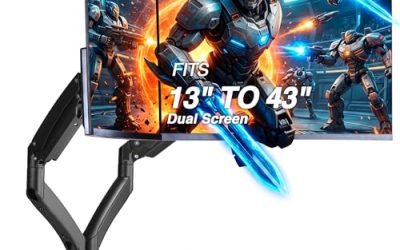
The rest of the purchase is about how the monitor lives on the desk. HDMI and DisplayPort cover nearly every desktop graphics card, while USB-C with power delivery is the single-cable option for laptop artists who want the monitor to charge their machine at the same time. Check the stand before you buy: height adjustment, tilt, and swivel let you put the top of the screen at eye level, which matters during sessions that run for hours, and a VESA mount lets you move the screen onto an arm and free the desk for the tablet. Place the pen tablet directly in front of you and the monitor just behind it at arm’s length.
Which One Fits Your Situation
You draw with a pen tablet and need a first honest screen
Start with a 24-inch IPS monitor at 1080p with full sRGB coverage, a matte finish, and a height-adjustable stand. That combination shows your lines and colors accurately, fits a normal desk, and leaves budget for the things that matter more at this stage: a good pen tablet, a desk lamp with even light, and a comfortable chair. Skip curved screens and gaming features, and save any leftover budget for a hardware calibrator.
You sell prints or deliver files to clients
Move up to a 27-inch 1440p IPS panel with wide gamut coverage and a factory calibration report, and plan on adding a hardware calibrator to your kit. Uniform brightness across the panel matters here, because a print that looks right on one side of the screen and wrong on the other will cost you reprints. Avoid curved VA panels for this work, and keep a second screen beside the main one for email and reference images.
Your desk is small or you are a student
A 24-inch IPS screen with slim bezels suits a small desk, and a VESA monitor arm frees the surface underneath for the tablet and sketchbooks. If you work from a laptop, a single USB-C cable that carries video and charging keeps the setup to one wire. Skip ultrawide screens in a small room: they demand more desk depth than they appear to, and a standard screen plus a laptop display already gives you room for canvas and reference.
You are replacing a laptop screen as your main canvas
Choose a 27-inch 1440p IPS monitor as the primary display and keep the laptop open beside it as a reference screen, or add a matching second monitor later. Check the laptop’s video outputs before ordering, because an older machine may need an adapter or a dock to drive a 1440p panel at its native resolution. Set the external monitor as the main display so toolbars open on the big screen.
Common Mistakes
- Treating 1080i as a monitor specification. The label describes an interlaced signal, not a panel. Searching for it leads to mislabeled 1080p listings and away from the IPS panels that actually suit drawing.
- Buying a curved VA gaming screen for color work. The curve and the high refresh rate look impressive, but the viewing-angle color shift makes it hard to judge a drawing, and the color range is usually narrower than an IPS panel at a similar size.
- Putting a 27-inch 1080p panel too close. The same pixel grid that looks crisp at 24 inches looks soft at 27 inches, and moving the screen further back to compensate puts it outside a comfortable viewing distance.
- Skipping calibration and trusting vivid mode. A monitor straight out of the box is usually tuned bright and saturated. Without calibration, the colors you see are not the colors in the file, and prints or client deliveries will not match what you saw on screen.
- Buying a pen display when a monitor and tablet would fit better. Drawing directly on a screen is appealing, but it costs more, adds neck strain from looking down, and gives you a smaller canvas than a separate monitor paired with a pen tablet you may already own.
Frequently Asked Questions
Is a 1080i monitor good for drawing?
No. The 1080i label describes an interlaced broadcast signal, not a type of computer monitor panel, and no drawing monitor uses an interlaced panel. Modern monitors are progressive, so the correct search is for a 1080p or higher IPS monitor with honest color. Any listing that advertises 1080i is describing a signal the panel can accept, or carrying a catalog error.
What resolution is best for drawing on a monitor?
It depends on screen size. A 1920 by 1080 panel is sharp enough at 24 inches, where the pixels are dense at arm’s length. At 27 inches, a 1440p panel keeps lines and text crisp, and at 32 inches a 4K panel is the right match. Buying a larger screen without adding pixels makes lines softer, so match the resolution to the size.
Should I get a pen display instead of a regular monitor?
That depends on how you like to draw. A pen display lets you draw directly on the screen, which feels natural for sketching and inking. A regular IPS monitor paired with a screenless pen tablet costs less, gives you a larger viewing area, and keeps your posture upright. If you already own a pen tablet you like, a good monitor is the better upgrade.
Does refresh rate matter for drawing?
Very little. A standard 60Hz panel is smooth enough for drawing, because the pen and the software set the pace of the work, not the screen. High refresh rates are a gaming specification that adds cost without improving line quality or color. Spend the difference on panel type, color coverage, and a stand that adjusts to your height instead.
Related Reviews & Guides
8 Best Desk Fans for Staying Cool While Working 2026
Mechanical Keyboard Switches Explained: Cherry MX vs Gateron vs Kailh 2026