Last Updated: October 18, 2026
If you are shopping for a high quality online camera for work, you are really shopping for a webcam that looks sharp on Zoom, Teams, and Meet without constant fiddling. For most home offices, that does not mean the most expensive 4K camera. It means good autofocus, clean color in mixed indoor light, a microphone that does not hiss, and a mount that stays put on a laptop or external monitor.
I have tested this category for years in real home offices, not studios. The pattern is consistent: a decent $70 to $120 webcam in a well-lit room will beat a $200 camera in a dark room with a window behind you. Buy for your actual setup first, sensor second.
📄 In This Review
What “high quality” actually means for video calls
For work calls, resolution is only one part of the image. A true high quality online camera needs a lens that stays in focus when you lean in, automatic exposure that does not blow out your face when a window is behind you, and white balance that does not turn you orange under warm lamps.
The failure mode I see most is autofocus hunting. Cheap 4K sensors constantly pulse in and out of focus, which is far more distracting on a team call than 1080p that stays locked. The second failure is bad low-light handling. Small sensors add grain and smear motion, so you look blurry whenever you move your hands. If you work early mornings or late evenings, prioritize a camera advertised with a larger sensor and good low-light correction over higher resolution.
Audio matters too. Even the best built-in webcam mics sound thin compared to a headset or USB mic, but for quick calls they should be clear and free of fan noise. Look for dual microphones with noise reduction, and plan to sit within 3 to 5 feet of the camera.
1080p vs. 2K vs. 4K for work
See also: Best Monitor for MacBook Air: Two USB-C 4K Screens and Six Adapter-Dependent Alternatives • Best Monitor for MacBook Pro: Eight Listings Sorted by Cable, Sharpness and Scaling
For laptops and Macs, 1080p at 30fps or 60fps is still the sweet spot. Zoom and Teams compress video heavily, so extra 4K detail rarely reaches the other person. Where 4K helps is if you want to crop in for a tighter headshot while keeping text readable, or if you record training videos locally.
The trade-off is real: 4K cameras need more light, more USB bandwidth, and more CPU. On older MacBook Airs and office laptops, a 4K camera can stutter, run hot, or force the fan on. If your laptop is more than three years old, a quality 1080p camera will often look smoother and more reliable than a cheap 4K one.
One practical middle ground is a 2K QHD webcam with autofocus. You get a bit more sharpness for screen sharing and whiteboards, without the bandwidth penalty of full 4K. This suits managers, teachers, and anyone who presents slides all day.
Comparison: which type suits which worker
| Type | Best for | Strengths | Weaknesses |
|---|---|---|---|
| Basic 1080p fixed-focus | Hot-desking, students, backup camera | Cheap, plug-and-play, low CPU load | Soft image up close, poor low light, narrow field of view |
| Mid-range 1080p with autofocus | Daily Zoom / Teams on laptop or Mac | Stays sharp, good color, reliable mics | No cropping headroom, struggles in very dark rooms |
| 2K / 4K autofocus with auto-framing | Home office, coaching, presentations | Sharper, better for recording, follows you if you stand | Needs good light, higher price, can tax older laptops |
| Premium 4K large-sensor | Content + client-facing work | Best low light, natural background blur, pro color | Expensive, needs USB 3.0, overkill for compressed calls |
If you only join calls and rarely present, the second row is where to stop. If you lead workshops, interview candidates, or meet clients, the third row makes sense because auto-framing keeps you centered when you move to a whiteboard. Premium large-sensor models only pay off if you also record YouTube videos, courses, or demos.
Laptop and Mac fit: check this before you buy
Most modern webcams are UVC-compliant, which means they work on Windows and macOS without drivers. That is good, but advanced features like background blur, auto-framing, and manual exposure often require a Windows-only app. On a Mac, you may get the basic image but lose the extras.
Also check the mount and cable. Thin laptop lids and curved ultrawide monitors reject bulky clips. Look for a foldable clip with a tripod thread underneath, and a cable at least 4 to 5 feet long if your dock sits under the desk. USB-C users often need an adapter; a camera that ships with a USB-C adapter in the box saves a headache.
For MacBooks specifically, the built-in camera has improved, but it is still small and fixed in place. An external 1080p webcam for Mac laptop placed at eye level on a monitor will look more natural than looking down at a laptop camera, and it lets you use a laptop stand without ruining your angle.
Setup matters more than specs
No camera fixes bad backlight. If you sit with a bright window behind you, your face will be dark regardless of price. Face the window or put a $25 LED panel behind your monitor at 4000K to 5000K. Keep the camera at eye level, about an arm’s length away. Too low and you get the up-the-nose angle; too far and autofocus struggles.
Common failure modes to avoid: glossy glasses reflecting a ring light, auto-exposure flickering under cheap LED bulbs, and mics picking up a mechanical keyboard. If you wear glasses, use a soft panel light off to the side rather than a ring directly in front. If your office has flicker, set the camera to 50Hz or 60Hz anti-flicker in its app if available.
What to buy for a home office
For most remote workers, buy a solid 1080p autofocus webcam from the business category, add decent lighting, and use a headset mic for important calls. The cheaper option is genuinely fine here. You will look professional on compressed video, and you avoid the heat and stutter of cheap 4K.
Upgrade to 4K only if you check two boxes: you have strong front light, and you record locally or need digital zoom. In that case, look for a 4K webcam for home office with autofocus with a larger sensor, dual noise-reducing mics, and a physical privacy shutter. Skip gimmicks like beauty filters and gesture controls; they tend to break during updates.
Who should not upgrade? If your company laptop is locked down and you cannot install camera software, if you call from cafes or dim bedrooms, or if your upload speed is under 5 Mbps. In those cases, pay for better light and a stable mount first.
FAQ
Is 4K worth it for Zoom and Teams?
Usually no for live calls. Both platforms compress to 720p or 1080p for most participants, so a clean 1080p feed looks the same or better. 4K helps for local recording and cropping, not for live sharpness.
Why do I look blurry even with a good camera?
It is almost always low light or dirty focus. Add front light, wipe the lens, sit 2 to 3 feet away, and turn off any window behind you. If it pulses in and out, switch from continuous autofocus to single autofocus if your app allows it.
Will any webcam work with Mac?
Most USB webcams work for basic video on Mac without drivers. Special features like auto-framing or manual controls may need a vendor app that is Windows-only, so check Mac support in the listing if you need those features.
Do I need an external mic if I buy a high quality camera?
Not for everyday standups, but yes for interviews, sales calls, and teaching. Even good webcam mics pick up room echo and keyboards. A simple USB headset will improve clarity more than spending another $100 on the camera.
Related Reviews & Guides

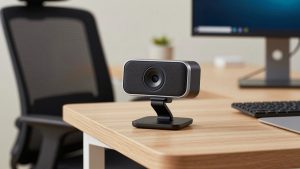
Best Webcam with Speakers
4 Best Laptop Computer Docking Stations 2026