Last Updated: September 26, 2026
Gaming monitors are harder on monitor arms than office monitors. They tend to be larger, heavier, often curved, and they sit on desks that get bumped, leaned on and hammered with fast mouse swipes. A wobbly arm that is fine for spreadsheets becomes distracting when a 240 Hz screen shakes every time you flick the mouse. The best monitor arm for a gaming monitor is really about three things: enough weight capacity for today’s heavy panels, rigidity, and adjustment that lets you switch between competitive and relaxed positions. Here is how to choose one.
📄 In This Review
Why gaming monitors need a different arm
- Weight: a 27-inch 1440p gaming monitor often weighs 9 to 14 pounds without its stand, 32-inch 4K and OLED models commonly land around 12 to 18 pounds, and 34-inch curved ultrawides can reach 15 to 20 pounds or more. Super-ultrawides above 45 inches are often too heavy for standard desk arms.
- Depth: curved panels and models with large rear cooling sections push the center of gravity away from the arm, increasing leverage.
- Vibration: aggressive mouse movement, keyboard slams and desk-mounted speakers all transmit through the desk into the screen.
- Recessed VESA: many gaming monitors hide the VESA pattern in a pocket, needing spacers or longer screws.
Match the arm to your monitor class
See also: Best Reclining Chairs: Nine Recliner Listings Compared by Mechanism, Fabric and Space Needs • Best Roku Streaming Deals Reviewed
| Monitor type | Typical panel-only weight | Arm to look for | Watch out for |
|---|---|---|---|
| 24–25 in esports (1080p, 240–540 Hz) | 6–11 lb | Any quality gas-spring arm rated from about 4 lb | Light monitors drifting up on heavy-duty arms |
| 27 in 1440p (144–360 Hz) | 9–14 lb | Gas spring or counterbalance rated to 20 lb+ | Recessed VESA pockets |
| 32 in 4K / OLED | 12–18 lb | Arm rated to 20–25 lb, rigid construction | Wide bodies hitting the arm during rotation |
| 34 in curved ultrawide | 14–20+ lb | Heavy-duty ultrawide-rated arm, 25 lb+ | Leverage from curve depth |
| 45–49 in super ultrawide | Often 20–30+ lb | Dedicated heavy-duty or wall mount | Many desk arms cannot hold them at all |
These are typical ranges; always read the “weight without stand” figure on your monitor’s spec sheet, then pick an arm that places it in the middle of its range.

HUANUO TitanLift Heavy Duty Monitor Arm for Screens up to 49", Holds 44 lbs, Aluminum Ultrawide Screen Monitor Mount, Fully Adjustable Single Gaming Desk Mount with Dual C-Clamp, Max VESA 100x100mm
Included for 'Best monitor arm for gaming monitor' because the listing specifies Holds 44 lbs and Aluminum Ultrawide Screen Monitor Mount, details this guide uses to compare options.
View on Amazon
ErGear Heavy Duty Monitor Arm for 13-49″ Ultrawide Screens, 37.4 lbs Capacity, Full Motion Monitor Desk Mount, Rock-Solid Support, Dual C-Clamp & Grommet Mount, VESA 75x75/100x100mm
Included for 'Best monitor arm for gaming monitor' because the listing specifies 37.4 lbs Capacity and Full Motion Monitor Desk Mount, details this guide uses to compare options.
View on Amazon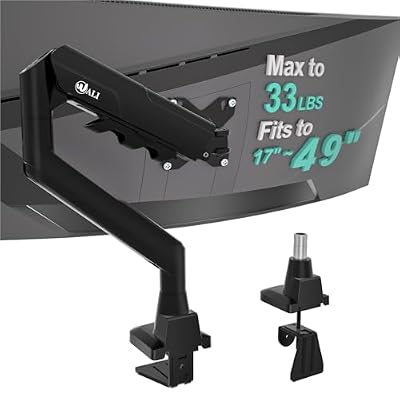
WALI Ultrawide Single Monitor Arm for 17-49 inch Curved Screen, up to 33lbs
Included for 'Best monitor arm for gaming monitor' because the listing specifies up to 33lbs, details this guide uses to compare options.
View on Amazon
HUANUO FlowLift™ Pro Monitor Arm for 13–32" Screens, MechaSpring Monitor Mount, Fully-Adjustable Monitor Stand with Tilt/Swivel/Rotation, Tool-Free VESA Mount, C-Clamp/Grommet Base, Max Load 19.8 lbs
Included for 'Best monitor arm for gaming monitor' because the listing specifies 32" Screens and MechaSpring Monitor Mount, details this guide uses to compare options.
View on AmazonFeatures that matter for gaming
Rigidity over reach
Every extra inch of reach adds wobble. Gamers usually sit close to the screen, so you rarely need maximum extension. A shorter, stiffer arm, or clamping the arm closer to the front of the desk, reduces bounce. Aluminum and steel arms with tight joints beat plastic-covered budget arms here.
Quick height and depth changes
Many players use two positions: close and slightly lower for competitive shooters, pushed back and higher for single-player games or video. A gas-spring or counterbalance arm with well-tuned tension lets you move between them with one hand.
Clearance for RGB and rear I/O
Gaming monitors often have ports facing down in a rear recess. Make sure the arm’s VESA plate and cable clips leave room for thick DisplayPort 2.1 or HDMI 2.1 cables, which are stiffer than office cables.
Portrait rotation
Useful for chat, streaming dashboards or a vertical second screen. Check that a wide monitor clears the desk and arm when rotated.
Reducing wobble on a gaming desk
- Use a grommet mount or clamp with a reinforcement plate on thinner desks.
- Mount the arm near a desk leg rather than in the middle of a long span, which flexes more.
- Tighten joint friction screws slightly so the arm holds position under vibration.
- Put speakers and subwoofers on separate stands or isolation pads, not on the same desk span as the arm.
- On standing desks, keep the desk lower and reduce extension; tall positions amplify sway.
Dual setups: main gaming screen plus a side monitor
Many players run a high-refresh main monitor with a cheaper secondary screen for chat or guides. A dual arm with independent springs handles two different weights. If the main screen is heavy, consider a single heavy-duty arm for it and a separate lighter arm for the side screen, so the heavy monitor is not limited by a shared mechanism.
Cable management for gaming monitors
High-bandwidth display cables are thick and do not bend easily. Leave generous loops at each joint, use Velcro rather than tight zip ties, and choose cables long enough for full extension. Right-angle adapters can help with rear-facing ports but make sure they are rated for the bandwidth your refresh rate needs.
FAQ
Can a monitor arm hold a 34-inch curved gaming monitor?
Yes, if the arm is rated for ultrawide or curved screens and the monitor’s weight without stand falls within the rating. Many 34-inch models sit near or above 15 pounds, so look for arms rated to 25 pounds or more.
Will a monitor arm reduce screen shake during games?
It can reduce shake compared with a flimsy stock stand, but only if the arm is rigid and the desk is stable. A long, cheap arm on a thin desk can actually make wobble worse.
Bottom line
The best monitor arm for a gaming monitor is one rated comfortably above your panel’s weight, built stiff rather than long-reaching, and mounted near a desk leg on a solid surface. Check for recessed VESA and thick cables, and your screen will stay put through every fast flick.