Last Updated: September 30, 2026
Choose a standing desk with a CPU holder by measuring your tower, matching its dimensions and weight to the holder’s mounting range, and confirming that the computer, legs, and cables remain clear throughout the desk’s full height adjustment.
📄 In This Review
Start with the tower, not the desk listing
Measure the computer case’s height, width, and depth, then weigh it with any accessories that will travel in the holder. Include a little room for airflow and access: a snug holder can trap heat, press against power or display connectors, or make it difficult to reach the tower’s power button. Check the case manufacturer’s ventilation guidance if the computer has side or bottom intake vents.
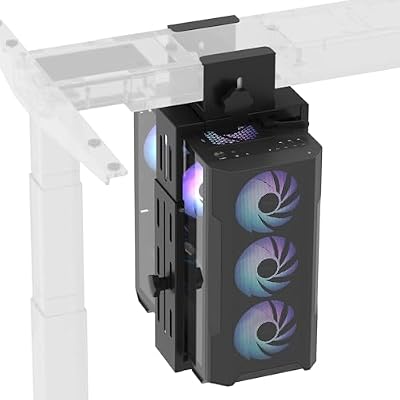
FLEXISPOT Computer Tower Stand, PC Stand up to 44lbs, CPU Holder Adjustable Height and Width Fits Mid-Tower and Mini-Tower, For Dual-crossbeam
Included for 'How to Choose a Standing Desk with a CPU Holder' because the listing specifies PC Stand up to 44lbs and For Dual-crossbeam, details this guide uses to compare options.
View on Amazon
Cabte PC Mount Under Desk, Clamp On CPU Holder for Standing Desk
Included for 'How to Choose a Standing Desk with a CPU Holder' because the listing specifies Clamp On CPU Holder for Standing Desk, details this guide uses to compare options.
View on Amazon
JOY worker Under Desk PC Mount for Standing Desk, Clamp-On Leg CPU Holder
Included for 'How to Choose a Standing Desk with a CPU Holder' because the listing specifies Clamp-On Leg CPU Holder, details this guide uses to compare options.
View on Amazon
Mount-It! Heavy Duty Under Desk PC Mount for Standing Desk, No-Drill, 66 lb
Included for 'How to Choose a Standing Desk with a CPU Holder' because the listing specifies No-Drill and 66 lb, details this guide uses to compare options.
View on AmazonCompare those measurements with the holder’s stated minimum and maximum dimensions, and check its weight limit. A holder described as adjustable may still be too narrow, too shallow, or too light-duty for a large gaming or workstation tower. Leave a practical margin rather than buying at the holder’s exact limit: the computer’s weight is not always distributed evenly, and repeated movement places stress on the mount and its fasteners.
| What to check | How to assess it | Example decision point |
|---|---|---|
| Tower size | Measure the widest and deepest points, including protruding feet | A 9-inch-wide case needs a holder whose internal width exceeds 9 inches |
| Tower weight | Weigh the complete tower, then compare it with the holder’s rated capacity | For a 35 lb tower, prefer a holder rated above 35 lb, not one rated exactly at the limit |
| Mounting surface | Check desktop thickness, underside clearance, and any frame rails | A clamp must open far enough for the top and fit without hitting a crossbar |
| Moving clearance | Check the tower’s path at both sitting and standing heights | Allow about 2 inches between the tower and a wall or nearby furniture where practical |
| Cable reach | Measure from each device connection to the computer with the desk raised | Allow roughly 6–12 inches of extra slack beyond the shortest measured route |
These are planning figures, not substitutes for the dimensions and limits specified by the desk, holder, and computer makers. In particular, the 2-inch clearance is a useful starting point, not a universal airflow requirement.
Choose a mounting style that suits your desk and tower
See also: Best Monitor Under 300: Eight Listings Compared by Refresh Claims, Panel Type and Pixel Load • Best Adjustable Standing Desk Converters for Dual Monitors: Width, Weight and Fit Compared
Under-desk bracket or adjustable cradle
An under-desk holder suspends the tower from the desktop, usually in a cradle or between adjustable brackets. It keeps the computer off the floor and lets it travel with the work surface, which can help keep cables organized. The trade-off is that the mount, tower, and cables all move when you change desk height. Check that the bracket supports the tower’s orientation and does not block vents or connectors.
Before buying, look underneath the desk for frame rails, motors, control boxes, drawers, and crossbars. A holder that fits the tower may still collide with the desk frame. Also check the desktop maker’s rules: some surfaces or frames may not be suitable for drilling or clamping, and mounting hardware can affect warranty coverage.
Clamp-on holder
A clamp-on holder avoids drilling, which can suit renters or anyone who wants to reposition the computer later. Its fit depends on desktop thickness, edge shape, clamp opening, and clearance under the top. Make sure the clamp bears on a suitable part of the desktop rather than a thin edge, beveled lip, or unsupported overhang. Confirm it cannot interfere with a sit-stand frame as the desk travels.
Frame-mounted holder
A holder attached to the desk frame can work well when the desktop underside is crowded or drilling into the surface is undesirable. It must be compatible with the frame’s shape, rail spacing, and moving parts. Frame-mounted options may have fewer positioning choices, so map the computer’s location before ordering.
Freestanding floor holder
A separate stand avoids loading the desktop and can be a practical choice for a particularly heavy tower. However, the computer stays in place while the desk rises, so allow enough cable length for the full travel. The stand also occupies floor space and should not sit where a desk leg, chair, or footrest will hit it.
Match the holder to your room and working setup
| Your situation | What to favor | What to check before choosing |
|---|---|---|
| Small room or shared office | A compact under-desk or frame-mounted holder, if compatible | Measure chair clearance and the tower’s swing-free path; don’t sacrifice ventilation to save space |
| Heavy workstation tower | A sturdy mount with a capacity comfortably above the tower’s weight, or a floor stand | Desktop and frame load limits, attachment points, and stability when raised |
| Rental or frequently moved desk | A compatible clamp-on or frame-mounted holder | Clamp fit, surface protection, and whether the mount can be removed without damage |
| Children or pets nearby | A secure mount that keeps the case out of reach and cables managed | Fastener security, exposed cable loops, and access to fans or power buttons |
For scale, a 10 × 12 ft (120 sq ft) room can often accommodate a desk around 48–60 inches wide, but the tower holder, chair, and walking route still need separate floor-space checks. Measure the desk’s full footprint and leave room to pull the chair back and pass behind it. In a tight layout, an under-desk holder may free floor area; it is not a good fit if it forces the tower close to a wall or blocks your legs.
Check leg clearance and cable slack at both desk heights
Mount location matters as much as holder size. Sit at the desk and note where your knees, thighs, and feet move; then stand in your normal working position and check that the tower is not in the way. A tower hanging beside a seated user can interfere with knee or chair-arm clearance, especially if the desktop is shallow. Position it outside your usual leg zone, while keeping access to the power button and ports.
Next, trace every cable from the tower to its destination: monitor, power outlet, Ethernet connection, speakers, and USB devices. Raise the desk to its maximum working height and check that no cable is taut, caught on a frame rail, or pulled against a connector. Lower it fully and check that cables do not form loops where they can snag a chair or foot. A cable tray or flexible sleeve can help manage slack, but should not pin cables so tightly that the desk’s movement pulls them.
Assess stability with the tower installed
A standing desk can feel less steady at maximum height than at sitting height. The tower adds load to one part of the desk, and a suspended mount adds leverage beneath the top. Check the desk’s total load rating and whether it includes the desktop, monitors, accessories, and computer. Keep the tower close to a leg or frame support where the holder permits, rather than placing a heavy case at the far end of a wide, unsupported span.
After assembly, raise the desk gradually with the tower mounted and cables routed. Look for contact between the case, desk frame, wall, and nearby furniture. Listen for rubbing or cable strain, and check whether the desktop rocks more than expected. If the tower shifts in its cradle or the desk becomes noticeably less stable, lower the desk and reassess the mount position, fasteners, load, and leg level. Follow the desk and holder instructions for tightening and rechecking hardware; do not exceed either product’s load limits.
Buying checklist
- Measure and weigh the complete tower; verify the holder’s internal dimensions and rated capacity.
- Confirm the mounting style fits the desktop or frame and clears rails, motors, and control boxes.
- Preserve the computer’s ventilation openings and leave room to reach its ports and controls.
- Check knee, chair, wall, and furniture clearance with the desk both low and fully raised.
- Route cables with enough slack for full travel, without loops that can snag or connectors that bear tension.
- Consider total desk load and stability with the tower installed, especially at standing height.
The best standing desk with CPU holder is not simply the one with the largest advertised capacity. It is the combination whose mount securely fits your particular tower, suits the desk’s construction, and clears your legs and cables through the entire adjustment range.
Related Reviews & Guides




Expedition Antarctica Codes: Active List & Redeem
How to Get the Assassin Class in 99 Nights in the Forest