Last Updated: September 12, 2026


🛒 Best Price Today on Amazon
Prime members get fast, free shipping on everything above, plus member-only deals. New members get a 30-day free trial — cancel anytime.
As an Amazon Associate we earn from qualifying purchases at no extra cost to you.


![[Officially-Licensed App & Auto Focus]White Smart Mini Projector with WiFi and Bluetooth, XuanPad 4K Support Movie Projector, Portable Native 1080P Outdoor Projector with 360° Stand](https://m.media-amazon.com/images/I/51I8uy-U8bL._SL160_.jpg)

📄 In This Review
Quick Comparison
| Product | Brand | Price | Rating |
|---|---|---|---|
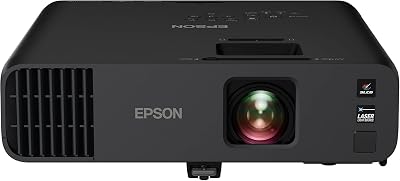
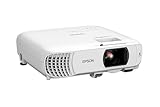
| Epson Pro EX9270 Wireless 1080p 3LCD Projector 4 | — | $949.99 | 4.4/5 |
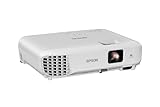
| Epson EX3290 3-Chip 3LCD WXGA Projector 4000 lumens for… | — | $649.99 | 4.2/5 |
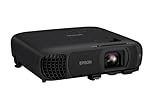
| Epson Pro EX11000 3-Chip 3LCD Full HD 1080p Wireless La… | — | $1499.99 | 4.7/5 |
Introduction
See also: Best ViewSonic Monitor: Six Listings Sorted by Job, From a Portable 16-Inch to a Curved 1440p Screen • Best AOC Monitor: Eight Listings Ranked by Price, Refresh Ceiling and Panel Type
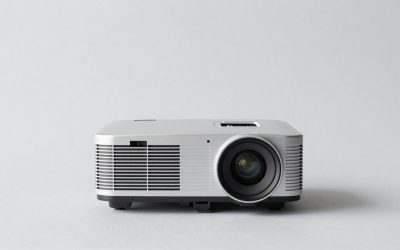
A projector for your home office can replace or supplement a traditional monitor with a much larger display — ideal for presentations, video calls with multiple participants, or simply creating an immersive work environment. Modern office projectors are compact, bright enough for daytime use with controlled lighting, and easy to set up without permanent installation. The right projector can also double as a home theater for after-hours entertainment.
What to Look For
- Brightness (Lumens): For home offices with windows or ambient light, look for 2,000 lumens or more. Darker rooms can get by with 1,500 lumens. LED projectors have lower peak brightness but longer lamp life and more consistent color over time.
- Resolution: 1080p Full HD is the minimum for office work where text clarity matters. 4K projectors are available but the cost-benefit is better realized on very large screens (100+ inches) than in typical home office distances.
- Connectivity: HDMI, USB-C, and wireless screen mirroring are essential for modern office use. Look for models with at least two HDMI ports if you plan to switch between a laptop and desktop source.
Top Picks
Epson Home Cinema 2250
The Epson HC2250 is a versatile 1080p 3LCD projector with 2,800 lumens of color brightness — enough to display clear, vivid images in most home office lighting conditions. Its 3LCD technology produces accurate, consistent colors without the rainbow effect common in DLP projectors. With dual HDMI inputs and easy keystoning adjustment, it sets up quickly for presentations or extended work sessions on large screens.
BenQ MW560 Business Projector
BenQ's MW560 is designed specifically for presentations and office use, offering 4,000 lumens of brightness that handles fully lit conference rooms and sunlit home offices with ease. Its WXGA resolution suits presentation content and spreadsheets perfectly, and the SmartEco mode extends lamp life to 15,000 hours for years of worry-free operation. Multiple connectivity options including MHL and USB presentation mode add versatility.
Anker Nebula Capsule II Portable Projector
The Anker Nebula Capsule II is a compact, portable smart projector the size of a soda can. Running Android TV 9.0 natively, it streams Netflix, YouTube, and any app without an external device. Its 200 ANSI lumens limits use to darker rooms, but the built-in battery and ultra-portable form make it perfect for flexible home office workers who want to project anywhere without a permanent setup.
Final Thoughts
A projector adds a dimension of flexibility and scale to your home office that no monitor can match. The BenQ MW560 is the top choice for offices with ambient light and presentation-heavy workflows. For portable needs or darkened spaces, the Anker Nebula Capsule II is a delight to use. Either way, going big screen elevates your home office experience considerably.
What to Look For in a Home Office Projector
A projector turns a blank wall into a giant second screen for presentations, spreadsheets, or a movie at the end of the day. Office use has different priorities than a home theater, so brightness and text clarity matter more than cinematic black levels. Use these criteria to find a projector that performs in a real working room.
- Brightness for the room: Higher lumen output is essential if you cannot fully darken the office. For a room with daytime light, aim for a brighter projector so text and slides stay readable.
- Native resolution: For documents and spreadsheets, sharp text matters most. A true 1080p native panel renders small fonts far more cleanly than a lower-resolution panel upscaling the image.
- Throw distance and ratio: Measure the distance from where the projector will sit to the wall, then confirm it produces your desired image size. Short-throw models fill a wall from close up in tight rooms.
- Keystone and lens shift: Vertical and horizontal keystone correction lets you square the image when the projector cannot sit perfectly centered. Lens shift preserves image quality better than digital keystone.
- Connectivity: HDMI for your laptop is the minimum; USB-C, wireless casting, and built-in streaming add flexibility for quick presentations.
- Fan noise and lamp life: A quiet projector is easier to talk over during calls, and longer LED or laser light-source life means fewer replacements.
Tips for Your Projector Setup
Mount or place the projector so its lens lines up with the center of your screen area, which minimizes the keystone correction you need and keeps the image crispest. Digital keystone fixes geometry but slightly softens the picture, so a well-positioned projector always looks sharper than one leaning on heavy correction.
Control ambient light wherever you can. Even an inexpensive blackout shade dramatically improves contrast and text legibility during daytime presentations. If you cannot darken the room, point the image at the wall that faces away from your windows so light hits the screen at a glancing angle rather than washing it out.
Calibrate once for work and save a separate picture mode for relaxed evening viewing. A bright, accurate mode keeps spreadsheets readable, while a warmer, dimmer profile is easier on the eyes for video at night. Switching presets takes seconds and spares you from squinting at over-bright slides.
Common Mistakes to Avoid
The most common mistake is underestimating how much room light kills a projected image. A projector that looks stunning in a dark review video can look washed out on a sunlit office wall. Always size brightness for your actual lighting conditions, not a best-case dark room.
The second mistake is ignoring throw distance before buying. People order a projector, set it up, and discover it either overshoots the wall or cannot fill it from where it has to sit. Measure your placement distance first and confirm it produces the screen size you want.
Frequently Asked Questions
Can I use a projector in a bright office?
Yes, but you need a brighter model and ideally some light control. In a room you cannot darken, prioritize high lumen output and aim the image at a wall away from direct window light for the most readable picture.
Is a projector good for reading text and spreadsheets?
It can be, if you choose a true 1080p or higher native resolution. Sharp panels render small fonts cleanly; lower-resolution projectors make dense spreadsheets harder to read at a distance.
How far should the projector sit from the wall?
That depends on its throw ratio and your desired image size. Check the manufacturer’s throw chart, or pick a short-throw model if your office is small and the projector must sit close to the wall.
Do I need a special screen, or will a wall work?
A smooth, light-colored wall works fine for everyday office use. A dedicated screen improves brightness and contrast, but a clean matte wall is perfectly serviceable for presentations and casual viewing.
Related Reviews & Guides

Best Cable Management System in 2026: What to Know Before You Buy

6 Best LED Desk Task Lights