Last Updated: October 9, 2026
- Quick Comparison
- Top Picks at a Glance
- USB-C Hub vs. Thunderbolt Dock vs. USB-C Dock: What’s the Difference
- How to Check Your Laptop’s USB-C Port Capability
- Power Delivery Passthrough: What the Wattage Numbers Mean
- Heat and Thermal Throttling: The Hidden Hub Problem
- Port Checklist: What You Actually Need
- FAQ: USB-C Multiport Hubs
- About the Author
- Frequently Asked Questions
- Related Articles




USB-C Hub Multiport for Laptop: How to Choose the Right One and Stop Buying the Wrong One
Quick Answer / TL;DR
A USB-C hub multiport for your laptop (ASIN: B09TXLVZS5) converts a single USB-C port into multiple connections — USB-A, HDMI, SD card, Ethernet, and more — without losing charging passthrough. The single most important spec most buyers miss: whether the hub supports DisplayPort Alt Mode (for video output) or Thunderbolt passthrough for your specific laptop. Match the hub to your laptop’s USB-C controller, not just the port shape.
The USB-C hub market is flooded with nearly identical-looking products at wildly different performance tiers. A $15 hub and a $90 hub can look the same on Amazon — the difference only shows up when you plug in a 4K monitor, charge at full speed, or try to run two displays simultaneously.
As an Amazon Associate we earn from qualifying purchases at no extra cost to you.


This guide cuts through the spec confusion, explains what actually matters, and helps you match a hub to your laptop and workflow rather than buying by price alone.
🛒 Best Price Today on Amazon
Prime members get fast, free shipping on everything above, plus member-only deals. New members get a 30-day free trial — cancel anytime.
📄 In This Review
- Quick Comparison
- Top Picks at a Glance
- USB-C Hub vs. Thunderbolt Dock vs. USB-C Dock: What’s the Difference
- How to Check Your Laptop’s USB-C Port Capability
- Power Delivery Passthrough: What the Wattage Numbers Mean
- Heat and Thermal Throttling: The Hidden Hub Problem
- Port Checklist: What You Actually Need
- FAQ: USB-C Multiport Hubs
- About the Author
- Frequently Asked Questions
- Related Articles
Quick Comparison
| Product | Brand | Price | Rating |
|---|---|---|---|
| UGREEN USB C Hub 5 in 1 Multiport USB Adapter 4K HDMI | — | $12.72 | 4.6/5 |
| Anker USB C Hub | — | $19.99 | 4.4/5 |
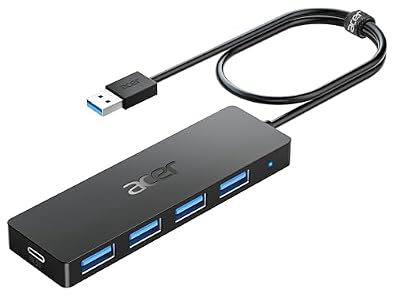
| Acer USB Hub 4 Ports | — | $11.99 | 4.7/5 |
| USB C Docking Station Dual Monitor Adapter | SeloreS-Global | $39.99 | 4.6/5 |
| Acer USB C Hub | — | $19.99 | 4.6/5 |
Top Picks at a Glance
See also: Good Height for a Desk: Seated and Standing Numbers by Body Height • Best Desks for Posture: Height, Depth and Sit-Stand Options
USB-C Hub vs. Thunderbolt Dock vs. USB-C Dock: What’s the Difference
These terms are used interchangeably in marketing but refer to meaningfully different products:
| Type | Max Bandwidth | Video Output | Host Requirement | Price Range |
|---|---|---|---|---|
| USB-C hub (USB 3.2) | 10 Gbps total shared | Single 4K/60Hz via HDMI | Any USB-C port | $15–$70 |
| USB-C dock (USB4) | 20–40 Gbps total | Single or dual 4K | USB4 or TB3/4 port | $60–$150 |
| Thunderbolt 3/4 dock | 40 Gbps dedicated | Dual 4K/60Hz or single 8K | Thunderbolt 3 or 4 port | $100–$300 |
Key insight: A Thunderbolt dock plugged into a non-Thunderbolt USB-C port will function but fall back to USB 3.2 speeds. You’re paying for Thunderbolt capability that you can’t use. Match the dock tier to your laptop’s actual port spec.
How to Check Your Laptop’s USB-C Port Capability
Port shape is not spec. Two USB-C ports can look identical and have completely different capabilities. Here’s how to check:
- Mac (Apple Silicon or Intel): Apple menu → About This Mac → System Report → USB. Thunderbolt ports are labeled. All MagSafe-era MacBooks have Thunderbolt 3 or 4.
- Windows laptop: Device Manager → Universal Serial Bus Controllers. Look for “Thunderbolt” entries. Alternatively, check the laptop’s spec sheet on the manufacturer’s site.
- Physical indicators: A lightning bolt icon next to the port = Thunderbolt. “SS” = SuperSpeed USB 3.x. No icon on a USB-C port typically = USB 3.2 Gen 1 (5 Gbps only).
If your laptop only has USB 3.2 Gen 1 USB-C ports, a $30 hub delivers essentially the same real-world performance as a $120 hub for most tasks. The expensive hub’s extra bandwidth headroom goes unused.
Power Delivery Passthrough: What the Wattage Numbers Mean
Most USB-C hubs advertise “100W PD passthrough” — but the passthrough wattage to the laptop is the hub’s rated input minus the hub’s own power draw (typically 5–15W).
- 85–100W advertised: ~70–85W actual delivery to laptop. Sufficient for most 13″–15″ laptops charging at 65–96W.
- 60W advertised: ~45–55W to laptop. Fine for ultrabooks but may cause battery drain under load on 15″+ laptops.
- 45W or lower: Will charge most phones and tablets. Insufficient for any serious laptop use.
Check your laptop’s original charger wattage — that’s the minimum you want the hub to deliver. For a MacBook Pro 14″ that originally ships with a 67W or 96W charger, a 100W PD passthrough hub ensures you’re not running on declining battery during heavy use.
Heat and Thermal Throttling: The Hidden Hub Problem
Budget USB-C hubs run hot. A hub managing simultaneous 4K video output, USB-A data transfers, and 85W charging through a single USB-C connection is processing significant power. Cheap hubs throttle data speeds as they heat up — a phenomenon most users notice as intermittent disconnections, stuttering video output, or slow file transfers that start fast and slow dramatically.
- Aluminum body hubs: Far better thermal dissipation than plastic. Worth the slight price premium if you run the hub at heavy simultaneous load.
- Chip quality matters: Hubs based on VIA Labs, Realtek, or Genesys Logic chips tend to run cooler and more stably than unbranded chipsets.
- Positioning: Keep the hub in open air, not buried under papers or inside a drawer — passive cooling needs airflow.
If you’re building a cleaner desk, consider routing the hub cable and hub body itself to an under-desk position. Pair with a magnetic cable organizer to keep the hub’s cable managed and accessible without cluttering the desk surface.
Port Checklist: What You Actually Need
Before buying, list your actual peripherals rather than picking a hub with the most ports:
- External monitor: Need HDMI or DisplayPort. Note required resolution — HDMI 2.0 for 4K/60Hz, HDMI 1.4 for 4K/30Hz only.
- Ethernet: If you use wired networking — many modern laptops omit the port entirely.
- USB-A devices: Count your mice, keyboards, external drives, USB dongles. Three USB-A ports covers most setups.
- SD / microSD: Relevant for photographers and videographers. Verify the card reader speed rating — cheap hubs use USB 2.0-speed readers (25 MB/s) rather than USB 3.0 (104 MB/s).
- 3.5mm audio: Useful if your laptop omitted the headphone jack.
- Second monitor: Requires Thunderbolt or USB4 host — confirm first.
For a full dual-monitor home office setup, see our guide to portable monitors and laptop second screens to understand display configuration requirements before buying your hub.
FAQ: USB-C Multiport Hubs
Why does my hub show 4K but only run 4K/30Hz instead of 60Hz?
This is a bandwidth limitation at the hub or host level. 4K/60Hz via HDMI 2.0 requires 18 Gbps. If the hub’s HDMI port is spec’d at HDMI 1.4, it’s physically limited to 4K/30Hz regardless of the monitor or cable. The fix: verify the hub’s HDMI version in the spec sheet (not the product title). A hub with “4K support” may mean 4K/30Hz — HDMI 2.0 for 4K/60Hz should be explicitly listed.
Can I use two monitors with a USB-C hub?
Only if your laptop has a Thunderbolt 3 or 4 port (or USB4 with DisplayPort 2.0). Standard USB 3.2 USB-C ports support a single video output. To run dual monitors, you need a Thunderbolt dock and a laptop that supports MST (Multi-Stream Transport). Macs with Apple Silicon are an exception — they support only one external display per Thunderbolt port without display driver workarounds (M1/M2) or natively (M1 Pro/Max and later support multiple displays).
Will a USB-C hub charge my laptop while in use?
Yes, if the hub has USB-C Power Delivery passthrough and you connect your original charger (or a compatible USB-C charger) to the hub’s PD port. The hub’s own power draw reduces the charge rate slightly. If you’re gaming or running CPU-intensive tasks, check that the hub’s passthrough wattage matches your laptop’s charging requirement — insufficient wattage means the battery drains slowly even while “charging.”
Do USB-C hubs work with iPads and Android tablets?
Yes, with limitations. USB-C hubs connected to iPads (USB4-capable iPad Pro/Air) support HDMI output, USB-A accessories, SD cards, and Ethernet. Older iPads and Android devices with USB 3.2 ports support most accessories but may have limited video output. Samsung DeX on compatible Galaxy devices supports full desktop mode through a USB-C hub. Check your specific tablet’s USB-C spec — “USB-C” on a budget Android tablet may be USB 2.0 only, which severely limits hub functionality.
Is it safe to leave a USB-C hub plugged in all day?
Yes, for quality hubs with proper thermal design. Aluminum-body hubs from reputable manufacturers handle sustained all-day use without issue. Cheap plastic hubs that run hot under load are the ones to watch — if a hub is uncomfortably warm to the touch after 2–3 hours, that’s a sign of poor thermal management and a potential long-term reliability concern. The safe threshold is warm but not hot — roughly under 50°C (122°F) surface temperature during heavy use.
Frequently Asked Questions
Will a USB-C hub charge my laptop while connected?
Only if it supports Power Delivery pass-through and you plug your own charger into the hub PD port. Expect the hub to consume 10 to 20 watts, so a 100W charger delivers roughly 85W to the laptop. Match your charger to the laptop requirement rather than the hub headline number.
How many monitors can a hub actually drive?
It depends on the laptop, not just the hub. Macs with base M-series chips support one external display over USB-C regardless of how many ports the hub has. Windows laptops with DisplayPort Alt Mode plus Multi-Stream Transport can drive two. DisplayLink hubs work around the limit using a driver and some CPU overhead.
What resolution and refresh rate should I expect over HDMI?
Many inexpensive hubs cap HDMI at 4K 30Hz, which feels laggy for cursor movement. Look for explicit 4K 60Hz support, which requires HDMI 2.0 or a DisplayPort 1.4 output. If you run a 1440p high-refresh monitor, confirm the hub lists that mode rather than assuming it scales from the 4K figure.
Do hubs run hot and does that matter?
Aluminum-shell hubs get warm to the touch under load, which is normal, since the metal is acting as the heatsink. Plastic hubs that get uncomfortably hot may throttle or drop devices. Keep the hub on the open desk rather than buried inside a cable box, and avoid stacking it under the laptop.
How does a hub affect desk cable management and warranty?
A hub consolidates monitor, ethernet, drives and charging into one laptop cable, which is its main desk benefit; route the peripheral cables to the rear and mount the hub under the desk or behind the monitor. Warranties typically run one to two years, with reputable brands covering connector and controller failures.
Related Reviews & Guides




Ergonomic Chair Office 2026
Best Webcams for Video Conferencing in 2026: Compared and Ranked