Last Updated: September 27, 2026
A docking station turns a laptop into a full desktop workstation with one cable: power, monitors, Ethernet, USB peripherals and audio all connect at once. Choosing one is harder than it should be, because docks that look similar can differ enormously in display support, charging power, bandwidth and compatibility with Macs versus Windows laptops. This overview explains how we assess docks, summarises the main categories and highlights well-known models, so you can find the right dock before reading individual reviews.
📄 In This Review
How we evaluate docking stations
Display support
We look at how many external displays a dock supports, at what resolution and refresh rate, and on which platforms. This is the most common source of disappointment. For example, Apple’s base M1 and M2 chips support only one external display natively, regardless of the dock, unless the dock uses DisplayLink.

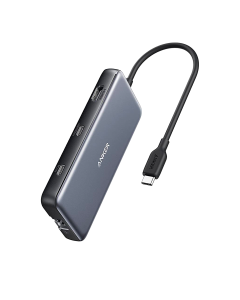
Anker Laptop Docking Station Dual Monitor, 8-in-1 USB C Hub with 4K HDMI
Included for 'Docking station reviews' because the listing specifies 8-in-1 USB C Hub with 4K HDMI, details this guide uses to compare options.
View on AmazonHost charging
Laptops need enough wattage to charge under load. Thin laptops may be fine with 60W; large performance laptops can want 100W or more. Some docks deliver more power to their own brand’s laptops.
Ports and bandwidth
We count ports but also consider their speed: 10Gbps USB versus 5Gbps, 2.5GbE versus Gigabit Ethernet, UHS-II versus UHS-I card readers and the number of downstream Thunderbolt ports.
Reliability and firmware
Wake-from-sleep behaviour, display reconnection and firmware update tools matter over months of use.
Docking station categories
See also: Best Reclining Chairs: Nine Recliner Listings Compared by Mechanism, Fabric and Space Needs • Best Roku Streaming Deals Reviewed
| Category | Typical bandwidth | Displays | Typical price tier | Best for |
|---|---|---|---|---|
| USB-C hub (bus-powered) | 5-10 Gbps | 1 (sometimes 2 via MST) | $30-$100 | Travel, light desk use |
| USB-C dock (powered) | 10 Gbps | 1-2, more with DisplayLink | $100-$250 | Mixed fleets, Windows laptops |
| Thunderbolt 4 / USB4 dock | 40 Gbps | 2 x 4K60 typical | $200-$400 | Pro users, Macs and Windows |
| Thunderbolt 5 dock | 80 Gbps (120 boost) | Up to 3 x 4K144 on TB5 hosts | $350-$450+ | High-refresh multi-monitor, future-proofing |
Well-known models we cover
Thunderbolt docks
The CalDigit TS4 is known for its large port count, 98W host charging and 2.5GbE. The Dell WD22TB4 is a modular Thunderbolt 4 dock that can deliver 130W to supported Dell laptops and 90W to others. The Belkin Connect Pro Thunderbolt 4 Dock offers two HDMI outputs and 90W charging. The StarTech TB4CDOCK offers three downstream Thunderbolt 4 ports with 96W charging. OWC’s Thunderbolt Go Dock integrates the power supply into the dock itself. Kensington’s SD5000T5 EQ is one of the first Thunderbolt 5 docks, with 140W host charging.
USB-C docks and hubs
Plugable’s UD-ULTC4K uses DisplayLink to drive three 4K displays, even from base Apple silicon Macs. Satechi’s Dual Dock Stand sits under a MacBook and plugs into two USB-C ports. The HyperDrive Next 10-Port hub and UGREEN’s Revodok Pro range cover compact, affordable multiport needs.
Specifications change with revisions, so always check each manufacturer’s current spec sheet.
How to choose
Start with your laptop: which port does it have (Thunderbolt 3/4/5, USB4 or plain USB-C), how many external displays does it support natively and how much power does it need? Then list your displays and their connectors, and the peripherals you plan to connect. Match those needs to a category above, then compare individual models.
It is also worth thinking about where the dock will sit. Front-facing ports suit docks on the desktop; docks mounted under the desk need ports that are easy to reach or a short extension. If you share a desk with colleagues who use different laptops, a dock that handles both Thunderbolt and plain USB-C hosts gracefully saves frustration.
Common buying mistakes we see
The most frequent mistake is buying a dock for its port count without checking display support on the specific laptop. The second is assuming the charging figure on the box is what every laptop will receive; some docks give their own brand more power, and laptops that need over 100W require USB PD 3.1 support. A third is ignoring the cable. Replacing the supplied Thunderbolt cable with a longer, uncertified one is a common cause of flickering monitors and dropped connections. Finally, many buyers overlook firmware. Docks from established brands release updates that fix wake-from-sleep and display issues, so check for an update the day you set the dock up.
FAQ
Do I need a Thunderbolt dock or is USB-C enough?
If you only need one display and basic peripherals, a USB-C dock or hub is enough. For two high-resolution displays, fast storage and full charging, Thunderbolt or USB4 is the safer choice.
Why does my Mac only show one monitor through a dock?
Base M1 and M2 Macs support one external display natively. Some newer base chips support more in specific configurations. A DisplayLink dock can add displays beyond the native limit.
Bottom line
The best docking station depends on your laptop’s port, its display limits and how many screens and peripherals you use. Use this overview to pick a category, then read our individual reviews and check each model’s current spec sheet before buying.
Related Reviews & Guides


Anker 555 USB-C hub
Cable clips vs cable sleeves which is better