Last Updated: September 26, 2026
Google Meet runs in a browser, on Chromebooks, on Macs and on Windows PCs, so the best webcam for Meet is one that works well across all of them without special drivers. Meet also leans on browser-based processing for background blur, lighting adjustment and noise cancellation, which rewards cameras that deliver a clean, well-exposed image in the first place. This guide covers how Meet treats video, what to prioritise, and webcams that suit Meet users on each platform.
📄 In This Review
How Google Meet handles video
Meet typically sends 720p video, and can send 1080p on some paid Google Workspace plans on desktop when the setting is enabled and bandwidth allows. It adjusts quality based on connection and the number of participants. Because Meet processes effects such as background blur and “Adjust video lighting” in the browser, a webcam that already gets exposure and focus right leaves the browser less to fix, which saves CPU and looks more natural, especially on Chromebooks with modest processors.
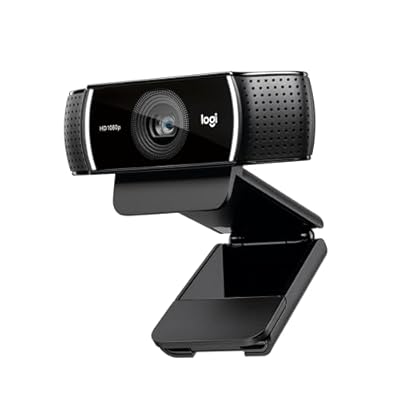
Logitech C922x HD Pro PC Webcam, Full HD 1080p/30fps or 720p/60fps Video, HD Light Correction, Works with Microsoft Teams, Google Meet, Zoom, Nintendo Switch 2’s new GameChat mode, Mac/Tablet- Black
Included for 'Best webcam for Google Meet' because the listing specifies Full HD 1080p/30fps or 720p/60fps Video and HD Light Correction, details this guide uses to compare options.
View on AmazonWhat to prioritise for Meet
See also: Best Reclining Chairs: Nine Recliner Listings Compared by Mechanism, Fabric and Space Needs • Best Roku Streaming Deals Reviewed
Plug-and-play UVC support
Chromebooks cannot install most webcam utilities. A webcam that looks good with its default settings matters more than one that needs software to shine. Standard UVC webcams from Logitech, Anker, Microsoft and others work on ChromeOS, macOS and Windows.
On-camera processing
Webcams with built-in HDR, low-light correction or auto-framing do the work in the camera, reducing browser load. That is particularly helpful on Chromebooks.
Certified for Google Meet
Google runs a certification programme for Meet peripherals and publishes a list of certified devices. Certification is optional for individuals but useful for organisations standardising on Google Workspace. Check Google’s current list for the latest webcams.
Webcams that suit Meet users
| Webcam | Output | Why it suits Meet | Typical price tier |
|---|---|---|---|
| Logitech C920s | 1080p30 | Universal compatibility, good default image, shutter | $50-$70 |
| Logitech Brio 500 series | 1080p30 | RightLight 4, auto-framing in camera, privacy shutter | $100-$130 |
| Anker PowerConf C200 | 2K30 | Sharp image, noise-cancelling mics, budget price | $50-$60 |
| Anker PowerConf C300 | 1080p60 | AI framing, HDR, wide 115-degree option | $80-$130 |
| Opal Tadpole | 1080p30 | Large sensor, pocketable for laptop users | $130-$175 |
Choosing by platform
Chromebook users
Choose a webcam that looks good out of the box, such as the Logitech C920s or Brio 500 series, because you cannot rely on companion apps. Keep effects like background blur modest to preserve battery and performance.
Mac users
Meet in Chrome or Safari uses macOS camera controls. The Opal Tadpole and Logitech webcams offer Mac-friendly software for fine-tuning.
Windows users
Any of the above work; companion apps for Logitech and Anker unlock exposure, field of view and firmware updates.
Meet settings to check
- In Meet, open Settings, Video, and select your webcam and send resolution.
- Try “Adjust video lighting” only if your room is dim; it can add noise.
- Give the browser camera permission and close other tabs using the camera.
- Use Chrome’s hardware acceleration setting to reduce CPU load from effects.
Chromebook performance tips
Many Meet users are on Chromebooks, where camera processing competes with the browser for a modest CPU. Keep the webcam at 1080p30 rather than 4K, avoid stacking background blur with “Adjust video lighting,” and close other video tabs. If calls stutter, turning off background effects often restores smooth video instantly. A webcam with built-in HDR and auto-framing, like the Logitech Brio 500 series, does that work on the camera instead of the Chromebook, which is the main reason it suits ChromeOS so well.
Budget guide for Meet users
Under $60, the Anker PowerConf C200 and Logitech C920s cover most Meet calls well. From $80-$130, the Anker C300 and Logitech Brio 500 series add framing and better exposure. Laptop users who travel should consider the Opal Tadpole, which fits in a pocket.
FAQ
Why does my webcam look worse in Meet than in the camera app?
Meet compresses video and may send 720p or lower to save bandwidth. Browser-based effects also soften edges. A stable wired connection and fewer effects help Meet keep more detail.
Do I need a certified webcam for Google Meet?
No. Standard USB webcams work in Meet. Certification helps organisations standardise and support hardware at scale.
Bottom line
For Google Meet, choose a plug-and-play webcam that looks good with default settings and does processing in the camera: the Logitech C920s or Anker C200 on a budget, the Logitech Brio 500 series or Anker C300 for auto-framing, and the Opal Tadpole for laptop users on the move.
Related Reviews & Guides

Best Ergonomic Office Chair for Finance Professionals
Rocelco Height Adjustable Desk Review