Last Updated: September 29, 2026
- 1. Fix Monitor Distance and Height First
- 2. Match Screen Brightness to Ambient Light
- 3. Increase Text Scaling Instead of Leaning In
- 4. Use the 20-20-20 Rule Correctly
- 5. Add Bias Lighting to Reduce Contrast Strain
- 6. Blue Light Filters: What Actually Helps
- 7. When to See an Eye Doctor
- Quick Fix Checklist for Today
The best ways to reduce eye strain from screens are to place your monitor 20 to 30 inches from your eyes with the top bezel at or just below eye level, match screen brightness to the ambient light in the room, increase text scaling so you are not squinting, add bias lighting behind the display, and follow the 20-20-20 rule consistently. These desk setup fixes address the most common causes of digital eye strain without buying expensive specialty eyewear or supplements.
📄 In This Review
- 1. Fix Monitor Distance and Height First
- 2. Match Screen Brightness to Ambient Light
- 3. Increase Text Scaling Instead of Leaning In
- 4. Use the 20-20-20 Rule Correctly
- 5. Add Bias Lighting to Reduce Contrast Strain
- 6. Blue Light Filters: What Actually Helps
- 7. When to See an Eye Doctor
- Quick Fix Checklist for Today
1. Fix Monitor Distance and Height First
Distance and height have a bigger impact than any filter or glasses. Too close forces your eye muscles to work harder to focus, too high forces you to open your eyes wider which dries them out.
The target position
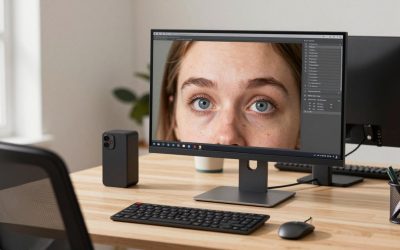
- Distance: Arm’s length is a good starting point. For most desks that is 20-30 inches (50-76 cm) from eyes to screen surface. Larger screens need more distance.
- Height: With your back against your chair, your eyes should align with the top third of the screen. You should be looking slightly downward at about 15 to 20 degrees below horizontal. This lets your eyelids cover more of the eye surface and reduces dryness.
- Angle: Tilt the monitor back 10 to 20 degrees so it is perpendicular to your line of sight. This keeps focus uniform from top to bottom and reduces glare.
- For dual monitors: Place your primary monitor directly in front of you and the secondary at the same distance and height, angled in. Avoid turning your neck more than 35 degrees for long periods.
| Screen Size (16:9) | Recommended Viewing Distance | Top of Screen vs. Eyes | Why This Distance |
|---|---|---|---|
| 24-inch (1080p / 1440p) | 20 – 24 inches (50 – 60 cm) | 0 to 1 inch below eye level | Prevents eye convergence strain at this pixel density |
| 27-inch (1440p / 4K) | 24 – 28 inches (60 – 71 cm) | 0 to 2 inches below eye level | Keeps full screen within comfortable eye rotation of ~30 degrees |
| 32-inch (4K) | 28 – 33 inches (71 – 84 cm) | 1 to 3 inches below eye level | Requires greater distance so you do not need constant head movement |
| 34-inch Ultrawide | 26 – 32 inches (66 – 81 cm) | 0 to 2 inches below eye level | Curved models can be 2 inches closer than flat |
| 14-16 inch Laptop | 18 – 22 inches (45 – 56 cm) | On riser + external keyboard | Laptop screen alone is too low and too close for 6+ hour use |
Worked check for text legibility: A good rule is that text should subtend at least 16-22 arcminutes of your visual field to be read without squinting. At 24 inches viewing distance, 12pt text (about 0.16 inches high on a 27-inch 1440p display at 100% scaling) creates roughly 23 arcminutes, which is comfortable. If you move that same display to 32 inches without increasing scaling, that same 12pt text drops to about 17 arcminutes and becomes harder to sustain. Instead of leaning in, increase scaling to 125% or 150% to bring the visual angle back up. This is why scaling, not distance alone, fixes squinting.
2. Match Screen Brightness to Ambient Light
See also: Best ViewSonic Monitor: Six Listings Sorted by Job, From a Portable 16-Inch to a Curved 1440p Screen • Best AOC Monitor: Eight Listings Ranked by Price, Refresh Ceiling and Panel Type
Mismatch between a bright screen in a dim room or a dim screen in a bright room is the most common cause of eye fatigue and headaches. Your monitor should not be the light source for the room.
Concrete settings to start from
- Measure your room first: In a typical home office with overhead lights on during the day, ambient illumination is 300-500 lux. In the evening with a desk lamp only, it is often 100-150 lux.
- Set monitor brightness to blend in: Display a white webpage and hold a sheet of white paper next to it. If the screen is the obvious, glowing source, it is too bright. If the paper looks much brighter than the screen, the screen is too dim. Adjust until they look similar.
- Use these baseline values as starting points, then fine-tune with the paper test: For bright rooms (300-500 lux) try 120-180 nits brightness, which is typically 60-80% on most 250-400 nit monitors. For dim evening rooms (100-150 lux) try 60-90 nits, which is typically 25-40% brightness. For dark rooms you should add light rather than dropping below 50 nits, where contrast suffers.
- Keep contrast at 65-75% and do not use dynamic contrast. Set color temperature to 6500K during the day and use your operating system’s night light to warm to 4500K-5000K in the evening if you prefer, but do not rely on extreme orange shifts to fix brightness mismatch.
- Eliminate glare: No window or overhead light should be reflected in the screen. Position the desk perpendicular to windows and use a matte screen protector or reposition a lamp if you see reflections. A glare source forces your pupils to constantly adapt.
3. Increase Text Scaling Instead of Leaning In
Small text is not a badge of productivity. If you lean forward to read, your neck, shoulders, and eye focusing system all fatigue.
- Windows 11 / 10: Settings > System > Display > Scale. For 24-inch 1080p use 100%, for 27-inch 1440p use 125%, for 27-32 inch 4K use 150-175%. Then in your browser set default zoom to 110-125%.
- macOS: System Settings > Displays > Default or Scaled. Choose the “Larger Text” option rather than maximum resolution. This renders at Retina sharpness with larger UI.
- Apps and browsers: Increase editor and document zoom independently. For code or spreadsheets, 13-14pt effective font size at your viewing distance is more sustainable than 10-11pt. Lines should be 60-75 characters before wrapping.
- Reasoning: Proper scaling increases the angular size of letters so your ciliary muscle does not need to hold maximum focus. It is the simplest fix for people who report strain after 30-45 minutes of reading.
4. Use the 20-20-20 Rule Correctly
The American Academy of Ophthalmology promotes the 20-20-20 rule for a reason: it breaks continuous close focusing and reminds you to blink fully.
- How to do it: Every 20 minutes, look at something at least 20 feet (6 meters) away for 20 seconds. Ideally, look out a window or down a hallway so focus is truly at distance, not just the wall 6 feet away.
- Make it stick: Set a silent timer or use built-in eye care reminders available in Windows, macOS, and most monitor OSDs. If 20 minutes is too frequent for deep work, a 50-10 or 45-15 pattern of distance breaks still helps if you maintain the distance focus.
- Blink deliberately: Screen use cuts blink rate from about 15 blinks per minute to 3-5. During each 20-second break, close your eyes for 2 seconds and blink 5-6 times fully. Partial blinks do not recoat the tear film.
- Add micro-breaks for dryness: If you work in air conditioning or low humidity, use artificial tears (preservative-free) before long sessions rather than waiting for burning. Aim to keep indoor humidity at 40-50%.
5. Add Bias Lighting to Reduce Contrast Strain
Bias lighting is a strip of diffused white light placed behind your monitor on the wall. It reduces the harsh contrast between a bright screen and a dark background, which lowers pupil strain and perceived flicker.
- What to use: A 6500K white LED light strip with a diffuser, usually $15 to $40 for a desk setup. Choose a model powered by USB that can be dimmed. Avoid RGB settings for work; the goal is neutral white.
- Placement: Center it on the back of the monitor, 1-2 inches from the edge, facing the wall. The glow should be even and wider than the monitor, not a bright spot. Wall distance of 8-24 inches is ideal for diffusion.
- Brightness target: The wall behind the monitor should be about 10-15% of the monitor’s peak brightness, or roughly 60-100 nits of reflected light. If the wall is too bright it becomes another glare source; if it is invisible it is not helping.
- Why it works: It raises ambient light without putting light in your eyes, so your iris does not need to swing between extremes when you look from the screen to the surrounding room. This is especially effective in the evening.
6. Blue Light Filters: What Actually Helps
Marketing overstates the risk of blue light from monitors. The amount of blue light from a desk monitor in 2026 is far below outdoor levels and there is no strong evidence it causes retinal damage at normal use. It can, however, affect comfort and sleep if you use screens late.
- For daytime comfort: Fix brightness, scaling, and glare first. A blue light filter will not correct those three. Night mode or a 6500K to 5500K shift can make white backgrounds less harsh if you are sensitive, but you do not need heavy orange filtering while working.
- For evening and sleep: Warm the display to 4500K-5000K 2-3 hours before bed and dim the room gradually. This reduces the alerting effect of bright, cool light more effectively than clear “blue blocking” glasses, which typically filter only 10-30% of blue.
- Glasses: If you use prescription glasses, a standard anti-reflective coating helps more for strain than a blue-filter coating by cutting reflections. Do not buy non-prescription blue blockers expecting them to fix headaches caused by poor ergonomics; the evidence does not support that trade-off.
- Flicker: On some older or budget LED monitors, low brightness settings with PWM dimming can create invisible flicker that contributes to strain. If you notice strain that improves at higher brightness, look for a spec class labeled flicker-free or DC dimming for your next monitor.
7. When to See an Eye Doctor
Setup fixes help most people within 2-3 days. Book an exam if any of the following persist after you have corrected distance, brightness, scaling, and breaks:
- Blurred vision that does not clear after blinking or that alternates between near and far focus
- Eye strain or headache that starts within 30 minutes of screen use and remains most days
- Frequent need to squint, tilt your head, or move closer even with 125-150% scaling
- Dry, burning, or watery eyes that are not relieved by breaks and artificial tears
- Double vision, persistent eye pain, or sudden changes in vision
- You are over 40 and have not had a presbyopia assessment; you may need dedicated computer-distance progressives or occupational lenses rather than standard readers
Bring your viewing distance and desk photos to the appointment. A doctor can prescribe the correct computer viewing distance power, which is usually weaker than reading glasses. If you wear contacts, ask about dryness management for 6-8 hour screen days.
Quick Fix Checklist for Today
| Symptom | Most Likely Cause | Fix First | Setting to Change |
|---|---|---|---|
| Eyes tire after 30-60 minutes | Too close / text too small | Move back + increase scaling | Scaling to 125-150%, distance +2 to 4 inches |
| Burning / dry eyes | Looking up, low blink rate, low humidity | Lower monitor + blink breaks | Top of screen at or below eyes, 20-20-20 + full blinks |
| Headache behind eyes in evening | Screen much brighter than room | Dim screen + add bias light | Brightness 30-40% + 6500K bias light on wall |
| Glare / squinting midday | Window or light reflected in screen | Reposition desk / light | Desk perpendicular to window, matte finish, no overhead reflection |
| Neck / shoulder pain with strain | Laptop too low | Raise screen + separate keyboard | Laptop riser to eye level + external keyboard/mouse |
Most eye strain comes from a combination of small ergonomic misses, not one bad setting. Make one change at a time, use it for a full workday, then adjust again. If your setup includes a 27-inch or larger 4K display, prioritize 150% scaling and a 28-inch viewing distance before you consider any accessory purchase. Your eyes will tell you quickly when the balance is right.
Related Reviews & Guides


3 Best Razer Mechanical Keyboards for Gaming and Work 2026

Quick Picks: Best Sit-Stand Desk Converters