Last Updated: September 27, 2026
Flip any docking station around and you will find a row of sockets that look similar but behave very differently. Two USB-C ports side by side can differ by a factor of eight in speed. An HDMI port may cap your 4K monitor at 30Hz while the DisplayPort next to it runs 60Hz. This guide goes port by port, explaining what each one is for, what the labels mean, and which ones matter when you are comparing docks.
📄 In This Review
The upstream (host) port
This is the single USB-C port that connects to your laptop, often marked with a laptop icon. Its standard sets the ceiling for the whole dock. A Thunderbolt 4 or USB4 40Gbps host link shares 40Gbps among everything; a USB-C 10Gbps link shares 10Gbps. It is also the port that delivers charging, so the dock’s power rating, usually 60-100W, applies here. Never plug the laptop into a downstream USB-C port by mistake; it will usually give you data only, with no video or charging.

Anker Laptop Docking Station Dual Monitor, 8-in-1 USB C Hub with 4K HDMI
Included for 'Docking station buying guide ports explained' because the listing specifies 8-in-1 USB C Hub with 4K HDMI, details this guide uses to compare options.
View on Amazon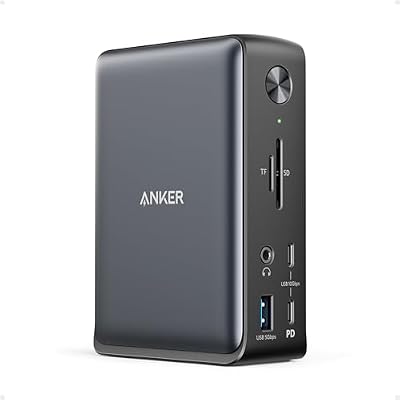
Anker Laptop Docking Station, 13-in-1 USB C Docking Station, Triple Display
Included for 'Docking station buying guide ports explained' because the listing specifies 13-in-1 USB C Docking Station and Triple Display, details this guide uses to compare options.
View on Amazon
Anker USB-C Hub, 11-in-1 Docking Station Dual Monitor with 4K HDMI and DP
Included for 'Docking station buying guide ports explained' because the listing specifies 11-in-1 Docking Station Dual Monitor with 4K HDMI and DP, details this guide uses to compare options.
View on AmazonDownstream USB ports
See also: Best Reclining Chairs: Nine Recliner Listings Compared by Mechanism, Fabric and Space Needs • Best Roku Streaming Deals Reviewed
USB-A
The familiar rectangular port. Labels such as USB 3.2 Gen 1 (5Gbps) and Gen 2 (10Gbps) indicate speed. USB 2.0 ports (480Mbps) are fine for keyboards, mice and wireless receivers and are often less prone to interference with 2.4GHz dongles. One port may be marked with a lightning or battery icon, meaning it charges devices even when the laptop is disconnected.
USB-C data
A downstream USB-C port may be data only, data plus a small charging budget, or a full Thunderbolt port. On Thunderbolt docks, look for “downstream Thunderbolt” ports; those run external NVMe drives at 2,500 MB/s-plus and can chain a Thunderbolt monitor or second dock.
Display outputs
HDMI
HDMI 1.4 handles 4K only at 30Hz. HDMI 2.0 handles 4K at 60Hz. HDMI 2.1 on newer docks can reach 4K at 120Hz or higher if the upstream link has the bandwidth. The version is often buried in the spec sheet, so check it if you have a 4K monitor.
DisplayPort
DisplayPort 1.4 supports 4K at up to 120Hz with compression and is the preferred output for high-refresh monitors. Two DisplayPort outputs on a dock usually indicate dual-monitor support via MST or Thunderbolt.
USB-C with video
Some docks route video through a downstream USB-C or Thunderbolt port, useful for USB-C monitors. The port icon, usually a DP logo or bolt, tells you it carries video.
Quick reference table
| Port label | Real-world speed or capability | Best used for |
|---|---|---|
| USB 2.0 | 480Mbps (~35-40 MB/s) | Keyboard, mouse, receiver dongles |
| USB 3.2 Gen 1 (5Gbps) | ~400 MB/s | Webcam, flash drive, HDD |
| USB 3.2 Gen 2 (10Gbps) | ~900-1,000 MB/s | SATA or NVMe SSD enclosures |
| Thunderbolt 4 / USB4 downstream | 40Gbps, ~2,500-2,800 MB/s storage | NVMe SSD, TB monitor, second dock |
| HDMI 2.0 | 4K 60Hz | Most monitors and TVs |
| DisplayPort 1.4 | 4K 120Hz (with DSC), 1440p 165Hz+ | High-refresh and pro monitors |
| Gigabit Ethernet | ~940Mbps usable | Stable calls and syncs |
| 2.5GbE | ~2.35Gbps usable | NAS and multi-gig internet |
| SD UHS-II | up to ~312 MB/s | Camera card offloads |
Other ports you will see
Ethernet
RJ45 gigabit Ethernet is standard on docks. Some premium docks, such as the CalDigit TS4, offer 2.5GbE, which only helps if your router, switch or NAS also supports multi-gig. Corporate users should look for MAC address pass-through if the network registers devices by address.
Audio
A combo 3.5mm headset jack handles headphones and a mic. Some docks add separate audio in and out or an optical output. Audio through a dock is typically fine for calls; audiophiles may prefer a dedicated DAC.
Card readers
SD and microSD readers come in UHS-I (up to 104 MB/s) and UHS-II (up to 312 MB/s) flavours. Photographers should insist on UHS-II.
DC power input
The barrel or proprietary connector for the dock’s power brick. Its wattage (for example 180W or 230W) must cover laptop charging plus all downstream devices.
Reading between the lines
Spec sheets often list maximum resolution for a single display and a lower maximum when two are connected. A dock might advertise 8K on one screen but only 4K 60Hz each on two. Check the multi-display table, not the headline number.
FAQ
Why does my dock have both USB-A and USB-C when USB-C is newer?
Most keyboards, mice, receivers and older drives still use USB-A, so docks include several. USB-C ports cover newer SSDs, phones and accessories. A balanced dock for most desks has three or four USB-A ports and one or two USB-C data ports.
Do all ports on a dock share bandwidth?
Yes. Every downstream device shares the upstream link. On a 40Gbps dock the sharing is rarely noticeable; on a 10Gbps hub, running a 4K display and a fast SSD simultaneously can slow both.
Bottom line
The upstream port sets the ceiling, display port versions set your monitor limits, and USB labels tell you which socket suits which device. Read those three things on any spec sheet and you can compare docks confidently, regardless of how the marketing describes the port count.
Related Reviews & Guides



Best Ergonomic Office Chair for Customer Support Agents

best ergonomic office chair for students