Last Updated: September 26, 2026
A video editing desk asks more of a docking station than any spreadsheet job ever will. You are pulling multi-gigabyte clips off SD cards, scrubbing timelines stored on external NVMe drives, driving one or two high-resolution reference displays and keeping a hungry laptop charged while it renders. A cheap USB-C hub that shares 10Gbps across everything turns that workflow into a stutter. This guide explains what an editing dock actually has to do, which dock classes handle it, and how to avoid paying for ports you will never touch.
📄 In This Review
What an editing workflow demands from a dock
Bandwidth for footage, not just for peripherals
A Thunderbolt 4 or USB4 40Gbps link gives you roughly 32Gbps for PCIe data, which is why an NVMe drive in a Thunderbolt enclosure reads at around 2,500-2,800 MB/s. A USB 3.2 Gen 2 port tops out near 1,000 MB/s in practice, and a Gen 1 port near 400 MB/s. If you edit 4K ProRes or 6K raw straight off an external drive, that drive belongs on a Thunderbolt downstream port on the dock, or directly on the laptop, never on a 5Gbps USB-A socket.
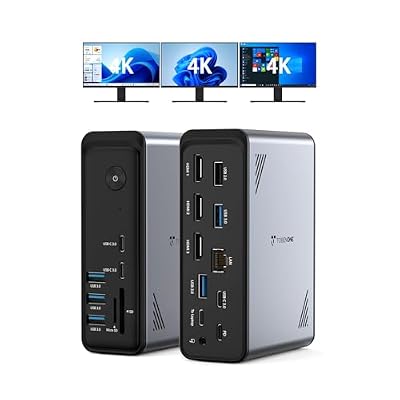
TobenONE 18 in 1 Laptop Docking Station 3 Monitors,Triple 4K HDMI,9 USB C/A
Included for 'Best docking station for video editing' because the listing specifies Triple 4K HDMI and 9 USB C/A, details this guide uses to compare options.
View on Amazon
Plugable USB C Triple Display Docking Station | 100W PD, 3X HDMI
Included for 'Best docking station for video editing' because the listing specifies 100W PD and 3X HDMI, details this guide uses to compare options.
View on Amazon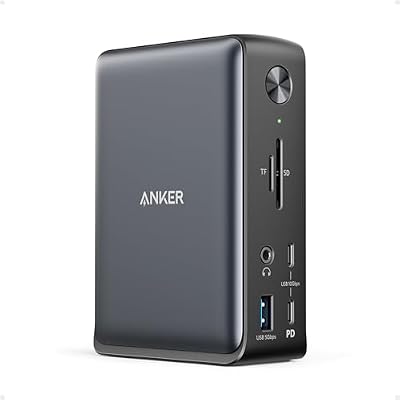
Anker Laptop Docking Station, 13-in-1 USB C Docking Station, Triple Display
Included for 'Best docking station for video editing' because the listing specifies 13-in-1 USB C Docking Station and Triple Display, details this guide uses to compare options.
View on Amazon
TobenONE DisplayLink Docking Station 4 Monitor 20-in-1 Quad 4K@60Hz Display
Included for 'Best docking station for video editing' as a relevant option in this category; details come from the product listing.
View on AmazonA proper card reader
Camera cards are where most editors start the day. Look for a UHS-II SD reader (up to about 312 MB/s) rather than a UHS-I reader capped near 104 MB/s. On a 256GB card that is the difference between a 15-minute offload and a 40-minute one. CFexpress readers are rarely built into docks, so plan on a separate reader if you shoot to CFexpress.
Display outputs that match your monitors
Editors often run a 4K or 5K UI display plus a second screen for scopes or a full-screen preview. Thunderbolt 4 docks can drive two 4K 60Hz displays on most Windows laptops and on Apple Pro/Max chips. Base Apple M1 and M2 chips support only one external display natively, which no Thunderbolt dock can change; the M3 and later base chips support two only with the lid closed on MacBook Air.
Charging headroom
Most Thunderbolt docks deliver 85-98W upstream. That keeps a 14-inch creator laptop at full charge, but a 16-inch machine under a sustained export can draw more than that and slowly dip into battery. Keep the original charger around for long renders if your laptop is rated above 100W.
Dock classes compared
See also: Best Reclining Chairs: Nine Recliner Listings Compared by Mechanism, Fabric and Space Needs • Best Roku Streaming Deals Reviewed
| Dock class | Host link | Typical downstream storage speed | Card reader | Typical price range |
|---|---|---|---|---|
| Basic USB-C hub | USB-C 10Gbps shared | ~400-900 MB/s | UHS-I, often | $25-$60 |
| USB-C dock (DisplayLink or Alt Mode) | USB-C 10-20Gbps | ~900 MB/s | Sometimes UHS-I | $100-$250 |
| Thunderbolt 4 / USB4 dock | 40Gbps | ~2,500-2,800 MB/s via TB port | UHS-II on better models | $230-$400 |
| Thunderbolt 5 dock | 80Gbps (120Gbps boost for video) | Higher with TB5 host and TB5 enclosure | UHS-II on better models | $350-$500+ |
Real docks worth shortlisting
CalDigit TS4
The TS4 is the Thunderbolt 4 dock editors most often recommend because it packs 18 ports into one box: three downstream Thunderbolt 4 ports, 98W host charging, 2.5 Gigabit Ethernet, and both SD and microSD UHS-II readers. The three downstream Thunderbolt ports are the key feature for editing; you can chain a fast NVMe enclosure, a Thunderbolt display and another dock-hungry device without falling back to USB speeds.
OWC Thunderbolt Dock
OWC’s Thunderbolt 4 dock is a smaller option with fewer ports, 90W-class charging and an SD card reader. It suits a laptop editor who mostly needs one fast drive, one display and card offloads. Check OWC’s current spec sheet for the exact reader standard and port count before buying, since OWC sells several similarly named docks.
Thunderbolt 5 docks
If your laptop has Thunderbolt 5 (recent Apple M4 Pro/Max MacBook Pro models and some high-end Windows workstations), docks such as the CalDigit TS5 Plus and Kensington SD5000T5 raise the ceiling to 80Gbps. The real-world payoff only appears if you also use a Thunderbolt 5 storage enclosure or multiple high-refresh 6K/8K displays. On a Thunderbolt 4 laptop, a TB5 dock runs at TB4 speeds.
Setting the dock up for editing
- Plug your scratch or media drive into a downstream Thunderbolt port and verify speed with a disk benchmark before trusting it with a project.
- Put the dock on a surge-protected outlet; a power blip during a render can corrupt cache files.
- Use the short, certified Thunderbolt cable that came with the dock. Long passive USB-C cables often negotiate down to 20Gbps or USB 2.0 speeds.
- Connect your main grading display to the dock’s Thunderbolt or DisplayPort output, not an HDMI 2.0 port, if you need 10-bit at 60Hz on a 5K or 6K panel.
FAQ
Can I edit directly from a drive connected through a dock?
Yes, if the drive is on a Thunderbolt downstream port. Thunderbolt docks tunnel PCIe, so an NVMe enclosure behaves nearly as if it were plugged into the laptop. On USB 10Gbps ports expect roughly a third of that speed, which is fine for 1080p and light 4K but sluggish for multi-cam 4K or raw.
Is a DisplayLink dock okay for video editing?
Not for your main preview monitor. DisplayLink compresses the video signal in software, which adds latency, uses CPU and can drop frames during playback. It is fine for a secondary screen holding bins or email, but keep timeline playback on a native display output.
Bottom line
For video editing, buy a Thunderbolt 4 or USB4 dock with at least one downstream Thunderbolt port, a UHS-II card reader and 90W+ charging; the CalDigit TS4 is the benchmark for that class. Step up to Thunderbolt 5 only when your laptop and your storage can both use it, and skip bargain USB-C hubs for anything beyond checking email on the road.
Related Reviews & Guides




best ergonomic office chair for programmers

Jarvis Standing Desk Review