Last Updated: October 13, 2026
- Top 3 Picks
- Quick Comparison
- How We Chose
- 1. OMOTON Bluetooth Tablet Keyboard – Best for any tablet that accepts Bluetooth
- 2. WirelessFinest Surface Pro Keyboard – Best for older 12.3 inch Surface Pro models
- 3. Bluetooth Keyboard for Surface Pro 11/10/9/8/X, Grey – Best for 13 inch Surface Pro models
- 4. TECURS Bluetooth Keyboard – Best for 12.3 inch Surface Pro 7 and earlier
- 5. Sooguard Surface Pro Keyboard – Best for a backlit 13 inch Surface Pro keyboard
- 6. HONGSAMDE 10.1 inch Windows 11 Tablet – Best for light work on a small 2-in-1
- 7. Dexnor Surface Pro Case Keyboard – Best for a protective keyboard case
- 8. Microsoft Surface Pro 11 Copilot+ Bundle, Black – Best for a complete flagship tablet
- 9. Microsoft Surface Pro 11 Bundle, Platinum – Best for the same tablet in a lighter finish
- How to Choose a Windows Tablet with a Keyboard
- Frequently Asked Questions
- Our Recommendation by Situation
The best Windows tablet with a keyboard in this group is the Microsoft Surface Pro 11 bundle that includes the Black Pro Keyboard and Slim Pen, because it is the only listing that gives you a complete, modern 13 inch Windows tablet, a keyboard cover and a pen in a single purchase. It runs on a Snapdragon X Plus processor with 16GB of memory, and Microsoft positions it as a Copilot+ PC with a high-resolution 120Hz touchscreen. If you want the lowest-effort way to get a small Windows 2-in-1 with a bundled keyboard, the HONGSAMDE 10.1 inch tablet fills that role, and if you already own a Surface Pro and just want a keyboard, the Sooguard and Dexnor covers are the closest fits. This guide sorts the nine listings into complete tablets, Surface keyboards and a universal Bluetooth keyboard, compares them in a table, and explains how to match tablet size, processor type and keyboard style to the way you work.
📄 In This Review
- Top 3 Picks
- Quick Comparison
- How We Chose
- 1. OMOTON Bluetooth Tablet Keyboard – Best for any tablet that accepts Bluetooth
- 2. WirelessFinest Surface Pro Keyboard – Best for older 12.3 inch Surface Pro models
- 3. Bluetooth Keyboard for Surface Pro 11/10/9/8/X, Grey – Best for 13 inch Surface Pro models
- 4. TECURS Bluetooth Keyboard – Best for 12.3 inch Surface Pro 7 and earlier
- 5. Sooguard Surface Pro Keyboard – Best for a backlit 13 inch Surface Pro keyboard
- 6. HONGSAMDE 10.1 inch Windows 11 Tablet – Best for light work on a small 2-in-1
- 7. Dexnor Surface Pro Case Keyboard – Best for a protective keyboard case
- 8. Microsoft Surface Pro 11 Copilot+ Bundle, Black – Best for a complete flagship tablet
- 9. Microsoft Surface Pro 11 Bundle, Platinum – Best for the same tablet in a lighter finish
- How to Choose a Windows Tablet with a Keyboard
- Frequently Asked Questions
- Our Recommendation by Situation
Top 3 Picks
Best overall: Microsoft Surface Pro 11 with Black Pro Keyboard and Slim Pen. The listing describes a 13 inch 2.8K touchscreen, a Snapdragon X Plus processor, 16GB of memory and a Copilot+ PC feature set. Microsoft’s own specifications describe a 120Hz display and Wi-Fi 7. It is the most capable device here for writing, spreadsheets, video calls and note-taking with the pen.

WirelessFinest Microsoft Surface Pro Keyboard 3/4/5/6/7/7+ Bluetooth
Included for 'Best Windows Tablet with Keyboard in 2026' as a relevant option in this category; details come from the product listing.
View on Amazon
Bluetooth Keyboard for Microsoft Surface Pro 11/10/9/8/X 13 Inch ONLY, Grey
Included for 'Best Windows Tablet with Keyboard in 2026' because the listing specifies Grey, details this guide uses to compare options.
View on Amazon
TECURS Bluetooth Keyboard for Microsoft Surface Pro 7/7+/6/5/4/3 12.3 inch
Included for 'Best Windows Tablet with Keyboard in 2026' as a relevant option in this category; details come from the product listing.
View on Amazon
Sooguard Microsoft Surface Pro Keyboard for 11/10/9/8/X, 13" Ultra-Thin Detachable Bluetooth Type Cover with 7-Color Backlit, Multi-Touch Trackpad & Pen Holder
Included for 'Best Windows Tablet with Keyboard in 2026' because the listing specifies Multi-Touch Trackpad & Pen Holder, details this guide uses to compare options.
View on Amazon
HONGSAMDE Windows 11 Tablet 10.1" Touchscreen, 8GB RAM 128GB SSD 2-in-1 PC
Included for 'Best Windows Tablet with Keyboard in 2026' because the listing specifies 8GB RAM 128GB SSD 2-in-1 PC, details this guide uses to compare options.
View on Amazon
Microsoft Surface Pro 11 Copilot PC Bundle, 13" 2.8K Touchscreen Tablet with Black Pro Keyboard & Slim Pen, Snapdragon X Plus, 16GB RAM, 256GB SSD, Win 11 Pro, Black
Included for 'Best Windows Tablet with Keyboard in 2026' because the listing specifies Snapdragon X Plus and 16GB RAM, details this guide uses to compare options.
View on Amazon
Microsoft Surface Pro 11 Bundle, 13" Copilot+ PC with Platinum Pro Keyboard & Slim Pen, Snapdragon X Plus, AI Tablet Essential Bundle for Surface Pro 11, 16GB RAM, 256GB SSD, Win 11 Pro
Included for 'Best Windows Tablet with Keyboard in 2026' because the listing specifies 13" Copilot+ PC with Platinum Pro Keyboard & Slim Pen and Snapdragon X Plus, details this guide uses to compare options.
View on AmazonBest for a small, simple Windows 2-in-1: HONGSAMDE 10.1 inch Windows 11 Tablet. The listing names 8GB of memory, a 128GB solid-state drive and a touchscreen 2-in-1 design with a keyboard. It suits browsing, documents, online classes and light office work, and it is the only complete tablet here that is not a Surface.
Best keyboard for a 13 inch Surface Pro: Sooguard Bluetooth Type Cover. The listing names Surface Pro 11, 10, 9, 8 and X compatibility, a thin detachable build, seven-color backlighting, a multi-touch trackpad and a pen holder. It is aimed at owners who want a Surface keyboard without choosing Microsoft’s own.
Quick Comparison
See also: 6 Best Tablet Stands for Reading in Bed: Arm, Floor and Pillow
| Product | Best for | Key specs |
|---|---|---|
| OMOTON Bluetooth Tablet Keyboard | Any tablet that accepts Bluetooth | Rechargeable, backlit, oversize keycaps, multi-system modes |
| WirelessFinest Surface Pro Keyboard | Older 12.3 inch Surface Pro | Bluetooth, Surface Pro 3/4/5/6/7/7+ |
| Bluetooth Keyboard for Surface Pro 11/10/9/8/X (Grey) | 13 inch Surface Pro models | Bluetooth, 13 inch models only |
| TECURS Bluetooth Keyboard | 12.3 inch Surface Pro 7 and earlier | Bluetooth, Surface Pro 7/7+/6/5/4/3 |
| Sooguard Surface Pro Keyboard | 13 inch Surface Pro with backlight | Thin detachable cover, 7-color backlight, trackpad, pen holder |
| HONGSAMDE 10.1 inch Windows 11 Tablet | Light work on a small 2-in-1 | 10.1 inch touchscreen, 8GB RAM, 128GB SSD |
| Dexnor Surface Pro Case Keyboard | Protective keyboard case | 13 inch, case keyboard, listed for Pro 12th Edition/11/10/9 |
| Surface Pro 11 Copilot+ Bundle (Black) | Complete flagship tablet | 13 inch 2.8K touchscreen, Snapdragon X Plus, 16GB RAM, keyboard and pen |
| Surface Pro 11 Bundle (Platinum) | Same tablet in a lighter finish | 13 inch Copilot+ PC, Platinum Pro Keyboard, Slim Pen |
A note on scope: only three of these nine listings are complete Windows computers. The other six are keyboards, so they add typing comfort to a tablet you already have and do not replace one. If you are shopping for a first Windows tablet, read the three complete devices first, then add a keyboard only if the tablet you choose does not include one.
How We Chose
We assembled this guide from the product listings, Microsoft’s published Surface Pro 11 specifications and general knowledge of how Windows tablets and detachable keyboards work. We did not use these products ourselves, and every statement describes what a maker or listing says, not a measurement. We looked at six things: whether a listing is a complete computer or an accessory, screen size and resolution, the processor family and what it means for software compatibility, memory and storage, how the keyboard connects and whether it needs its own charging, and how clearly each listing names the models it fits. Because several entries are accessories that only work with certain Surface models, compatibility counts as much as features, and we flag it wherever the listing name leaves room for doubt.
1. OMOTON Bluetooth Tablet Keyboard – Best for any tablet that accepts Bluetooth
As an Amazon Associate we earn from qualifying purchases at no extra cost to you.

The OMOTON Rechargeable Bluetooth Keyboard is a universal tablet keyboard rather than a Surface-specific cover. The listing name highlights backlighting and oversize keycaps. OMOTON’s documentation for related models describes a rechargeable lithium battery with USB-C charging, system modes for iOS, Android and Windows selected with a key combination and automatic sleep to save power. For Windows, you pair it in the Bluetooth settings and switch the keyboard to Windows mode so that function and command keys map correctly.
Key specs
- Connection: Bluetooth, no dongle
- Power: built-in rechargeable battery, USB-C charging
- Keys: backlit, with larger keycaps than many compact tablet keyboards
- Compatibility: Windows, Android and iOS tablets and phones; confirm the layout and any stand on the product page
Where it fits
A universal Bluetooth keyboard makes sense when your tablet has no connector for a dedicated cover, or when you want a keyboard that moves between devices. It is a flexible companion for a Windows tablet like the HONGSAMDE, for a phone and for a travel kit. The downsides are the lack of a built-in cover and stand, so you need a case or kickstand to prop up the tablet, and the keyboard is a separate item to carry.
Bluetooth keyboards have a short delay when waking from sleep, so the first keystroke after a break may take a second to register. That is normal, not a fault. Keep the backlight off when you can to extend battery life, because lighting is usually the biggest drain.
Setup and care
Charge the keyboard fully before first use, pair it in Windows under Bluetooth and devices, and select Windows mode so that the keys match what is printed. Use only a suitable USB-C cable and charger, avoid charging unattended for long periods and stop using it if the case swells or becomes hot. Wipe keys with a slightly damp, not wet, cloth.
Making a Bluetooth keyboard work as a laptop replacement
The weak point of any loose keyboard is the stand. If the tablet has a built-in kickstand, as Surface models do, a Bluetooth keyboard sits on the table in front of it and works like a small desktop setup. If the tablet has no stand, add a case with a fold-out back or a small adjustable stand, and keep the keyboard flat on a desk rather than on your lap. Use the Windows keyboard settings to match the language layout, and turn off the backlight when you are on battery for long stretches. It also pairs with phones, which makes it handy for answering messages with real keys while traveling.
Pros
- Works across many devices, not just one tablet model
- Backlit keys and larger keycaps help typing comfort
- No pogo-pin or connector compatibility to worry about
Cons
- No built-in cover or stand unless the listing adds one
- Separate battery to charge
- A pointing device is not included in the listing name
How it compares
Compared with the Surface-specific keyboards on this list, it is more portable across devices but less integrated. Compared with the Dexnor, which wraps the tablet, it is a better fit for desk use with a stand than for lap use. For a tablet without a dedicated keyboard, it is the most adaptable option here.
2. WirelessFinest Surface Pro Keyboard – Best for older 12.3 inch Surface Pro models

The WirelessFinest Microsoft Surface Pro Keyboard is a Bluetooth keyboard cover listed for Surface Pro 3, 4, 5, 6, 7 and 7+. Those models use a roughly 12 inch display and a different physical shape than the 13 inch Surface Pro 8, 9, 10 and 11, so this is strictly for owners of older machines. It is a sensible purchase when the original Type Cover has worn out, since original covers for older generations can be hard to find.
Key specs
- Fit: Surface Pro 3, 4, 5, 6, 7 and 7+, as named in the listing
- Connection: Bluetooth
- Format: detachable keyboard, typically with a trackpad; confirm the features on the product page
- Caution: do not use it with 13 inch Surface Pro models
Think about the tablet first
Before buying a keyboard for an older Surface, consider the tablet itself. Models up to the Surface Pro 4 and 5 are old enough that Microsoft’s Windows 11 support list does not include them, and Windows 10 reached the end of mainstream support in October 2025. Check Microsoft’s current compatibility information for your exact model. A new keyboard on a machine that no longer gets updates is still useful offline or for light tasks, but it is not a long-term plan for work involving sensitive data.
If your Surface is a Pro 6 or Pro 7, which meet Windows 11’s requirements, a Bluetooth keyboard cover can keep them productive for several more years of email, documents and web browsing. Look at the hinge and the kickstand too: a worn kickstand makes any keyboard feel unstable.
Fit and feel checklist
Before ordering for an older Surface, confirm the generation and whether you have the 12.3 inch model. Hold the old keyboard cover next to photos on the listing to compare size and magnet position. Consider the tablet’s kickstand too: a Bluetooth cover that attaches magnetically sits at the bottom edge and relies on the kickstand to hold the screen at an angle. Replace the cover only if the tablet itself still starts reliably and holds a charge. If the battery has swollen or the screen is lifting from the frame, stop using the tablet and have it inspected before spending on accessories.
Pros
- Covers a wide range of older Surface Pro generations
- Bluetooth connection with no special port required
- Replaces a worn original cover
Cons
- Not for the 13 inch generation
- Third-party feel compared with Microsoft’s covers
- Battery needs periodic charging
How it compares
It overlaps with the TECURS keyboard, which names Surface Pro 7, 7+, 6, 5, 4 and 3 in its title. Both target the same 12.3 inch family, so compare features such as backlighting, trackpad and charging method on the pages before choosing. Neither fits a Surface Pro 8 or later.
3. Bluetooth Keyboard for Surface Pro 11/10/9/8/X, Grey – Best for 13 inch Surface Pro models

This grey Bluetooth keyboard is listed for the 13 inch Microsoft Surface Pro 11, 10, 9, 8 and Pro X, with the title stressing that it fits the 13 inch models only. In practice, that makes it a general replacement for a Type Cover on the newer generation. The listing name does not name a brand, so the main differentiators are the finish and the model range.
Key specs
- Fit: 13 inch Surface Pro 11, 10, 9, 8 and Pro X, as named in the listing
- Connection: Bluetooth
- Finish: grey
- Confirmation needed: backlight, trackpad, pen storage and battery details on the product page
Who it suits
If you own a 13 inch Surface Pro and lost or damaged the keyboard cover, a generic Bluetooth cover is a straightforward fix. Third-party covers connect over Bluetooth and generally do not draw power from the tablet the way Microsoft’s covers do through their contacts, so they keep a charge of their own. That makes them slightly less seamless than Microsoft’s version, but the typing experience can be comparable for ordinary writing and email.
Because a no-brand title gives less information, read the product images for the trackpad size, the layout of the function row and whether the pen holder is only for storage. If you use the pen heavily, check whether the keyboard has a place for it, because third-party pen holders usually store the pen but do not charge it.
How to check that it fits
Open Settings on your Surface, choose About and note the device model, then compare it with the listing’s model names: Surface Pro 11, 10, 9, 8 and Pro X. The title stresses 13 inch only, so measure the screen diagonal if you are unsure, since the older 12.3 inch models are a different shape. Once it arrives, pair it in Bluetooth settings and test every key, the trackpad and the function row. If the listing offers a return window, use it for this check before settling in. Keep the packaging until you are sure it works with your tablet.
What to look for in the photos
With a short listing name, the photographs carry the information. Look for a clearly marked function row, a full-size space bar, arrow keys that are not squeezed together and a trackpad large enough for gestures. Check the edge where the keyboard meets the tablet to see how the magnets align, and look for any mention of a lock-screen wake feature. Reading the questions and answers on the product page can also surface practical details such as the charging port type and the battery life that the seller claims.
Pros
- Fits a broad range of 13 inch Surface Pro generations
- Simple Bluetooth pairing
- Neutral grey finish suits most tablets
Cons
- Listing name gives few feature details
- Own battery to maintain
- Unbranded product can mean variable documentation
How it compares
Against the Sooguard, it offers the same compatibility range but fewer named features. If you want a backlight and a named pen holder, the Sooguard is the more clearly described choice. If you simply need a working keyboard, this one does it.
4. TECURS Bluetooth Keyboard – Best for 12.3 inch Surface Pro 7 and earlier

The TECURS Bluetooth Keyboard for Microsoft Surface Pro is listed for the 12.3 inch Surface Pro 7, 7+, 6, 5, 4 and 3. It is the second keyboard here aimed at the older Surface generation, and the one to consider if you want a brand name to search for support. Like other third-party covers of this type, it connects by Bluetooth rather than through the tablet’s keyboard contacts.
Key specs
- Fit: 12.3 inch Surface Pro 7, 7+, 6, 5, 4 and 3, per the listing name
- Connection: Bluetooth
- Format: slim keyboard cover; confirm trackpad, backlight and pen storage on the product page
- Not for: 13 inch Surface Pro 8 and later
Buying advice for older Surface owners
The most useful question is whether the tablet is worth extending. A Surface Pro 6 or 7 with an 8th or 10th generation Intel processor can still handle office work, web apps and video calls on Windows 11 if memory is 8GB or more. A Surface Pro 4 or 5 is older and may be limited to Windows 10, which no longer receives routine updates for most users. A keyboard is a low-risk purchase, but pair it with a plan: back up your files, check the battery condition and consider whether a newer tablet would be more sensible in a year or two.
When choosing between the TECURS and the WirelessFinest, compare what the pages state about layout, backlight levels and trackpad size. Small differences such as a dedicated Windows key, a function row and key travel affect daily typing comfort more than the brand name. Many people also find that a keyboard that attaches firmly and has a stable hinge feels better than one with more features.
Getting more from an older Surface
A new keyboard works best if the rest of the tablet is in good shape. Free up storage, uninstall programs you no longer use, check for firmware and Windows updates, and consider swapping to a lightweight browser. If the tablet has 4GB of memory, limit the number of open tabs and apps. A tidy system with a comfortable keyboard often feels faster than it is. For anything sensitive, bear in mind that machines that no longer receive security updates are a risk and should not handle banking or work data.
Pros
- Clear generation coverage in the title
- Bluetooth connection with no special port
- A practical fix for a worn or missing original cover
Cons
- Only suited to older Surface Pro models
- Third-party build quality varies
- Separate battery to charge
How it compares
It is near-identical in purpose to the WirelessFinest. The two differ mainly in brand, features and small design details, so choose the page that documents the specs you care about. Neither is a substitute for a newer tablet if your Surface is no longer getting updates.
5. Sooguard Surface Pro Keyboard – Best for a backlit 13 inch Surface Pro keyboard
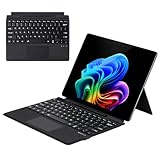
The Sooguard Microsoft Surface Pro Keyboard is a detachable Bluetooth type cover for the 13 inch Surface Pro 11, 10, 9, 8 and X. The listing names an ultra-thin design, seven-color backlighting, a multi-touch trackpad and a pen holder. Sooguard sells similar covers for older 12.3 inch models, so check that you have the 13 inch version. Listing text for this brand mentions a storage slot for the pen that does not charge it, and that the pen itself is not included.
Key specs
- Fit: Surface Pro 11, 10, 9, 8 and X (13 inch), as named in the listing
- Connection: Bluetooth
- Backlight: seven colors
- Pointing: multi-touch trackpad with gesture support
- Pen: holder for storage; charging is not provided according to similar listings from this brand
Why it stands out
Backlighting is the feature that most improves a cover for people who work in dim rooms, on planes or in classrooms. Seven colors are mostly a cosmetic choice, but the ability to adjust brightness is not. A multi-touch trackpad with gestures is also important on a tablet, since it lets you scroll and switch windows without reaching for the screen.
The tradeoffs are the same as for any Bluetooth cover. You must charge it, it may pair with a small delay after waking and its feel varies from Microsoft’s own keyboard. Treat the compatibility list as a promise to verify: look at your Surface’s model number under Settings and compare it with the listing before you buy. If you use a pen, bear in mind that a storage slot is not the same as a charging slot, so keep the pen charged by other means.
Everyday use tips
Attach the cover firmly to the magnetic edge, adjust the kickstand to a comfortable angle and keep the cover’s battery charged by plugging it in once or twice a month. If the keyboard disconnects after waking, toggle Bluetooth off and on rather than re-pairing. Use the backlight at a moderate level to preserve the battery, and keep the trackpad clean with a dry microfiber cloth. If you carry the tablet in a bag, close the cover over the screen so that keys cannot press against the display and leave marks.
Pros
- Backlit keys with adjustable colors
- Multi-touch trackpad and pen storage
- Clear 13 inch model coverage including newer Surface Pro generations
Cons
- Pen storage without charging
- Needs to be charged separately
- Third-party hinge and magnet strength can feel different from Microsoft’s design
How it compares
It is the best-documented 13 inch keyboard cover in the group, making it a safer choice than the plain grey Bluetooth keyboard. Against the Dexnor, it is a thin type cover and not a protective case. If you want a lightweight keyboard and carry the tablet in a bag, the Sooguard is the better fit; if you want a case, choose the Dexnor.
6. HONGSAMDE 10.1 inch Windows 11 Tablet – Best for light work on a small 2-in-1

The HONGSAMDE Windows 11 Tablet is a 10.1 inch touchscreen 2-in-1 with 8GB of memory and a 128GB solid-state drive. The brand sells several versions of this tablet with different Intel processors and screen resolutions, and the listing name does not specify which one applies, so verify the processor and resolution on the product page. Sibling listings describe a detachable magnetic keyboard that doubles as a cover, a mini HDMI port, USB and a headphone jack. Those chips are from an older low-power Intel generation, so treat this as a basic computer.
Key specs
- Screen: 10.1 inch touchscreen; resolution varies by version, with 1280 x 800 and 1920 x 1200 both seen on sibling listings
- Memory and storage: 8GB RAM and a 128GB SSD, per the listing name
- System: Windows 11 on an Intel low-power processor
- Keyboard: included detachable keyboard, according to the listing’s 2-in-1 description
- Ports: expect a mix of USB, mini HDMI and an audio jack; confirm on the page
What to expect
A 1280 x 800 screen on a 10.1 inch panel works out to about 149 pixels per inch (the diagonal is about 1,509 pixels divided by 10.1 inches), which is serviceable but visibly softer than the 13 inch 2880 x 1920 display of the Surface Pro 11, at about 266 pixels per inch. A 1920 x 1200 version is sharper. Either way, the tablet suits web browsing, streaming, documents, school work and remote desktop sessions. Heavy multitasking, large spreadsheets, photo editing and modern games will test it.
Storage is the other limit. Windows 11 and its updates can occupy roughly 25 to 30GB, which leaves about 90GB or a little less of a 128GB drive for apps and files. Use cloud storage and a memory card if the tablet has a slot. Charge it with the supplied adapter, and if the battery ever swells or the case warps, stop using it and have it checked.
Make a small Windows tablet feel faster
Low-power processors respond well to simple housekeeping. Turn off startup apps you do not need, use a lightweight browser with few extensions, set Windows to a balanced power plan and keep at least 15 percent of the drive free. Use cloud storage for large files and a memory card, if your model has a slot, for photos and music. Install updates when you are not in a hurry, because they can take a while on a tablet of this class. For video calls, close other windows and use the front camera at moderate quality.
Pros
- Complete Windows 11 computer with a keyboard included
- Small and light enough for bags and couches
- 8GB of memory is more than many tablets this size offer
Cons
- Older, low-power processor limits performance
- Resolution and chip vary across versions of the model
- Small keyboard for long typing sessions
How it compares
It is far less powerful than the Surface Pro 11 bundles, but it is also the simplest and most compact complete device in the list. If your needs are email, web and video, this tablet is a sensible way to use Windows without carrying a laptop. If you need serious performance, look at the Surface bundles.
7. Dexnor Surface Pro Case Keyboard – Best for a protective keyboard case

The Dexnor Surface Pro Case Keyboard is a 13 inch magnetic case with a built-in keyboard, listed for Surface Pro 12th Edition, 11, 10 and 9. Related listing text describes a Magic-Keyboard-style layout with a detachable magnetic case, a floating cantilever stand, a trackpad, dual Bluetooth connections, backlighting and a pen holder. Unlike a thin type cover, it wraps the tablet, which adds protection and a more laptop-like hinge.
Key specs
- Fit: 13 inch Surface Pro 12th Edition, 11, 10 and 9 per the listing name; confirm your model
- Format: protective case with keyboard and floating stand
- Connection: Bluetooth, with dual-device pairing described for related listings
- Extras: backlight, trackpad and pen holder
Why it stands out
The floating cantilever stand is the headline. It lets you tilt the screen to a range of angles, like a laptop, and it works on a lap better than a kickstand. A case also protects the back of the tablet from scratches, which matters if you carry it every day. The downsides are added weight and thickness, which cuts into the slim-tablet advantage, and the need to charge the keyboard.
Check the compatibility notes carefully. The title lists the 12th Edition, 11, 10 and 9 but not the Pro 8 or Pro X, so owners of those models should look at the Sooguard. Some listing variants of this family carry a business-edition warning, so match the version to your device before ordering.
Fit, weight and daily carry
A case keyboard changes how the tablet feels in a bag. The combined weight is closer to a thin laptop than to a bare tablet, and the thickness is greater than the Surface alone, but you gain a stable lap stand and scratch protection. Check that the case leaves ports and speakers accessible and that the camera cut-outs line up. Because the stand is floating, the screen angle can be changed with one hand. Magnets that hold the case should be strong enough to carry the tablet without sagging, which you can test gently once you receive it.
Who should skip it
If you value the thinness of a Surface above all else, a plain type cover is lighter and slips into a bag more easily. If you own a Pro 8 or Pro X, the case is not listed for your model. If you already use a Microsoft keyboard that charges from the tablet, the extra step of charging a Bluetooth case may feel like a step backward. For desk-only use, a cover plus the tablet’s own kickstand is simpler.
Pros
- Protects the tablet and adds a laptop-like stand
- Backlit keys, trackpad and pen holder
- Bluetooth with dual-device pairing in related listings
Cons
- Adds bulk and weight
- Does not list the Pro 8 or Pro X
- Needs separate charging
How it compares
Compared with the Sooguard, it protects and props the tablet but is heavier. Compared with the OMOTON, it is purpose-built for one tablet family and attaches magnetically. For people who use a Surface on their lap, it is the more stable choice.
8. Microsoft Surface Pro 11 Copilot+ Bundle, Black – Best for a complete flagship tablet
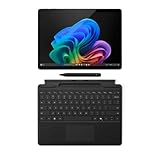
This listing bundles the Microsoft Surface Pro 11 with a Black Pro Keyboard and Slim Pen. The listing name states a 13 inch 2.8K touchscreen, a Snapdragon X Plus processor, 16GB of memory and a 256GB-class drive, and it describes the device as a Copilot+ PC. Microsoft’s specifications for the Surface Pro 11 describe a 2880 x 1920 PixelSense Flow display with a 120Hz refresh rate, a 10-core Snapdragon X Plus in common configurations, a neural processing unit rated at 45 trillion operations per second, Wi-Fi 7 and two USB4 ports. The tablet is just under two pounds and has a 48 watt-hour battery.
Key specs
- Display: 13 inch, 2880 x 1920, 120Hz touchscreen
- Processor: Snapdragon X Plus (Arm), with an on-chip NPU for local AI features
- Memory and storage: 16GB RAM and a 256GB-class SSD, as named in the listing; confirm the exact capacity on the page
- Ports and wireless: two USB4 ports, Surface Connect, Wi-Fi 7; optional 5G on some versions
- Included: Black Pro Keyboard and Slim Pen, per the listing name
Why it stands out
This is the one listing here that is a complete, current premium Windows tablet with a keyboard. The 13 inch screen at about 266 pixels per inch is sharp, the 120Hz refresh smooths scrolling and inking, and the detachable keyboard with pen storage turns it into a thin laptop. Microsoft quotes up to 14 hours of local video playback on Wi-Fi models, with real-world use shorter and dependent on brightness and workload. Fast charging needs a charger of 65 watts or more.
Windows on Arm deserves a clear explanation. The Snapdragon chip runs Arm-native apps at full speed and uses an emulation layer for most traditional Windows apps, which works well for office software, browsers and many utilities. Some software, particularly games with certain anti-cheat systems, specialized drivers, a few VPN or security tools and older peripherals, may not run well or at all. Check the apps you depend on before you buy.
Setup and first-week checklist
On first start, run all Windows and driver updates, sign in with a Microsoft account, and enable backup so your files sync. Install the Arm-native versions of the apps you use most, such as the browser and office suite, then test your remaining programs one at a time. Open the pen settings, pair the Slim Pen if needed and try handwriting in a notes app. Adjust the display to 120Hz for scrolling and drop it to 60Hz if you want to save battery. Keep the charger that suits the tablet’s fast charging, and avoid cheap chargers.
Pros
- Complete package: tablet, keyboard and pen
- High-resolution 120Hz display and strong battery life per Microsoft
- Modern ports and Wi-Fi 7
- Copilot+ features that use the on-chip NPU
Cons
- Arm architecture can limit some software and drivers
- Soldered memory cannot be upgraded later
- Higher level of investment than the other tablet here
How it compares
It is the same tablet as the Platinum bundle that follows, so the difference is the keyboard finish and any variations in memory or storage. Against the HONGSAMDE, it is in a different class for performance, display and build. Against buying only a keyboard cover for an existing Surface, this bundle is a full system replacement.
9. Microsoft Surface Pro 11 Bundle, Platinum – Best for the same tablet in a lighter finish

The second Surface Pro 11 bundle pairs the 13 inch Copilot+ PC with a Platinum Pro Keyboard and Slim Pen. The listing again names a Snapdragon X Plus processor, but the visible part of the name does not state memory or storage, so check the product page for the exact configuration before comparing it to the black bundle. Platinum is Microsoft’s light grey finish, and the Pro Keyboard color on this listing matches it.
Key specs
- Display: 13 inch Copilot+ PC touchscreen; Microsoft lists 2880 x 1920 at 120Hz for the Surface Pro 11
- Processor: Snapdragon X Plus
- Included: Platinum Pro Keyboard and Slim Pen
- Confirmation needed: RAM, storage and Windows edition on the product page
Choosing between the two bundles
If the processor and screen are the same, the real differences are the color and the memory and storage configuration. Platinum looks lighter and cleaner but shows dirt more readily on the keyboard edges. Black hides smudges. The key question is whether the configuration offers 16GB of RAM and at least 256GB of storage. Sixteen gigabytes gives breathing room for dozens of browser tabs, video calls and office apps at once, while 8GB can feel tight under Windows 11 with local AI features running. For a work machine you plan to keep several years, bias toward more memory and storage, because neither can be upgraded later.
The pen matters too. The Slim Pen stores and charges in the keyboard, so you can take notes, annotate PDFs and sketch without carrying anything extra. If you will never use a pen, a bundle that includes one is less valuable than one with a larger drive.
Checking the configuration
Before ordering, scroll to the technical details on the listing and confirm memory, storage, Windows edition and whether the model supports cellular connectivity. The visible title leaves these details out, and they vary between configurations of the same tablet. Compare them with the black bundle so you do not pay for the same hardware twice. It is also worth reading what the bundle includes beyond the pen and keyboard, such as a sleeve or a charger, because accessories differ between seller packages.
Care for the light finish
A Platinum keyboard looks fresh at first but shows oils from skin and grime around the keys. Wash your hands before long sessions, wipe the deck with a lightly dampened cloth now and then and avoid placing the keyboard on dirty surfaces. A thin silicone cover or sleeve can help if you carry the tablet loose in a bag. The tablet’s own finish is easy to maintain with a microfiber cloth.
Pros
- Full Surface Pro 11 with keyboard and pen in a single purchase
- Light finish that suits bright rooms and office decor
- Same 13 inch display and Copilot+ platform as the black bundle
Cons
- Configuration details are not stated in the visible name
- Light keyboard shows wear sooner
- Arm software compatibility applies here too
How it compares
Treat it as a twin to the black bundle. Pick the one whose configuration matches your needs, and use the color to break a tie. Both are better matches than the budget tablet for professionals, students in demanding programs and anyone who takes handwritten notes.
How to Choose a Windows Tablet with a Keyboard
Decide what you are actually buying
This list contains three kinds of products, and mixing them up is the most common mistake. A complete tablet (the two Surface bundles and the HONGSAMDE) is a computer. A Surface-specific keyboard (WirelessFinest, TECURS, the grey 13 inch keyboard, Sooguard and Dexnor) only helps if you already own the matching Surface. A universal Bluetooth keyboard (OMOTON) works with many devices but needs a stand.
Decision matrix
| Your situation | Best pick | Reason |
|---|---|---|
| Need a complete modern Windows tablet for work or study | Surface Pro 11 bundle (Black or Platinum) | Tablet, keyboard and pen together |
| Need a small cheap-class Windows device for browsing and documents | HONGSAMDE 10.1 inch | Windows 11 with an included keyboard |
| Own a 13 inch Surface Pro and want a backlit cover | Sooguard | Named support for Pro 11 to Pro 8 and X |
| Own a Surface Pro 11, 10 or 9 and want a protective case | Dexnor | Case with a floating stand |
| Own a 12.3 inch Surface Pro 7 or older | WirelessFinest or TECURS | Matching generation coverage |
| Want a keyboard that moves between devices | OMOTON | Windows, Android and iOS modes |
Work through the screen and storage numbers
Pixel density tells you how sharp text looks. Divide the diagonal pixel count by the screen size: a 1280 x 800 panel at 10.1 inches is about 1,509 / 10.1, or roughly 149 pixels per inch. A 2880 x 1920 panel at 13 inches is about 3,461 / 13, or roughly 266. Higher density makes text crisper and reduces eye strain on long documents. For storage, subtract 25 to 30GB for Windows and updates, then another 10 to 20GB for your apps; on a 128GB drive that leaves roughly 80 to 90GB for files, which is enough only if most of your work lives in the cloud.
Arm or Intel?
The Surface Pro 11 uses an Arm chip. It excels at battery life and quiet operation, and the emulation layer handles most mainstream software. The small Intel-based tablets rely on the traditional x86 architecture, which means broad software compatibility but much lower performance. List the programs you need, search for Arm support or emulation reports, and decide before you buy.
Which Surface model is it?
| Clue | Likely model family | Keyboard listings to look at |
|---|---|---|
| 12.3 inch screen with a full-size USB-A port | Surface Pro 3 to 7+ | WirelessFinest, TECURS |
| 13 inch screen, thin bezels, USB-C ports | Surface Pro 8, 9, 10, 11 or X | Sooguard, grey 13 inch keyboard, Dexnor (check listed models) |
| Not a Surface at all | Other Windows tablet | OMOTON or a keyboard supplied with the tablet |
Check software before you commit
Write down the five programs you rely on most: your browser, office suite, communication app, any specialty software and your VPN or security tool. Look for native Arm versions or mentions of emulation support on the developers’ sites. Browsers, Microsoft 365, Zoom, Teams, Slack and most creative note apps run well. Niche engineering tools, older games, some hardware drivers and certain antivirus or VPN clients are where trouble tends to appear.
Keyboard type
A cover that connects through the tablet’s keyboard contacts draws power from the tablet and needs no charging. A Bluetooth cover has its own battery and may need a short wake-up. A case-style keyboard adds protection and a laptop-like stand but also weight. If you type for hours, prefer full-size key spacing, a stable hinge and a trackpad you can use comfortably.
A simple budget for accessories
Count everything you need to make the tablet work as a laptop: the keyboard cover, a pen if you will write, a protective sleeve and a USB-C hub if you use external drives or monitors. A complete bundle that includes a keyboard and pen saves you from matching parts and from compatibility mistakes. Buying a bare tablet and adding third-party parts later is flexible, but it requires checking each item against your exact model.
Battery and daily use
Manufacturer battery claims are measured on light tasks such as video playback at fixed brightness, so real-world use is shorter. Expect to lower the brightness, close background apps and use a balanced power plan if you need the longest day. Carry a compact charger that matches your tablet’s requirements, and charge Bluetooth keyboards weekly if you use them daily.
Safety and care
All of these devices contain lithium batteries. Charge with the supplied adapter or a certified one, keep vents and edges clear, and stop using a device if the battery swells or the case bulges. Do not leave a tablet on a bed or sofa while charging in a way that blocks heat from escaping.
Frequently Asked Questions
Can a Windows tablet replace a laptop?
For many people, yes. A Surface Pro 11 with a keyboard cover handles office work, video calls, browsing and note-taking comfortably. The main limits are the lap stability of a kickstand design, the need to buy a keyboard if one is not included and software compatibility on Arm processors. People who work mostly at a desk, in meetings or on the move tend to adapt easily, while people who type for hours on a couch may prefer a clamshell laptop or a case-style keyboard with a rigid hinge.
Will my old Surface keyboard fit a newer Surface Pro?
Not necessarily. The 12.3 inch generation and the 13 inch generation use different sizes and connectors. Check the model numbers in the listing before ordering.
Is a Bluetooth keyboard as good as the original keyboard cover?
It can be good for typing, but it has its own battery, may pair a moment after waking and may feel different. Microsoft’s covers connect through contacts and charge from the tablet, which makes them more seamless. If you choose a Bluetooth cover, charge it on a schedule, keep the firmware or drivers current if the maker offers them and test the keys and trackpad as soon as it arrives.
Do Surface bundles come with a pen?
The two bundles in this guide are named as including a Slim Pen along with the Pro Keyboard. Confirm the contents on the product page before ordering.
What does Copilot+ PC mean?
It is Microsoft’s label for Windows computers with a neural processing unit capable of at least 40 trillion operations per second, along with specific features that use it. The Surface Pro 11 is described as such a device.
Can I run all Windows programs on Arm?
Most mainstream ones run, either natively or through emulation, but some drivers, anti-cheat systems and specialized tools do not. Check your key programs first, and if a program you depend on is not supported, either look for a web version or consider an Intel-based Windows computer instead.
Is 128GB enough?
For browsing, documents and cloud storage, yes, but expect less than 100GB free after Windows and its updates. For photos, video, large downloads or many installed apps, choose 256GB or more, because internal storage on most tablets cannot be upgraded later.
How do I care for a detachable keyboard?
Wipe it with a slightly damp cloth, keep liquids away, charge Bluetooth models when the battery runs low and store them closed so that dust does not collect on the contacts or hinge.
Our Recommendation by Situation
If you want the best complete Windows tablet and keyboard here, choose a Surface Pro 11 bundle, black if you want the least maintenance and platinum if you prefer a lighter look, after confirming memory and storage. If you want a small, simple Windows 2-in-1, the HONGSAMDE is the practical option. If you already own a 13 inch Surface, pick the Sooguard for a thin cover or the Dexnor for a protective case; if your Surface is 12.3 inch, the WirelessFinest or TECURS fits. If you need a keyboard that works with several devices, the OMOTON is the flexible choice. Whatever you pick, confirm the exact model your keyboard must fit and the memory and storage of any tablet before you order, because those two details cause most disappointments.