Last Updated: October 11, 2026
- The 60-second way to read any ASUS discount
- Which ASUS line fits which situation
- Processor: what you are actually paying for
- Graphics: the spec that decides whether a gaming deal is real
- Memory and storage: where discounted laptops quietly cut corners
- Display: OLED, IPS, and what the numbers mean
- Weight, footprint, and whether it fits your desk
- When ASUS deals actually appear
- Work and study: the Zenbook family
- Creative work: ProArt and Zenbook Pro
- Gaming: the Zephyrus line
- Gaming: ROG Strix and Strix Scar
- Gaming: TUF Gaming
- Convertibles and handhelds
- Materials and construction: what you get at each price
- What wears out first, and what that costs
- Power, thermals, and the charger you actually carry
- Upgradeability and repairability
- Configurations that look like deals but are not
- A short buying checklist
- Frequently asked questions
- The bottom line
The best ASUS laptop deals in 2026 are rarely the newest model: they are outgoing ROG Zephyrus G14/G16 and TUF Gaming A15/F16 units discounted roughly 20–35% for gaming, and previous-generation Zenbook 14 OLED or Vivobook S configurations discounted roughly 15–30% for work and study. A discount is only real when it survives five checks — processor generation, graphics power (not the GPU name alone), memory type and whether it is soldered, display quality, and carry weight including the power brick. Everything below compares ASUS deals on exactly those five variables, then maps them to work, study, gaming, and the desk you actually own.
📄 In This Review
- The 60-second way to read any ASUS discount
- Which ASUS line fits which situation
- Processor: what you are actually paying for
- Graphics: the spec that decides whether a gaming deal is real
- Memory and storage: where discounted laptops quietly cut corners
- Display: OLED, IPS, and what the numbers mean
- Weight, footprint, and whether it fits your desk
- When ASUS deals actually appear
- Work and study: the Zenbook family
- Creative work: ProArt and Zenbook Pro
- Gaming: the Zephyrus line
- Gaming: ROG Strix and Strix Scar
- Gaming: TUF Gaming
- Convertibles and handhelds
- Materials and construction: what you get at each price
- What wears out first, and what that costs
- Power, thermals, and the charger you actually carry
- Upgradeability and repairability
- Configurations that look like deals but are not
- A short buying checklist
- Frequently asked questions
- The bottom line
The 60-second way to read any ASUS discount
Most ASUS laptops are sold in several configurations that share a chassis and a name. That is why two “Zenbook 14” listings can differ by $400 and why one “RTX 4060” gaming laptop can be 30% faster than another with the identical GPU badge. The discount percentage is meaningless until you know which configuration is on offer.
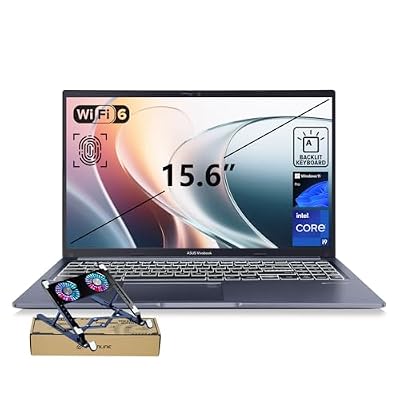
ASUS Vivobook 15 Laptop, 15.6" FHD, Intel Core i9-13900H, 32GB RAM, 1TB SSD, Next Gen AI Ready, Physical Webcam Shield, Backlit Keyboard, Fingerprint Reader, Wi-Fi 6, Win11 Pro, Blue, PCO Bundle
Included for 'Best ASUS Laptop Deals for Work and Gaming' because the listing specifies 15.6" FHD and Intel Core i9-13900H, details this guide uses to compare options.
View on Amazon
ASUS Vivobook 16 Laptop - 16” WUXGA 1920X1200 16:10 Display - AMD Ryzen™ 5 150 Processor, 8 GB RAM, 512 GB SSD, Windows 11 Home, Indie Black, M1605NAQ-ES51
Included for 'Best ASUS Laptop Deals for Work and Gaming' because the listing specifies 16” WUXGA 1920X1200 16:10 Display and AMD Ryzen™ 5 150 Processor, details this guide uses to compare options.
View on Amazon
ASUS Zenbook Duo Laptop (2026), Dual 14” OLED 3K 144Hz Touch Display, Intel Core Ultra 9 Processor 386H, Intel Graphics, 32GB RAM, 1TB SSD, Sleeve and Stylus Included, WiFi 7, Windows 11, Moher Gray
Included for 'Best ASUS Laptop Deals for Work and Gaming' because the listing specifies Dual 14” OLED 3K 144Hz Touch Display and Intel Core Ultra 9 Processor 386H, details this guide uses to compare options.
View on AmazonRead the listing in this order: processor model number (not just the family), GPU and its rated power, memory amount and whether it is soldered or socketed, storage amount and slot count, panel resolution and refresh rate, then weight. Only after all six do you compare price.
| Spec you’re comparing | Cheap-looking tier | Mid tier | Tier worth paying for | Why it changes the deal |
|---|---|---|---|---|
| Processor | Older 4–6 core U-series, 15W | Current 8-core H-series, 45W | 12–16 core H/HX-class or current-gen AI chip | A 45W chip sustains roughly 2–3× the multi-core output of a 15W chip in long tasks |
| Graphics | Integrated only | Entry discrete, 60–90W | Discrete at 115W+ with full VRAM | Same GPU name can ship at 60W or 140W; that is a 40–60% frame-rate gap |
| Memory | 8GB soldered | 16GB soldered | 16–32GB with at least one socket | 8GB soldered caps the machine’s life at roughly 2–3 years of browser-heavy work |
| Storage | 256–512GB, single slot | 512GB–1TB, single slot | 1TB with a second M.2 slot | Game installs run 80–150GB each; a single-slot 512GB fills in weeks |
| Display | FHD IPS, 250 nits, 60Hz | FHD+ 300–400 nits, 120–144Hz | 2.5K–3K OLED or 240Hz+ with 100% DCI-P3 | Brightness and color coverage decide outdoor and creative usability |
| Weight | 2.3–2.8 kg | 1.7–2.0 kg | 0.9–1.5 kg | Add 0.4–0.9 kg for the charger on gaming models |
One practical note on pricing: ASUS laptop prices swing widely by region and by week. Treat every figure in this article as a general market range — “usually $700–$1,100” — and treat a specific number in a listing as valid only for the days it is posted. If a configuration sits more than about 25% below the typical range for its spec tier, check the spec sheet for a downgrade rather than assuming a bargain.
Which ASUS line fits which situation
See also: Best Audio Interfaces for Recording Guitar at a Home Desk Setup • What Is VRR on a Gaming Monitor and How Does It Work
ASUS does not publish a clean ladder, so here is the practical mapping. The left column is your situation, not your budget — budget decides how much of the recommended tier you can afford, not which tier you need.
| Your situation | Line to look at | Minimum spec that won’t frustrate you | What to avoid |
|---|---|---|---|
| Student, mostly documents and video calls | Vivobook 15/16, Chromebook Plus | 16GB RAM, 512GB SSD, 300+ nit FHD | 8GB soldered, 128GB eMMC |
| Remote knowledge worker, 8–10 hr days | Zenbook 14 OLED, Zenbook S 14, ExpertBook | 16–32GB, 1TB, sub-1.4 kg, 65W USB-C charging | Gaming chassis you carry daily |
| Frequent traveller, planes and trains | ExpertBook B-series, Zenbook S | Under 1.1 kg, 14-inch, 65W GaN charger | Anything needing a 240W brick |
| Photo/video editing, colour-critical | ProArt P16 / Studiobook, Zenbook Pro | 32GB, 1TB, 100% DCI-P3, 400+ nits, calibrated panel | Entry 45% NTSC panels |
| Casual gaming plus work | Zephyrus G14/G16, TUF Gaming A14 | 16GB (ideally 32GB), 1TB, 100W+ GPU | Thin chassis with a 60W GPU |
| Serious gaming, desk-bound | ROG Strix G16/G18, Strix Scar | 32GB, 1TB+, 140W+ GPU, 240Hz panel | Buying for battery life you won’t use |
| Shared home, kids and pets | TUF Gaming, Vivobook with plastic deck | Matte panel, spill-resistant keyboard, 3-yr warranty option | Glossy OLED with a fragile lid |
| Small apartment, one desk for everything | 14-inch Zephyrus or Zenbook + external monitor | 16GB, 1TB, USB-C with DisplayPort out | 18-inch desktop replacement |
Two cross-cutting rules. First, RAM is the single most common reason a discounted laptop disappoints: 16GB is the 2026 floor for comfortable multitasking, and 32GB is the floor if you edit video, run virtual machines, or keep 40 browser tabs open. Second, if the RAM is soldered, buy it right the first time — there is no upgrade path.
Processor: what you are actually paying for
ASUS splits its lines across AMD Ryzen, Intel Core and Core Ultra, Qualcomm Snapdragon X, and — in budget models — older architectures still in circulation. The family name tells you less than the suffix and the core count.
- U-series / low-wattage chips (roughly 15–28W): silent, cool, long battery life, weak sustained output. Fine for documents, video calls, and browser work. Not fine for compiling code or exporting video on a deadline.
- H-series (roughly 45W): the workhorse tier in Zenbook Pro, ProArt, Zephyrus, and Strix. Sustained multi-core performance typically doubles or triples the U-series equivalent.
- HX-class and desktop-derived chips: found in larger gaming chassis. Highest sustained output, highest power draw, and the shortest realistic battery life — often 2–4 hours unplugged under load.
- Current-generation AI chips (Ryzen AI 300-class, Core Ultra 200V-class, Snapdragon X-class): these carry NPUs in the 40–50 TOPS range, which is the threshold for on-device AI features that run locally rather than in the cloud. The practical benefit today is battery efficiency and quiet operation more than any single feature.
For most buyers the deal question is simple: is the discounted unit one generation behind, or two? One generation behind on an H-series chip is usually an excellent buy — you lose perhaps 8–15% performance and save 20–30%. Two or three generations behind at the same price is not a deal, it is old stock.
Graphics: the spec that decides whether a gaming deal is real
Laptop GPUs are sold by name, but performance is set by rated power (TGP), cooling, and VRAM. A thin 14-inch chassis with a mid-tier GPU at 65W can be beaten by a thicker 16-inch chassis with the same GPU at 115W. When you compare two ASUS gaming deals, find the GPU power figure in the spec sheet before you compare price.
| GPU tier (typical) | Rated power range | VRAM | Realistic use at 1600p | Chassis class it appears in |
|---|---|---|---|---|
| Entry discrete | 35–75W | 6GB | High settings on older titles, medium on current ones | Slim 14-inch, budget 15-inch |
| Mainstream discrete | 60–115W | 8GB | High settings comfortably; ray tracing with upscaling | Zephyrus G14, TUF A15, slim 16-inch |
| Upper-mid discrete | 90–140W | 8–12GB | High/ultra at 1600p, strong creator acceleration | Zephyrus G16, TUF F16, Strix G16 |
| High-end discrete | 115–175W | 12–16GB | Ultra at 1600p–4K with upscaling | Strix Scar, G18-class, desktop replacements |
| Integrated only | n/a | Shared | Esports titles at low settings, video decode, office work | Zenbook, Vivobook, ExpertBook, Chromebook |
Two traps. First, “Max-Q”-style naming and thin-chassis power limits: the same GPU model number can appear at wildly different wattages. Second, VRAM: 6GB is already tight for current titles at high texture settings, and 8GB is the practical floor for a laptop you intend to keep four years. If a deal looks unusually cheap, check VRAM first.
Memory and storage: where discounted laptops quietly cut corners
This is the most common hidden downgrade in ASUS deals, and the most expensive to fix later.
| Configuration | Real-world ceiling | Upgrade path | Verdict |
|---|---|---|---|
| 8GB soldered | Roughly 15–20 browser tabs, no VMs, light photo work | None | Avoid unless the price is exceptional and the use is truly light |
| 16GB soldered | Comfortable office, study, and moderate creative work | None | The sensible 2026 default for work machines |
| 16GB + one SODIMM slot | Upgradeable to 32–64GB later | Cheap and easy | Best value if the base price is close to the soldered version |
| 32GB soldered | Video editing, 3D, VMs, heavy multitasking | None, but usually enough for the machine’s life | Buy once, correctly |
| 512GB single M.2 | Fills with 4–6 modern game installs | Replace the drive, no second slot | Acceptable for work, tight for gaming |
| 1TB + second M.2 slot | Comfortable for years | Add a second drive later | The configuration to hold out for |
Also watch memory channel configuration. Some budget ASUS configurations ship with a single memory module, which halves memory bandwidth and noticeably hurts integrated-graphics gaming performance. If a listing does not state dual-channel or “2×8GB,” assume single-channel and price accordingly.
Display: OLED, IPS, and what the numbers mean
ASUS uses three panel families across its range, and the display is often the largest single cost difference between two otherwise identical listings.
| Panel type | Typical brightness | Colour coverage | Strengths | Weaknesses |
|---|---|---|---|---|
| Entry IPS, FHD, 60Hz | 250–300 nits | 45% NTSC | Cheap, matte, no burn-in risk | Washed-out colour, unusable near a bright window |
| Good IPS, FHD+/1600p, 120–165Hz | 300–400 nits | 100% sRGB | Balanced, durable, smooth for scrolling and esports | Contrast around 1000:1 at best |
| Fast IPS, 1600p, 240Hz+ | 400–500 nits | 100% DCI-P3 on better units | Best for competitive gaming | Heavier chassis, more power draw |
| OLED, 2.8K–3K, 120Hz | 500–600 nits peak HDR | 100% DCI-P3 typically | Near-infinite contrast, excellent for creative work | Static-element burn-in risk, glossy reflections |
| Mini-LED | 600–1100 nits peak | 100% DCI-P3 typically | Very bright, good HDR, no burn-in | Blooming around bright objects, heavier |
For work in a bright room, 400 nits is the practical minimum. For photo or video work, 100% DCI-P3 and a factory calibration report matter more than resolution. For gaming, refresh rate beats resolution at 14 inches — 1600p at 165Hz is a better experience than 4K at 60Hz, and it costs your GPU far less.
Weight, footprint, and whether it fits your desk
This is where a furniture-minded buyer should slow down. A laptop’s advertised weight excludes the charger, and gaming chargers are not small. Here are the numbers that matter in a real room.
| Class | Laptop weight | Charger weight | Chassis footprint (W × D) | Desk depth needed with a stand |
|---|---|---|---|---|
| 13–14-inch ultraportable | 0.9–1.3 kg | 0.15–0.25 kg (65W GaN) | About 31 × 22 cm | 55–60 cm |
| 14-inch performance | 1.5–1.7 kg | 0.4–0.55 kg (100–140W) | About 31 × 22 cm | 60 cm |
| 16-inch thin gaming | 1.8–2.0 kg | 0.5–0.7 kg (180–240W) | About 35.5 × 24.5 cm | 65–70 cm |
| 16-inch mainstream gaming | 2.3–2.6 kg | 0.6–0.8 kg | About 35.5 × 26 cm | 70 cm |
| 18-inch desktop replacement | 2.9–3.2 kg | 0.8–1.0 kg | About 40 × 28 cm | 75–80 cm |
Convert that into the room you have. A standard desk is 120 cm wide and 60 cm deep, with a work surface 71–76 cm off the floor. A 16-inch gaming laptop placed directly on the desk leaves roughly 25–30 cm of usable space in front of it for a keyboard and wrists, and its screen sits far too low — the top of a laptop screen on a 75 cm desk lands around eye-level for almost nobody. A 10–15 cm riser or a dedicated stand brings the top of the screen to roughly eye height and buys back wrist space, but it also pushes the chassis 10–15 cm deeper, which is why a 16-inch gaming laptop on a 60 cm desk with a stand is genuinely cramped.
If your desk is shallow, a 14-inch machine is the better furniture decision. If you need a big screen, an 18-inch laptop plus a 60 cm desk is a poor pairing; budget for a 70–80 cm deep surface or an external monitor with the laptop closed on a side stand.
For the chair side of the equation: seat height 40–51 cm, with the top of the screen at roughly seated eye level and the keyboard at elbow height with shoulders relaxed. A laptop on a riser with an external keyboard is the only configuration that satisfies all three at once.
When ASUS deals actually appear
Discounts on ASUS laptops follow a predictable rhythm. Knowing it lets you wait rather than buy into a mediocre markdown.
- New-generation launch windows (roughly January and mid-year): the previous generation drops 15–30% within weeks of a successor shipping. This is the best window for gaming buyers, because the outgoing Zephyrus and Strix units are still fast.
- Back-to-school (July–September): deepest discounts land on Vivobook and entry Zenbook configurations, with 15-inch models cut hardest. Gaming discounts are thinner here.
- Late November: the broadest selection of markdowns across every line, but also the highest proportion of configurations built specifically for the sale — check the spec sheet twice.
- End-of-quarter clearance: single-configuration clearouts on business-line ExpertBook and ProArt units, often the best value per spec if you can live with the exact configuration on offer.
- Never: the first 6–10 weeks after a genuinely new chassis launches. Wait.
One caution on timing: a “discount” against an inflated list price is not a discount. Compare against the typical market range for that spec tier, not against the crossed-out number.
Work and study: the Zenbook family
Zenbook is ASUS’s premium thin-and-light line and the natural home for the best work-oriented deals. The models you will see discounted are the 14-inch OLED variants, the S-series, and the dual-screen Duo.
Zenbook 14 OLED
The default recommendation for most knowledge workers. Expect a 14-inch 2.8K–3K OLED panel at 120Hz, a low-wattage or mid-tier processor, 16–32GB of memory, and a 1TB SSD in the better configurations. Weight lands around 1.2–1.3 kg, and it charges over USB-C at 65W, which means a single compact GaN adapter covers laptop and phone.
What the deal usually looks like: typically $800–$1,300 depending on memory and storage. Discounts of 15–25% appear on outgoing generations, and the outgoing generation is usually the smarter buy because the chassis and panel rarely change much year to year.
Watch for: configurations with 8GB soldered memory at a tempting price. Also check whether the panel is the high-refresh OLED or the older 60Hz OLED — both are listed as “OLED.”
Zenbook S 14 (and S-series generally)
The lightest, most premium Zenbook tier, built around a machined metal chassis, a very bright panel, and current-generation AI silicon with a 40+ TOPS NPU. It is the machine to buy if you carry a laptop every day and want local AI features, long battery life, and near-silent operation.
What the deal usually looks like: typically $1,100–$1,600. Discounts are smaller — 10–20% — because supply is limited and demand is steady. End-of-quarter clearouts are where the real cuts appear.
Watch for: soldered memory (always) and modest port counts. Confirm you get at least two USB-C ports and a full-size HDMI or accept living with dongles.
Zenbook Duo
The dual-screen model with a full second 14-inch panel where the keyboard usually sits, plus a detachable keyboard. It is genuinely useful for programmers, traders, and anyone who lives in two windows side by side.
What the deal usually looks like: typically $1,400–$2,000. Discounts of 15–30% are common on outgoing generations, and this is one of the few ASUS lines where the previous generation is nearly indistinguishable from the current one in daily use.
Watch for: weight (it is heavier than a standard 14-inch), battery life with both panels lit, and whether the configuration includes the stylus.
ExpertBook B-series
ASUS’s business line: understated design, business-grade warranty options, spill-resistant keyboards, and in the lightest models a sub-1 kg chassis. It is the right choice for frequent flyers and for anyone who needs on-site service rather than a consumer warranty.
What the deal usually looks like: typically $900–$1,600. Business-line discounts are lumpy — clearance on a single configuration can be steep, but availability is unpredictable.
Watch for: older-generation processors in clearance stock. Verify the chip generation before buying, because these units sit in inventory longer.
Vivobook 15/16 and Vivobook S
The volume line and the source of the year’s biggest percentage discounts. Vivobook covers everything from budget 15-inch workhorses to the slim S-series with OLED panels and current-generation silicon.
What the deal usually looks like: entry 15-inch configurations typically $450–$700; S-series typically $750–$1,100. Back-to-school is when the deepest cuts land.
Watch for: 8GB soldered memory, 128GB eMMC storage in the very cheapest units, and 250-nit panels. Any of these three turns a bargain into a two-year laptop.
Chromebook Plus models
For study, light writing, and browser-based work, an ASUS Chromebook Plus is often the cheapest competent machine in the room — typically $350–$550. The Plus tier guarantees a minimum specification that makes the experience tolerable.
Watch for: you cannot run Windows-only software, and heavier local workloads are out. If your course or job requires desktop applications, skip this tier entirely.
Creative work: ProArt and Zenbook Pro
ProArt is ASUS’s creator line, and it is where the display and memory specifications justify their price. The 16-inch ProArt models typically pair an H-series processor with a mid-to-upper discrete GPU, 32GB of memory, a 1TB or larger SSD, and a colour-calibrated 3K-class OLED or high-brightness panel.
What the deal usually looks like: typically $1,600–$2,600. Discounts of 15–25% show up on outgoing generations and during end-of-quarter clearouts.
Why this tier is worth the premium for creative work: a calibrated panel covering 100% DCI-P3 removes the guesswork from colour grading; 32GB of memory removes the timeline stutter that 16GB produces in 4K editing; and a dial-style input on some models genuinely speeds up brush and timeline work.
Watch for: 16GB configurations sold as “creator” laptops — they are not, for video. Also confirm the panel specification, because ProArt ships with more than one display option and only some are calibrated.
Gaming: the Zephyrus line
Zephyrus is ASUS’s thin-and-light gaming family and, for most people, the best balance of performance, weight, and price. The 14-inch and 16-inch models are the ones that get discounted most often.
Zephyrus G14
A 14-inch gaming laptop around 1.5–1.7 kg with a 3K-class OLED panel at 120Hz in the premium configurations, a mainstream discrete GPU, and a machined metal chassis. It is the machine to buy if you want one laptop for both work and gaming and you carry it.
What the deal usually looks like: typically $1,100–$1,800. Outgoing-generation units commonly drop 20–30%.
Watch for: GPU power limits. A 14-inch chassis constrains thermals, so the same GPU runs at lower wattage than in a 16-inch machine. That is a reasonable trade for portability, but it is not a reasonable trade at the same price.
Zephyrus G16
The 16-inch sibling: around 1.8–2.0 kg, a 2.5K 240Hz OLED option, an upper-mid discrete GPU, and better sustained cooling than the 14-inch. It is the sweet spot for someone who wants gaming performance without a 2.5 kg brick.
What the deal usually looks like: typically $1,400–$2,200. Discounts of 20–30% appear on outgoing generations, and this is where a patient buyer gets the most performance per dollar in the entire ASUS range.
Watch for: memory soldered on some configurations, and the difference between the OLED and IPS panel options — the OLED version is worth a premium, the IPS version is not worth an OLED price.
Gaming: ROG Strix and Strix Scar
Strix is the performance-first family: thicker chassis, higher GPU power limits, more aggressive cooling, and heavier machines. Strix G16/G18 sits in the middle; Strix Scar is the flagship.
- Strix G16: around 2.3–2.6 kg, 1600p at 240Hz, upper-mid to high-end discrete GPU, typically $1,300–$2,000. The best value when you want maximum frames per dollar and never carry it.
- Strix G18: around 2.8–3.0 kg, 18-inch panel, high-end GPU, typically $1,600–$2,400. Excellent as a desktop replacement; awkward on a train.
- Strix Scar: the flagship tier with the highest GPU power limits and the brightest, fastest panels, typically $2,000–$3,200. Discounts are real but the entry price is high.
Watch for: battery life claims. These machines typically deliver 2–5 hours unplugged, and the charger is a 240W-class brick weighing 0.7–0.9 kg. If portability matters at all, Zephyrus is the correct family and Strix is the wrong one.
Gaming: TUF Gaming
TUF Gaming is ASUS’s value gaming line, and it produces the lowest prices per frame in the range — typically $800–$1,300 for 15- and 16-inch models. The trade-offs are consistent: more plastic in the chassis, a slightly heavier body (2.2–2.5 kg), a dimmer panel in the base configurations, and less refined fan acoustics.
What the deal usually looks like: TUF discounts are frequent and sometimes deep, particularly on the A-series (AMD) and F-series (Intel) 15- and 16-inch models. A well-configured TUF at 25% off is often better value than a base Zephyrus at full price.
Watch for: base panels at 250 nits and 144Hz FHD. That is acceptable for gaming indoors and poor for anything else. Also check GPU wattage — TUF configurations span a wide range of power limits under the same GPU name.
Convertibles and handhelds
ROG Flow series
The Flow family — 13-inch and 16-inch convertibles, plus the tablet-style Z13 — is the most interesting and the most niche part of the ASUS range. The appeal is a touchscreen, 360-degree hinge or detachable keyboard, stylus support, and in some models an external GPU dock connector that turns a thin machine into a desktop-class one at home.
What the deal usually looks like: typically $1,100–$2,000, with steeper discounts on outgoing generations because the audience is narrow.
Watch for: the external dock is a separate purchase and is often hard to find. Factor that into the total cost before you decide the deal is good.
ROG Ally handheld
A Windows handheld around 600–680 g with a 7-inch 1080p 120Hz panel, typically $500–$800. It is not a laptop replacement, but as a second device for travel it is genuinely useful, and discounts of 15–25% appear regularly.
Watch for: battery life (typically 1.5–3 hours under load), and the fact that you still need a laptop or desktop for real work.
Materials and construction: what you get at each price
Two laptops with identical internal specifications can feel completely different because of the chassis. Here is the honest trade-off table.
| Chassis material | Typical lines | Weight | Feel | Durability reality |
|---|---|---|---|---|
| Machined aluminium / magnesium-aluminium alloy | Zenbook S, Zephyrus, ProArt, ExpertBook premium | Lightest per unit of stiffness | Rigid, cool, premium | Resists flex; dents rather than cracks; hinge anchors are usually metal |
| Stamped aluminium | Mid Zenbook, Vivobook S | Moderate | Good, slightly more flex in the lid | Good; lid flex is the first sign of age |
| Reinforced polycarbonate | TUF Gaming, budget Vivobook | Heaviest for the same size | Functional, warmer to the touch | Survives drops better than it survives scratches; matte finishes hide wear well |
| Carbon-fibre-reinforced lid + alloy deck | ExpertBook business models | Lightest overall | Slightly textured, very stiff | Best stiffness-to-weight; watch the coating over several years |
If the laptop lives on a desk, chassis material matters far less than panel and memory. If it lives in a bag, alloy or carbon-reinforced lids are worth real money — they resist the twisting that eventually breaks hinges and screen cables.
What wears out first, and what that costs
A laptop is not a sealed object; it has consumable parts. Knowing which ones fail first tells you what a warranty is worth.
- Battery: the first thing to degrade. Expect noticeable capacity loss after roughly 500–800 full cycles, which for a heavy user is 2–3 years. Replacement on most ASUS thin-and-lights is a workshop job; budget a meaningful fraction of the machine’s value.
- Thermal paste and fans: dust loading raises temperatures and fan noise. Gaming laptops need cleaning every 12–18 months in a dusty home, more often with pets. This is the single most neglected maintenance item.
- Hinge: the classic failure point on any laptop. It fails faster on machines that are opened by one corner of the lid, and faster on plastic-chassis models.
- Keyboard: key shine and, on gaming laptops, worn WASD caps. Cosmetic, but it dates the machine.
- Ports: USB-C ports loosen with use. A dock or a magnetic adapter preserves them.
- SSD: usually outlives the machine, but a 512GB drive that is constantly 95% full will feel slow long before it fails.
Practical consequence for buying: a three-year warranty on a machine you will carry daily is worth more than a marginally faster GPU, and it is worth far more on a plastic-chassis budget model than on an alloy ultraportable.
Power, thermals, and the charger you actually carry
Charging is the most under-considered part of a laptop purchase, and it is where thin gaming laptops differ most from work machines.
- 65W USB-C: standard on Zenbook and Vivobook. A compact GaN adapter weighs 150–250 g and can charge a phone and tablet too.
- 100W USB-C: the ceiling for most USB-C Power Delivery charging. Good for 14-inch performance machines; not enough to sustain full gaming load.
- 180–240W barrel or proprietary: required by 16-inch gaming machines. These bricks weigh 0.5–0.9 kg and are the reason a “2 kg” gaming laptop is really a 2.7 kg bag.
- USB-C charging on a gaming laptop: many ASUS gaming models accept USB-C charging for light use but will not sustain full performance that way. Useful for travel, not for gaming on the road.
Thermals follow the same logic. A 16-inch chassis with two fans and a wide vapour chamber sustains higher GPU power than a 14-inch chassis with the same silicon, which is why the 14-inch machine is quieter and slower at the same settings. Neither is wrong; they are different products.
Upgradeability and repairability
Before you buy, check three things, in this order:
- Memory: soldered or socketed? This is the difference between a four-year machine and a six-year machine.
- Storage slots: one M.2 or two? A second slot turns a 1TB machine into a 3TB machine for the price of a drive.
- Battery access: some models have a service-friendly bottom panel; others require removing the whole base. This determines how expensive routine maintenance becomes.
Business-line ExpertBook and larger gaming models are generally the most serviceable. The thinnest Zenbook models are the least. If you keep laptops for five years or more, serviceability should outweigh a 10% performance difference.
Configurations that look like deals but are not
- 8GB soldered with a fast processor. The processor is not the bottleneck; the memory is, from day one.
- A high-end GPU name at a low power limit. Check the wattage before you check the price.
- 512GB in a gaming laptop. Four to six modern installs and the drive is full, which also slows the machine.
- FHD 250-nit panels on a premium chassis. You are paying for the chassis and getting a budget screen.
- Single-channel memory. Especially damaging on integrated-graphics machines.
- Last-generation processors at full price. Two or more generations behind at current pricing is old stock, not a bargain.
- Deep discounts on the first weeks of a new chassis. Rare, and usually a signal that something in the configuration was cut.
A short buying checklist
- Decide the use case first: study, work, creative, gaming, or a mix. The line follows from that, not from the discount.
- Set the memory floor: 16GB for work, 32GB for creative or heavy multitasking. Never 8GB soldered.
- Set the storage floor: 1TB for gaming or creative work, 512GB minimum for work, with a second slot preferred.
- Confirm the display: 400 nits minimum for bright rooms, 100% sRGB minimum for general use, DCI-P3 for creative work.
- Check GPU wattage and VRAM if you game.
- Add the charger weight to the advertised weight before deciding on portability.
- Measure your desk. 60 cm of depth is tight for a 16-inch machine on a stand; 70–80 cm is comfortable.
- Compare against the typical range for the spec tier, not against the crossed-out price.
- Prefer one generation behind at 20–30% off over the newest model at full price.
- Price the warranty into the decision if you carry the machine daily.
Frequently asked questions
Is a previous-generation ASUS laptop still a good deal in 2026?
Usually yes. Year-over-year gains in laptop processors are typically modest — often in the 8–15% range for the same tier — while discounts on outgoing stock run 20–30%. The exceptions are the very first generation of a brand-new chassis and any machine that is two or more generations behind at a similar price.
How much RAM do I actually need?
16GB is the 2026 floor for comfortable work and study. 32GB is the floor for video editing, 3D work, virtual machines, or running dozens of browser tabs alongside other applications. 8GB is only viable for genuinely light use, and only if it is cheap — because it cannot be upgraded if it is soldered.
Is OLED worth the premium on a laptop?
For creative work and media consumption, yes — the contrast and colour coverage are difficult to match with IPS. For static work in bright rooms, a 400+ nit IPS panel is often more practical and carries no burn-in risk. If you buy OLED, use a dark taskbar, avoid a permanently static bright element, and expect the panel to be the most expensive component to replace.
Can I game on a 14-inch ASUS laptop?
Yes, and it is the best compromise if you also carry the machine. Expect lower sustained GPU power than a 16-inch chassis with the same GPU name, more fan noise under load, and roughly 1.5–3 hours of unplugged gaming. For desk-bound gaming, a 16-inch or 18-inch machine gives noticeably more performance per dollar.
How much does a good ASUS gaming laptop usually cost?
Broadly: entry TUF-class machines typically $800–$1,300; thin Zephyrus-class machines typically $1,100–$2,200; performance-first Strix-class machines typically $1,300–$2,400; and flagship models typically $2,000–$3,200. Prices vary substantially by region and by week, so treat these as ranges, not quotes.
Do I need a laptop stand?
For anything more than an hour a day, yes. A laptop’s screen sits roughly 15–20 cm too low when the keyboard is at a comfortable height, which forces neck flexion. A 10–15 cm riser plus an external keyboard puts the top of the screen near seated eye level — but it also deepens the footprint by 10–15 cm, so measure your desk before committing to a 16-inch machine and a stand together.
Which ASUS line should a student buy?
Vivobook 15/16 or Vivobook S with 16GB of memory and a 512GB or 1TB SSD, or a Chromebook Plus model if every application you need runs in a browser. Add a Zenbook 14 OLED only if you carry the machine daily and value weight and battery life over price.
The bottom line
The best ASUS laptop deals in 2026 are outgoing-generation Zephyrus G16 and TUF Gaming configurations for gaming, and outgoing Zenbook 14 OLED or Vivobook S configurations for work and study — provided the configuration clears the memory, storage, panel, and GPU-wattage bars described above. Judge the discount against the typical range for the spec tier rather than the crossed-out price, add the charger to the weight before you decide it is portable, and measure your desk before you buy a 16-inch machine. Get those four things right and the discount is real; get them wrong and a 30% saving buys a laptop you will want to replace in two years.
Related Reviews & Guides


Best Diving Watch Deals: Waterproof Picks

Best LED Drafting Desk Lamps for Precise, Even Lighting