Last Updated: September 29, 2026
Choosing a laptop docking station is less about finding the “best” dock and more about matching one to three things you already own: your laptop’s port, your monitors, and how much power your laptop needs. Get those right and even a mid-priced dock feels flawless. Get one wrong and you end up with a $250 box that charges slowly, runs one monitor instead of two, or drops the network every afternoon. This step-by-step method gets you to the right shortlist in about ten minutes.
📄 In This Review
Step 1: Identify your laptop’s port
Look at the symbols next to your laptop’s USB-C ports or check the manufacturer’s spec page. The port type decides which docks can work at full capability.
| Port on your laptop | Symbol or spec wording | Best dock type | Typical dock price |
|---|---|---|---|
| USB-C 5-10Gbps with DisplayPort Alt Mode | DP logo or “DisplayPort 1.4 Alt Mode” | USB-C dock (Alt Mode or DisplayLink) | $80-$200 |
| USB-C without video | No DP or lightning logo | DisplayLink dock only | $120-$250 |
| Thunderbolt 3 / 4 | Lightning bolt icon | Thunderbolt 4 dock | $200-$400 |
| USB4 40Gbps | “USB4 40Gbps” in specs | Thunderbolt 4 or USB4 dock | $180-$350 |
| Thunderbolt 5 | Bolt with “5” or “Thunderbolt 5” | Thunderbolt 5 dock for full speed | $350-$500+ |
Step 2: Count and describe your monitors
See also: Best Reclining Chairs: Nine Recliner Listings Compared by Mechanism, Fabric and Space Needs • Best Roku Streaming Deals Reviewed
How many, and at what resolution and refresh rate
Write down each monitor’s resolution and refresh rate and which inputs it has. Two 1080p 60Hz screens are easy for almost any dock. Two 4K 60Hz screens need Thunderbolt 4, USB4 40Gbps, or a DisplayLink dock. A 1440p 144Hz gaming monitor usually needs a native DisplayPort connection because DisplayLink tops out around 60Hz at high resolution on many models.
Mac users: check the chip first
Base Apple M1 and M2 chips drive only one external display natively. If you need two, you need a DisplayLink dock plus the DisplayLink Manager app. Pro and Max chips handle two or more screens through a Thunderbolt dock without extra software.
Step 3: Match charging wattage
Find the wattage of your laptop’s original charger. The dock’s host charging should meet or exceed it. Most ultrabooks use 45-65W chargers, which any decent dock can cover. Creator and gaming laptops with 100-240W chargers will not fully charge from a dock limited to 90-100W; under load they will slowly drain. Some brand-specific docks, such as Dell’s WD22TB4, deliver up to 130W to supported Dell laptops, which is one reason to consider a dock from your laptop’s manufacturer.
Step 4: List the ports you actually use
- USB-A for keyboard, mouse, receiver dongles and older drives: count them and add one spare.
- USB-C data ports for newer SSDs and phones.
- Ethernet: gigabit is standard; 2.5GbE is worth it only if your network supports it.
- Audio: a 3.5mm jack is handy for wired headsets.
- SD card reader if you shoot photos or video.
Resist docks with 15+ ports “just in case.” Extra ports add cost and heat without adding usefulness if they stay empty.
Step 5: Decide on brand-specific vs universal
Brand docks
Dell, Lenovo and HP docks integrate with their own laptops: higher charging wattage, MAC address pass-through for corporate networks, and firmware updates through the laptop maker’s update tool. They are the easiest choice for company-managed laptops.
Universal docks
Brands like CalDigit, Anker, Kensington, Plugable and Belkin build docks that work across Windows and Mac. They usually offer more ports per dollar and better Mac support, at the cost of fewer enterprise features.
Step 6: Check the physical details
Cable length matters more than people expect. Most docks ship with a 0.7-1m host cable; if the dock sits under the desk, you may need a longer certified cable, and passive Thunderbolt cables longer than about 1m may drop speed. Also consider whether you want the dock vertical or horizontal, and where the power brick will live.
FAQ
Do I need to install drivers for a docking station?
Thunderbolt and USB-C Alt Mode docks generally work with built-in operating system drivers. DisplayLink docks require the DisplayLink driver on Windows or the DisplayLink Manager app on macOS. Keeping dock firmware updated also fixes many display and wake-from-sleep quirks.
Will a docking station slow down my laptop?
No. A native Thunderbolt or Alt Mode dock uses the laptop’s graphics hardware directly. DisplayLink docks use a small amount of CPU to compress video, typically a few percent, which is only noticeable on older or low-power laptops.
Bottom line
Start with the port on your laptop, then your monitors, then your charger wattage. Those three facts eliminate most docks on the market. Among what remains, pick the one with the ports you use today plus a spare, from a brand that publishes firmware updates, and you will not have to think about the dock again.
Related Reviews & Guides

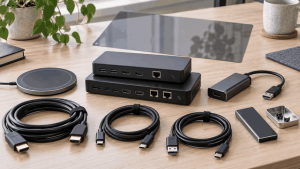
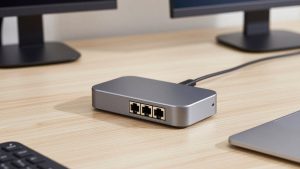
Best docking station with ethernet port

Best Ergonomic Office Chair for Tall Torso