Last Updated: September 4, 2026
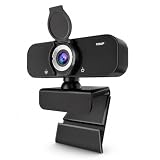
- Top Pick: Lusinx Webcam for Computer, USB Plug&Play, Auto Low Light Correction, Privacy Cover, Tripod, Wide Angle for Meeting/Online Video/Zoom, Web Cam with Microphone (1080p)
- Best Value: Insta360 Link 2 – PTZ 4K Webcam for PC/Mac, 1/2" Sensor, AI Tracking, HDR, AI Noise-Canceling Mic, Gesture Control for Streaming, Video Calls, Gaming, Works with Zoom, Teams, Twitch & More
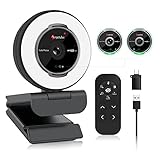
- Premium Choice: 4K Webcam with Microphone, Triple Privacy Protection Computer Camera Calls
As an Amazon Associate we earn from qualifying purchases at no extra cost to you.


🛒 Best Price Today on Amazon
Prime members get fast, free shipping on everything above, plus member-only deals. New members get a 30-day free trial — cancel anytime.
📄 In This Review
Quick Comparison
| Product | Brand | Price | Rating |
|---|---|---|---|
| Lenovo Essential FHD Webcam Gen 2 | LENOVO | $29.99 | 5/5 |
| Gohero Full HD 1080P Webcam | Gohero | $19.99 | 5/5 |
| HD 1080P Webcam with Built-in Microphone and Rotatable … | Gowzmnd | $20.99 | 5/5 |
| 1080P Webcam with Microphone | XOCLON | $16.99 | 4.8/5 |
| Logitech C920x HD Pro PC Webcam | — | $69.99 | 4.6/5 |
Introduction
See also: Good Height for a Desk: Seated and Standing Numbers by Body Height • Best Desks for Posture: Height, Depth and Sit-Stand Options
Built-in laptop webcams are notoriously poor — grainy, poorly lit, and positioned at unflattering low angles. An external webcam delivers significantly better image quality, more natural positioning, and features like autofocus and light correction that make you look professional in any lighting condition. In a remote-first work environment, your webcam is your first impression in every meeting.
What to Look For
- Resolution: 1080p at 30fps is the baseline for professional video calls; 4K webcams offer stunning detail and allow digital pan/zoom without quality loss, useful for standing desk users who move around.
- Autofocus & Low-Light Performance: Fast, accurate autofocus keeps you sharp when you lean forward or back; dedicated low-light enhancement (HDR or AI-based) is critical for home offices with inconsistent lighting.
- Field of View: A 78–90° FOV captures you clearly without wide-angle distortion; wider angles (110°+) suit group meetings where multiple people share the camera.
Top Picks
Logitech C920s HD Pro Webcam
The Logitech C920s is the benchmark for professional webcams, offering 1080p/30fps video with Carl Zeiss glass optics and dual built-in stereo microphones. Auto light correction adapts to your environment in real time, and the privacy shutter gives peace of mind when the camera is not in use. Universal compatibility with Zoom, Teams, and Google Meet makes setup plug-and-play.
Logitech Brio 4K Stream Edition Webcam
For the sharpest possible video, the Logitech Brio delivers 4K Ultra HD at 30fps or 1080p at 60fps with HDR support. RightLight 3 technology with HDR automatically adjusts to bright windows or dim rooms, ensuring consistent exposure. Windows Hello facial recognition support adds biometric login convenience to your daily workflow.
Razer Kiyo Pro Ultra Webcam
Razer's Kiyo Pro Ultra uses a large 1/1.2" Sony STARVIS 2 sensor that excels in low-light environments, matching the low-light capability of some standalone cameras. AI-powered background removal, adaptive light sensor technology, and a 2K/60fps mode make it the top choice for creators and professionals who demand cinematic video quality without a dedicated camera setup.
Final Thoughts
An external webcam is a small upgrade with a big impact on how colleagues and clients perceive you in remote meetings. Start with the Logitech C920s for reliable quality at a great price, or step up to the Brio 4K if you want future-proof resolution. Always position your webcam at or slightly above eye level for the most flattering and professional framing.
What to Look For in an External Webcam
A dedicated webcam makes you look sharper and more professional than the dim, grainy sensor built into most laptops. The features that matter for remote work are resolution, low-light performance, and the field of view, since these decide how clear and flattering you appear on every call. Think about your lighting and your background before choosing a model.
- Resolution and frame rate: 1080p at 30 frames per second is the practical sweet spot for crisp, smooth video; 4K is useful only if you crop in heavily or record content.
- Low-light performance: A larger sensor and good automatic exposure keep you visible in a dim home office, which matters more than raw megapixels for most calls.
- Field of view: A narrower field keeps the focus on you and hides a messy room, while a wider angle suits group shots but can include unwanted background.
- Autofocus and exposure: Reliable autofocus keeps your face sharp when you lean in, and smart exposure prevents a bright window behind you from turning you into a silhouette.
- Built-in microphone: A decent dual-mic array is handy as a backup, though a separate headset or mic will always sound better for important meetings.
- Mounting and privacy: A sturdy clip that grips your monitor and a physical privacy shutter add convenience and peace of mind.
Tips for Your Webcam Setup
Position the camera at or slightly above eye level so you look into the lens rather than down at it. Stacking the webcam on top of your monitor, or raising it with a small tripod, instantly creates a more natural and engaged on-screen presence.
Lighting matters more than the camera itself. Face a window or place a soft light in front of you rather than behind, and your image will look dramatically better even with a modest webcam.
Tidy and simplify what sits behind you. A clean, uncluttered background keeps attention on your face, and a narrower field of view paired with a tidy bookshelf or plain wall reads as professional on any call.
Common Mistakes to Avoid
The most common mistake is relying on a bright window behind you, which tricks the camera into darkening your face. Always put your main light source in front of you so the camera exposes for your face, not the window.
Another error is overspending on 4K when your video calls compress the feed to 1080p or lower anyway. For the vast majority of remote workers, a well-lit 1080p webcam looks better than an underlit 4K one, so spend the budget on lighting instead.
Frequently Asked Questions
Is 1080p enough for video calls?
Yes. Most meeting platforms compress video to 1080p or below, so a sharp, well-lit 1080p webcam looks excellent and is the practical sweet spot for remote work.
Do I need a webcam with a built-in microphone?
It is a useful backup, but a separate headset or dedicated microphone will always sound clearer. Use the built-in mic in a pinch and a better mic for important meetings.
Where should I position my webcam?
At or slightly above eye level, centered on your screen. This keeps your gaze natural and avoids the unflattering upward angle you get from a low laptop camera.
Why do I look dark on camera even with a good webcam?
Usually it is backlighting from a window or lamp behind you. Move your main light source in front of your face so the camera exposes for you instead of the bright background.
Related Reviews & Guides




Evoluent Vertical Mouse Review: Best for RSI Relief 2026
Best Cable Management Kits for Home Theater Systems in 2026: Compared and Ranked