Last Updated: October 13, 2026
- Top 3 Picks
- Quick Comparison
- How We Chose
- 1. YPI 16″ Portable Monitor – Best for Everyday Laptop Extension
- 2. MNN 15.6″ FHD Portable Monitor – Best for Casual Console and Laptop Play
- 3. ARZOPA 16″ 2.5K Portable Monitor – Best for Sharp Text and Color-Sensitive Work
- 4. VisionOwl Portable Monitor 16 Inch 2.5K QHD 144Hz – Best for Smooth Gaming and Arm Mounting
- 5. 16.1″ Portable Monitor for Laptop – Best for Portrait Mode Coding and Reading
- 6. Veout 16″ Portable Monitor – Best for Travelers Who Want a Blue Light Filter Mode
- 7. Orfibz 16″ Portable Monitor – Best for Simple Plug-and-Play Setup
- 8. KYY Portable Monitor 15.6″ 1080P – Best for a Light, Basic Second Screen
- How to Choose a 16 Inch Portable Monitor
- 1200P, 2.5K and 144Hz Compared
- Setting Up a Portable Monitor Step by Step
- Common Mistakes to Avoid
- Care, Travel and Safety Tips
- Cables, Adapters and Accessories Worth Having
- Positioning Two Screens for Comfort
- Using a Portable Monitor with Phones, Handhelds and Mini PCs
- Frequently Asked Questions
- Our Recommendation by Situation
The best 16 inch portable monitor for most people in this group is the ARZOPA 16″ 2.5K model. It pairs a 2560 x 1600 IPS panel in the 16:10 shape with a wide color gamut claim, two USB-C ports and a mini HDMI input, which makes it the sharpest all-rounder for spreadsheets, writing, photo review and general second-screen work. If you care more about motion than sharpness, the VisionOwl 16 Inch 2.5K QHD 144Hz is the better fit, because its higher refresh rate suits fast games and smooth scrolling and it adds VESA mounting. Shoppers who just want a larger-than-laptop extra screen with the least fuss will find several 1920 x 1200 models here that do the job with a simple plug-and-play setup. This guide compares all eight listed screens by resolution, connections, stand design and who each one actually helps, so you can match a panel to your laptop, your bag and your daily routine before you buy.
📄 In This Review
- Top 3 Picks
- Quick Comparison
- How We Chose
- 1. YPI 16" Portable Monitor – Best for Everyday Laptop Extension
- 2. MNN 15.6" FHD Portable Monitor – Best for Casual Console and Laptop Play
- 3. ARZOPA 16" 2.5K Portable Monitor – Best for Sharp Text and Color-Sensitive Work
- 4. VisionOwl Portable Monitor 16 Inch 2.5K QHD 144Hz – Best for Smooth Gaming and Arm Mounting
- 5. 16.1" Portable Monitor for Laptop – Best for Portrait Mode Coding and Reading
- 6. Veout 16" Portable Monitor – Best for Travelers Who Want a Blue Light Filter Mode
- 7. Orfibz 16" Portable Monitor – Best for Simple Plug-and-Play Setup
- 8. KYY Portable Monitor 15.6" 1080P – Best for a Light, Basic Second Screen
- How to Choose a 16 Inch Portable Monitor
- 1200P, 2.5K and 144Hz Compared
- Setting Up a Portable Monitor Step by Step
- Common Mistakes to Avoid
- Care, Travel and Safety Tips
- Cables, Adapters and Accessories Worth Having
- Positioning Two Screens for Comfort
- Using a Portable Monitor with Phones, Handhelds and Mini PCs
- Frequently Asked Questions
- Our Recommendation by Situation
Quick answer: For most people in 2026, the best 16 inch portable monitor is the YPI 16" 1200P Portable Monitor — our #1 rated choice. See the full ranked comparison, alternatives and buying advice below.
Top 3 Picks
Best overall: ARZOPA 16″ 2.5K Portable Monitor. The 2560 x 1600 resolution on a 16-inch screen works out to roughly 189 pixels per inch, which is about a third sharper than a 1920 x 1200 panel of the same size. The 16:10 ratio gives extra vertical room for documents, timelines and code, and the dual USB-C plus mini HDMI layout covers laptops, phones and consoles.

YPI 16" Portable Monitor FHD 1200P HDMI/USB-C Plug Travel External Monitor
Included for 'Best 16 Inch Portable Monitor in 2026' as a relevant option in this category; details come from the product listing.
View on Amazon
MNN 15.6" FHD 60Hz Portable Monitor USB-C HDMI IPS HDR Gaming Laptop
Included for 'Best 16 Inch Portable Monitor in 2026' as a relevant option in this category; details come from the product listing.
View on Amazon
ARZOPA 16" 2.5K Portable Monitor, 2560x1600 QHD IPS Display 123% sRGB
Included for 'Best 16 Inch Portable Monitor in 2026' because the listing specifies 2560x1600 QHD IPS Display 123% sRGB, details this guide uses to compare options.
View on Amazon
VisionOwl Portable Monitor 16 Inch 2.5K QHD 144Hz 16:10 Second Screen, USB-C HDMI HDR Travel Monitor for Laptop PC MacBook PS5 Xbox, VESA Mountable, with Speakers, Built-in Kickstand
Included for 'Best 16 Inch Portable Monitor in 2026' because the listing specifies USB-C HDMI HDR Travel Monitor for Laptop PC MacBook PS5 Xbox and VESA Mountable, details this guide uses to compare options.
View on Amazon
16.1" Portable Monitor for Laptop - 1200P FHD, Ultra-Thin Laptop Screen Extender Horizontal Vertical with 360° Rotating Detachable Stand, Plug & Play, Dual Travel Monitor for Laptop Wins Mac Chrome
Included for 'Best 16 Inch Portable Monitor in 2026' because the listing specifies 1200P FHD and Plug & Play, details this guide uses to compare options.
View on Amazon
Veout 16" Portable Monitor for Laptop, 1920 * 1200P FHD IPS Travel External Screen, Dual USB-C & Mini-HDMI Blue Light Filter Eye Care Second Display with 4 Colors Kickstand, 0.3" Ultra-Slim
Included for 'Best 16 Inch Portable Monitor in 2026' because the listing specifies 1920 * 1200P FHD IPS Travel External Screen and 0.3" Ultra-Slim, details this guide uses to compare options.
View on Amazon
Orfibz 16" Portable Monitor, 1200P FHD Laptop Screen Extender, Plug & Play
Included for 'Best 16 Inch Portable Monitor in 2026' because the listing specifies 1200P FHD Laptop Screen Extender and Plug & Play, details this guide uses to compare options.
View on Amazon
KYY Portable Monitor 15.6" 1080P Computer Monitor Screen Extender w/Cover
Included for 'Best 16 Inch Portable Monitor in 2026' as a relevant option in this category; details come from the product listing.
View on AmazonBest for gaming and mounting: VisionOwl Portable Monitor 16 Inch 2.5K QHD 144Hz. It keeps the same sharp 2.5K resolution but raises the refresh rate to 144Hz, and the listing highlights VESA mounting, so it can live on an arm at home and travel in a sleeve on the road. It is the pick for people who connect a gaming laptop, handheld PC or console.
Best for simple, basic use: KYY Portable Monitor 15.6″ 1080P with Cover. It is the most basic spec sheet in the group, a 15.6-inch 1080p screen that ships with a cover. That makes it the sensible starting point for someone who wants a lightweight second screen for email, chat windows and reference pages without paying for extra resolution or refresh rate.
Quick Comparison
| Product | Best for | Key specs (per listing) |
|---|---|---|
| YPI 16″ 1200P Portable Monitor | Everyday laptop extension | 16 inch, FHD 1920 x 1200, HDMI and USB-C |
| MNN 15.6″ FHD Portable Monitor | Casual console and laptop play | 15.6 inch, 1080p, 60Hz IPS, HDR label, USB-C and HDMI |
| ARZOPA 16″ 2.5K Portable Monitor | Sharp text and color-sensitive work | 16 inch, 2560 x 1600 QHD IPS, 123% sRGB claim |
| VisionOwl 16 Inch 2.5K 144Hz | Fast games and arm mounting | 16 inch, 2.5K QHD, 144Hz, 16:10, USB-C and HDMI, HDR label, VESA |
| 16.1″ 1200P Rotating Stand Monitor | Portrait mode for coding and reading | 16.1 inch, 1200P FHD, 360-degree rotating detachable stand |
| Veout 16″ 1200P Dual USB-C Monitor | Travelers who want a blue light filter mode | 16 inch, 1920 x 1200 IPS, dual USB-C and Mini-HDMI |
| Orfibz 16″ 1200P Monitor | Plug-and-play simplicity | 16 inch, 1200P FHD, plug-and-play design |
| KYY 15.6″ 1080P Monitor with Cover | Light, basic second screen | 15.6 inch, 1080p, included cover |
How We Chose
This roundup is built from research rather than lab work. We started from the eight screens in the list and compared what each listing states about diagonal size, native resolution, panel type, refresh rate, inputs and accessories. We then cross-checked well-established facts about the technology, such as how USB-C video works, how much power a portable panel draws and what pixel density means for readability. Finally we weighed practical factors that matter after unboxing: whether the screen can switch to portrait orientation, whether it can be wall or arm mounted, whether a cover or stand is included, and how many cable types you need to own. We never claim to have used these monitors ourselves. Where a listing leaves a detail vague, such as brightness or speaker quality, we say so and point you to the product page for confirmation instead of guessing.
1. YPI 16″ Portable Monitor – Best for Everyday Laptop Extension
As an Amazon Associate we earn from qualifying purchases at no extra cost to you.
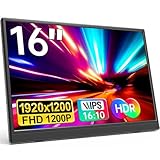
The YPI 16″ model is a straightforward 1920 x 1200 screen with both HDMI and USB-C inputs, and that combination is exactly what an ordinary laptop user needs. The 16:10 shape of a 1200P panel gives you 120 more pixel rows than a standard 1080p display, which is noticeable when you stack a browser above a document or keep a chat column open beside a spreadsheet. If your laptop was built in the last several years and has a USB-C port that supports video output, a single cable can usually carry both picture and power.
Who it suits: students, remote workers and frequent travelers who want a larger second screen than the usual 15.6-inch unit without adding much bulk. It is also a reasonable choice for anyone who wants a neutral, no-gimmick display to sit beside a laptop in a hotel room or at a coffee shop.
Key specs from the listing
- 16-inch screen, FHD 1200P (1920 x 1200)
- HDMI and USB-C connections
- Marketed for travel and as an external monitor
- Brightness, color gamut, speaker output and included cables are not stated in the short listing name, so confirm them on the product page
Strengths
The resolution is a sweet spot for the size. At about 142 pixels per inch, text is crisp enough for long reading sessions, and a 1200P panel is far easier for a laptop GPU to drive than a high-refresh 2.5K model. Having both video inputs means the screen works with older laptops that lack USB-C video, and with consoles and mini PCs that use HDMI.
Pros and Cons
Pros
- Taller 16:10 canvas than 1080p screens
- Both HDMI and USB-C, so it fits older and newer devices
- Lower power demand than a 144Hz panel, which helps laptop battery life
- Large enough for side-by-side windows without being unwieldy
Cons
- Lower pixel density than the ARZOPA and VisionOwl 2.5K models
- Likely 60Hz, so it will not feel as smooth for fast games
- Few extras are named in the listing, so mounting and stand details need checking
In daily use: Picture a typical workday with a laptop on the left and this screen on the right. Video calls and chat stay on the laptop, while the 16-inch panel holds the document you are drafting and a reference page. Because the 1200P canvas is taller than 1080p, a full email thread and its attachment preview fit without scrolling. Before buying, check the weight, stand style and whether a cable is included, since those details decide how comfortable it is to carry every day.
Versus the nearest alternative: The Veout and Orfibz screens share the same 16-inch 1200P class, so the choice between them comes down to connectors and accessories. The YPI is the plain option; the Veout adds two USB-C ports and a blue light filter mode, which can matter if you use a phone or tablet as a source. Step up to the ARZOPA only if you notice small text on the 1200P panel.
2. MNN 15.6″ FHD Portable Monitor – Best for Casual Console and Laptop Play

The MNN screen is the smaller, lighter-class option in a group dominated by 16-inch panels. At 15.6 inches and 1920 x 1080, it matches the size of most laptop displays, which keeps the footprint familiar and makes it easy to slip into the same sleeve or backpack compartment. The listing name highlights 60Hz IPS, HDR, USB-C and HDMI inputs, and gaming and laptop use.
Who it suits: players who want a basic second display for a handheld PC, a console or a laptop, and who care more about portability and compatibility than about the sharpest possible picture. It is also a decent screen for a work-from-anywhere kit when you only need to keep one or two extra windows open.
Key specs from the listing
- 15.6-inch IPS panel
- 1920 x 1080 (FHD) at 60Hz
- USB-C and HDMI inputs
- HDR mentioned in the listing name; portable panels with this label generally accept an HDR signal but are not bright enough to deliver the dramatic highlights of a premium HDR display
Strengths
A 16:9 1080p panel is the most universally compatible format. Consoles, streaming sticks and older laptops all output 1080p without scaling issues, and 60Hz is the default for most portable gaming setups. IPS panels also keep color and contrast stable at wide viewing angles, which helps when two people look at the screen together.
Pros and Cons
Pros
- Familiar 15.6-inch size that fits standard laptop sleeves
- 1080p is easy on a laptop battery and graphics chip
- IPS panel for consistent colors from the side
- USB-C and HDMI cover most modern sources
Cons
- Pixel density is around 141 pixels per inch, similar to the 1200P models, with less vertical space
- 60Hz limits smoothness for competitive play
- HDR is a signal feature here rather than a major visual upgrade
In daily use: This size works well on a small desk or a train table, where a 16-inch panel might feel crowded. Two points to check on the product page are brightness and the exact USB-C video support, because a 60Hz IPS screen is only as good as the signal and power it receives. If you plan to use it with a handheld or console, bring the HDMI cable and a USB power adapter, since HDMI sources do not supply power to the screen on their own.
Versus the nearest alternative: The KYY is the closest match, also 15.6 inches and 1080p, but the KYY leans on its cover and basic simplicity while the MNN is marketed with HDR and gaming in mind. Neither matches the 144Hz VisionOwl for fast action. If you want more workspace instead of a smoother picture, a 16-inch 1200P model like the YPI gives you extra rows.
3. ARZOPA 16″ 2.5K Portable Monitor – Best for Sharp Text and Color-Sensitive Work

The ARZOPA is the sharpest 60Hz screen in the lineup. Its 2560 x 1600 IPS panel is listed with a 123% sRGB figure, which means the manufacturer claims it can display a wider range than the sRGB standard. In practice that translates into vivid colors for photo and video browsing, though it is worth remembering that a gamut percentage is not the same as factory calibration or color accuracy. The 16:10 shape matches many modern laptops, so a mirrored image fills the whole panel without black bars.
Who it suits: writers, spreadsheet users, designers who do light editing and anyone who stares at text for hours. If you have ever squinted at a small font on a 1080p portable screen, the density jump here is the main reason to choose this model.
Key specs from the listing
- 16-inch IPS display, 2560 x 1600 (QHD, often marketed as 2.5K)
- 123% sRGB color gamut claim
- USB-C and HDMI connectivity (confirm the exact port count and cable types in the box on the product page)
- Pixel density of roughly 189 pixels per inch by calculation
Strengths
Fine text rendering is the headline benefit. Small fonts in code editors, financial sheets and PDFs look clean, and you can fit more on screen at default scaling. Many laptops can output 2560 x 1600 over USB-C, but older or entry-level ones may be limited by their video chip or cable, so check your source device before you plan around the full resolution. Because this panel is a standard-refresh model, it demands less from a laptop than the 144Hz VisionOwl.
Pros and Cons
Pros
- Highest pixel density among the 60Hz screens in this guide
- 16:10 canvas with extra vertical room
- Wide color gamut claim helpful for photo and video viewing
- Flexible connections for laptops, phones and consoles
Cons
- Needs a source that can output a 2560 x 1600 signal
- 60Hz refresh rate is less smooth for fast games
- Higher resolution can mean slightly higher power draw than a 1080p panel
In daily use: The benefit shows up in small details. A spreadsheet with 12-point text, a code editor with two panes or a photo contact sheet all look cleaner at about 189 pixels per inch than on a 1200P screen. Set operating system scaling to around 125 to 150 percent so text stays readable, and enjoy the extra sharpness without shrinking everything. Because it is a 60Hz model, it is a calmer match for ultrabooks than the 144Hz option.
Versus the nearest alternative: The VisionOwl shares the same 2.5K resolution but adds 144Hz and VESA mounting. Choose the ARZOPA when your work is mostly static, such as writing, spreadsheets or photo review. Choose the VisionOwl when motion clarity matters. Against the 1200P models, the ARZOPA is clearly sharper, so it is the logical upgrade if resolution is your main complaint.
4. VisionOwl Portable Monitor 16 Inch 2.5K QHD 144Hz – Best for Smooth Gaming and Arm Mounting

The VisionOwl is the speed-focused model. It takes the 2.5K QHD resolution and 16:10 aspect ratio and adds a 144Hz refresh rate, so cursor movement, scrolling and fast action look noticeably smoother than on a 60Hz panel. The listing also names USB-C, HDMI, HDR and VESA mounting, and positions the screen for laptops, PCs, MacBooks, PS5 and Xbox. That makes it the most versatile display in the roundup for people who split time between work and play.
Who it suits: gamers with a gaming laptop, handheld PC or console, creators who like a smooth timeline preview and desk users who want to move the screen onto a monitor arm or stand rather than rely on a kickstand.
Key specs from the listing
- 16-inch panel, 2.5K QHD, 16:10
- 144Hz refresh rate
- USB-C and HDMI inputs with an HDR label
- VESA mount compatibility
- Marketed for laptops, PCs, MacBooks, PS5 and Xbox
Strengths
The combination of 2.5K and 144Hz is rare in this size class. To use it fully you need a source that can actually deliver that signal. A PC with a modern GPU over a capable cable can; a console will cap output at whatever refresh rate and resolution it supports, so read your console’s display settings before expecting 144Hz. For single-cable USB-C use, your laptop port needs DisplayPort Alt Mode or Thunderbolt/USB4 support and should deliver enough power to run the panel.
Pros and Cons
Pros
- High refresh rate for smooth motion
- Same sharp 2560 x 1600 density as the ARZOPA
- VESA mounting adds desk flexibility
- Broad device compatibility named in the listing
Cons
- High refresh and resolution together increase power draw, which can shorten laptop battery life when bus-powered
- Needs a capable cable and source to hit full specs
- Likely a step up in cost-class from the 1200P models, so make sure you will use the 144Hz
In daily use: Mounted on a small monitor arm beside a gaming laptop, the 144Hz panel makes cursor movement and scrolling look fluid, and the 16:10 shape leaves room for a chat or stream window. Travel use is possible too, but bus power at high refresh can drain a laptop quickly, so carry a wall adapter. Always set the refresh rate manually in your display settings, because many systems default a new screen to 60Hz.
Versus the nearest alternative: The ARZOPA is the closest in size and resolution. If you never play fast games and mostly read or write, the ARZOPA gives the same sharpness with a lighter load on your laptop. If you do care about motion or plan to mount the screen, the VisionOwl is the clear winner of the two.
5. 16.1″ Portable Monitor for Laptop – Best for Portrait Mode Coding and Reading

This unbranded-style 16.1-inch screen has one standout feature in its listing name: a 360-degree rotating detachable stand that supports both horizontal and vertical use. Rotating a screen to portrait is a surprisingly practical trick. A tall layout shows many more lines of code, a full page of a PDF or a long chat thread, and it keeps your eyes closer to a natural vertical scanning pattern. The panel itself is a 1200P FHD ultra-thin laptop screen extender.
Who it suits: programmers, writers, researchers and traders who like a vertical second screen, as well as people who want a flexible stand instead of a simple fold-out cover.
Key specs from the listing
- 16.1-inch display, 1200P FHD (1920 x 1200)
- Ultra-thin laptop screen extender design
- Horizontal and vertical orientation
- 360-degree rotating, detachable stand
- Confirm connector types and any included cable on the product page
Strengths
Stand design is the differentiator. A detachable rotating stand lets you pivot the panel without lifting it off the desk, and removing the stand makes the screen thinner for the bag. Software must also rotate the image: Windows, macOS and ChromeOS all have a display orientation setting, and rotating the desktop takes only a few clicks. Remember that rotating a 16:10 panel into portrait gives a 10:16 view, which is tall and narrow, so it suits single-column tasks best.
Pros and Cons
Pros
- True portrait mode support through a rotating stand
- Slightly larger diagonal than the 16-inch models
- Detachable stand reduces thickness when packing
- 1200P resolution is comfortable for text and light multitasking
Cons
- Brand and detailed specs are thin, so check brightness and cables before buying
- A separate stand is one more part to keep track of
- Pixel density is lower than the 2.5K models
In daily use: Many portrait users keep the rotated screen for code, long documents or a social feed, and use the laptop for everything else. After rotating the stand, remember to rotate the picture in display settings and confirm the touchpad direction still feels natural when you drag windows across. If you plan to switch often between landscape and portrait, make sure the stand locks firmly at each angle so the screen does not drift.
Versus the nearest alternative: The YPI, Veout and Orfibz are all 1200P, but none of their short listing names highlights a rotating stand. If portrait use is your priority, this one is the most direct fit. If you want the cleanest picture rather than a clever stand, the ARZOPA is sharper.
6. Veout 16″ Portable Monitor – Best for Travelers Who Want a Blue Light Filter Mode

The Veout 16″ model is named for its 1920 x 1200 IPS panel, dual USB-C ports and Mini-HDMI input, and it also lists a blue light filter eye-care mode. Two USB-C ports are a real convenience: one can carry video and power from your laptop while the other accepts a separate power adapter or a phone-style source. The Mini-HDMI input is the less common size, so check that the cable in the box matches what you need before you travel.
Who it suits: frequent flyers and hybrid workers who want flexible connections, and people who like a reduced-blue display mode during evening use. Manufacturers describe blue light filter modes as warming the display tone; if you have concerns about eye comfort or sleep, ask an eye-care professional rather than relying on a screen setting.
Key specs from the listing
- 16-inch IPS screen, 1920 x 1200
- Dual USB-C and Mini-HDMI inputs
- Blue light filter and eye-care mode named in the listing
- Marketed as a travel and second-screen display
Strengths
Connection flexibility is the main selling point. With two USB-C ports you can connect to a laptop on one side of the desk and charge from a wall adapter on the other, which avoids draining the laptop battery. IPS panels keep colors readable from the side. A Mini-HDMI to HDMI cable works with consoles, mini PCs and cameras that expose full-size or mini outputs.
Pros and Cons
Pros
- Two USB-C ports for video and power flexibility
- IPS 1200P panel at a comfortable 16-inch size
- Blue light filter mode for evening work
- Mini-HDMI option for small devices
Cons
- Mini-HDMI needs the right cable if you use older HDMI sources
- Resolution is lower than the 2.5K screens
- Claims such as eye care are manufacturer descriptions, not medical guarantees
In daily use: Imagine a hotel desk with one wall outlet. One USB-C port connects to the laptop for video, the other connects to a charger so the screen does not drain the laptop, and the blue light filter mode is switched on after dinner. If you use a phone as a source, check that its USB-C port supports video output, since not every phone does. Treat the filter mode as a comfort setting and see an eye-care professional if you have vision concerns.
Versus the nearest alternative: The Orfibz is the closest 16-inch 1200P rival, and the YPI offers HDMI and USB-C in a plainer package. The Veout is the better pick if you plan to power the screen from a wall adapter or want a filter mode. If you only need a quick extra window, the simpler models save you cable decisions.
7. Orfibz 16″ Portable Monitor – Best for Simple Plug-and-Play Setup

The Orfibz 16″ screen is described as a 1200P FHD laptop screen extender with plug-and-play operation. That phrase is the whole pitch: connect one cable, and the display shows up as an extra monitor without installing drivers or software on most modern computers. For people who dislike troubleshooting or who set up a screen in a different place every week, simplicity can be worth more than extra features.
Who it suits: casual users, students and professionals who simply want more room to work. It is also a sensible gift-style choice for someone who is not very technical, because the setup steps are as basic as connecting a cable and choosing mirror or extend mode.
Key specs from the listing
- 16-inch screen, 1200P FHD
- Laptop screen extender design
- Plug-and-play operation
- Check the product page for port types, stand design and accessories
Strengths
Plug-and-play means the screen relies on standard USB-C video or HDMI and does not need special driver software. On a laptop with a full-function USB-C port, the connection is usually as easy as plugging in the cable. For HDMI, you will typically need a separate power connection for the screen, so remember to carry a USB power adapter and short cable. The 1200P resolution keeps the load on your device light.
Pros and Cons
Pros
- Easy setup on most modern laptops
- Larger 16-inch, 16:10 workspace
- Resolution suitable for documents, email and web work
- Low demands on the host computer
Cons
- Short listing leaves details like brightness and ports unclear
- No headline features such as high refresh or portrait stand
- Not as sharp as the 2.5K models
In daily use: A plug-and-play screen shines when you move often between home, an office and a shared workspace. Keep a short USB-C cable and a small power adapter in the same pouch as the screen so setup takes seconds. On older laptops that lack USB-C video, use the HDMI route and power the screen separately. Because the listing is brief, read the product page for brightness, stand design and warranty terms before you commit. Keep the cable lengths short so the screen does not slide off the desk when you adjust it, and treat the first week as a trial of how often you really use the second screen.
Versus the nearest alternative: The YPI is nearly identical on paper, offering HDMI and USB-C at the same size and resolution. The Veout offers more named connections and a filter mode. Pick the Orfibz when the listing details on the product page, such as included cables and warranty terms, meet your needs, and you want the plainest possible second screen.
8. KYY Portable Monitor 15.6″ 1080P – Best for a Light, Basic Second Screen

The KYY is a 15.6-inch 1080p screen extender that comes with a cover. The cover usually folds into a stand, so the whole package is a single slim unit that slides into a sleeve with the laptop. Of the eight monitors in this guide it is the most modest on paper, and that is exactly why it works for the right person: it provides the extra screen real estate that boosts productivity, with the fewest moving parts.
Who it suits: email-and-chat multitaskers, people who need a reference screen for video calls, and anyone starting out with a dual-screen setup. It also suits a spare-room or guest-desk setup where the screen is used occasionally.
Key specs from the listing
- 15.6-inch display, 1080p (1920 x 1080)
- Screen extender for laptops and computers
- Cover included
- Confirm ports, brightness and cable details on the product page
Strengths
The 15.6-inch 16:9 format matches the screens of most standard laptops, so windows moved between displays behave predictably. A smart-cover style stand keeps the setup compact, and a lower resolution is easier on a bus-powered connection. For video calls on one screen and notes on the other, this size and resolution are plenty.
Pros and Cons
Pros
- Lightest spec sheet and easiest to carry
- Cover doubles as protection and, in most designs, a stand
- 1080p is simple for any laptop to drive
- Familiar laptop-like size
Cons
- Lower resolution than most of the other screens
- No headline features like high refresh or rotation
- Older listing, so check recent product details on the page
In daily use: A 1080p 15.6-inch screen with a cover is a gentle introduction to dual-screen work. Put the video call or messaging app on it, keep the main document on the laptop, and you will feel the productivity gain within a day or two. Check that the cover stand is stable on your usual surface, and confirm the video input type matches your laptop, since older screens may rely on specific USB-C or HDMI arrangements. It also pairs sensibly with a wireless keyboard and mouse, so the laptop can sit raised beside the screen without cramping your wrists, which is a small change that makes long sessions noticeably more comfortable.
Versus the nearest alternative: The MNN is the other 15.6-inch 1080p model and adds an HDR label and gaming focus. Pick the KYY for simplicity and the cover, the MNN if you want a gaming-oriented listing, and a 16-inch 1200P screen if the extra vertical room is worth the slightly larger footprint.
How to Choose a 16 Inch Portable Monitor
Choosing between eight similar-looking screens gets easier when you work through four questions in order: what resolution do you need, what refresh rate do you need, how will it connect, and how will it sit on a desk or in a bag. The sections below turn each question into numbers you can check against a listing.
Step 1: Resolution and pixel density
Pixel density is the number of pixels per inch of screen, and it determines how sharp text looks. The formula is the diagonal resolution in pixels divided by the diagonal size in inches. For a 16-inch 2560 x 1600 panel, the diagonal is the square root of (2560 squared plus 1600 squared), which is about 3,019 pixels, so the density is about 189 pixels per inch. For a 16-inch 1920 x 1200 panel the diagonal is about 2,264 pixels, giving roughly 142 pixels per inch. A 15.6-inch 1920 x 1080 panel lands at about 141 pixels per inch. Most people sitting an arm’s length from a laptop-style screen find 140 pixels per inch fine for web pages and email, while the jump to about 190 makes small fonts, code and spreadsheet cells look smoother. If you mostly watch video or run chat windows, the lower density is perfectly adequate.
Step 2: Refresh rate
A 60Hz screen redraws 60 times per second, and a 144Hz screen redraws 144 times. For office work, browsing and movies, 60Hz is standard. Faster refresh matters when you play shooters, racing games or anything with rapid camera movement, and some people like the smoother mouse trail even in desktop use. Only the VisionOwl in this list names 144Hz. Before you pay for that, check that your source can output it. Gaming laptops with a discrete GPU usually can; many ultrabooks and consoles cannot at 2.5K.
Step 3: Connection and power, with a worked example
Most portable monitors draw power from the same USB-C cable that carries the picture, which is convenient but takes energy from the laptop. A typical bus-powered portable panel can draw roughly 5 to 15 watts depending on brightness and panel type, and high-refresh models sit at the upper end. Here is a worked example. Suppose your laptop has a 50 watt-hour battery and draws 10 watts in light office use. Runtime is 50 divided by 10, which is 5 hours. Add a monitor that pulls 8 watts through the cable, and total draw becomes 18 watts, so runtime falls to 50 divided by 18, or about 2.8 hours. If you instead plug the monitor into a wall adapter using its second USB-C port, the laptop returns to 5 hours. This is why a screen with two USB-C ports, like the Veout, can be worth more than its spec sheet suggests when you work away from an outlet.
For USB-C video, the laptop port must support DisplayPort Alternate Mode, Thunderbolt or USB4. A USB-C port that only charges or transfers data will not show a picture. Look for a small DisplayPort or Thunderbolt symbol next to the port, or check the laptop’s manual. Some Apple laptops with the base chip support only one external display, so confirm before you plan a three-screen layout. For HDMI sources, the monitor typically needs separate USB power.
Step 4: Stand, mounting and carrying
Built-in kickstands and fold-out covers are the lightest options but tend to allow fewer angles. A detachable rotating stand, like the one on the 16.1-inch model, allows portrait use. VESA mounting, named for the VisionOwl, lets you attach the screen to an arm. If the screen will mostly live on a desk, mounting is worth prioritizing; if it will mostly live in a bag, cover and weight matter more. A 16-inch screen is typically around 1.5 to 2 pounds, so confirm weight on the product page and compare it with your bag capacity.
Decision matrix
| Your situation | Best pick | Why |
|---|---|---|
| Long hours of text, spreadsheets or code | ARZOPA 16″ 2.5K | Highest pixel density without a high-refresh power load |
| Fast games or smooth scrolling | VisionOwl 2.5K 144Hz | 144Hz and VESA mounting |
| Vertical layout for coding or reading | 16.1″ Rotating Stand Monitor | 360-degree rotating detachable stand |
| Work away from outlets, want to power the screen separately | Veout 16″ | Dual USB-C plus Mini-HDMI |
| Simplest setup, mixed old and new devices | YPI 16″ or Orfibz 16″ | 1200P with plug-and-play operation |
| Smallest, lightest basic second screen | KYY 15.6″ or MNN 15.6″ | Laptop-size footprint at 1080p |
| Console or handheld at 60Hz | MNN 15.6″ | HDMI and USB-C, gaming-focused listing |
1200P, 2.5K and 144Hz Compared
Three technology tiers appear in this guide, and each suits a different buyer. The first tier is 1080p at 15.6 inches, represented by the KYY and MNN. It is the lightest on power and the easiest for any computer to drive, and its density is adequate for everyday use. The second tier is 1920 x 1200 at 16 inches, represented by the YPI, Veout, Orfibz and the 16.1-inch model. The 16:10 shape adds about 11 percent more pixels than 1080p, mostly in height, so you see more of a document or webpage without scrolling. The third tier is 2560 x 1600, represented by the ARZOPA and VisionOwl. It adds roughly 2.1 times the pixels of 1080p, which sharpens everything but needs more graphics power and cable bandwidth. Inside the third tier, the extra step from 60Hz to 144Hz is another jump in demand: the source has to draw more than twice as many frames per second.
A practical rule is to match the screen to the weakest link in the chain. If your laptop has integrated graphics from several years ago, a 1200P screen will feel smoother and drain less battery than a 2.5K one. If you own a modern gaming laptop with a discrete GPU and a Thunderbolt or USB4 port, the VisionOwl will use the hardware better. If you rely on a console, check what resolution and refresh rate it can output over HDMI, because the screen will only show what the console sends.
HDR labels deserve a note. Several portable screens in this list mention HDR. A portable panel with modest brightness, often in the range of a few hundred nits, can accept an HDR signal and map it to its limits, but it will not recreate the glare-bright highlights of a premium HDR display. Treat the label as a compatibility feature rather than a reason to choose one model. Likewise, a color gamut figure above 100 percent sRGB, such as the ARZOPA’s, indicates a wider palette but is not proof of accurate color out of the box. If you do color-critical work, a hardware calibrator or a professional reference monitor is the safer route.
Setting Up a Portable Monitor Step by Step
Setup is usually quick, but a few details prevent head-scratching later.
- Identify your port. Look at the laptop’s USB-C ports for a DisplayPort logo, a Thunderbolt lightning symbol or a USB4 mark. If you have only HDMI, use that input on the monitor and plan for a separate power cable.
- Use the cable that came with the screen first. USB-C cables vary enormously. Some only charge, and others carry video. A cable that is rated for video and the power the monitor needs avoids flickering and blank screens.
- Connect and wait for detection. After connecting, the laptop should detect the new display within a few seconds.
- Choose extend or mirror. In display settings, pick Extend to treat the screen as extra space, or Duplicate for presentations.
- Set resolution and refresh rate. Confirm the operating system selected the screen’s native resolution. On a high-refresh model, find the refresh rate option in advanced display settings and choose the highest available.
- Adjust scaling. On a 2.5K 16-inch screen, many users set scaling between 125 and 150 percent so text is comfortable; on a 1200P screen, 100 to 125 percent is common.
- Arrange screens in software. Drag the monitor icons in the display settings so the mouse crosses between screens in the direction they sit on your desk.
- Set brightness and mode. Use the on-screen menu for brightness, and consider lower brightness when running on battery power.
Common Mistakes to Avoid
- Buying a QHD screen for a laptop that cannot drive it. Older laptops may output a limited resolution over USB-C or HDMI. Check your device’s maximum external display resolution.
- Assuming every USB-C port carries video. Ports that look identical can support very different features. Verify with the manual.
- Ignoring power draw. A bus-powered high-refresh monitor can cut laptop battery life by half or more. Carry a wall adapter for long sessions.
- Using a low-quality cable. Cheap or damaged cables cause flicker, dropouts and low-resolution fallbacks.
- Forgetting stand compatibility. A fold cover stand may feel tippy on a soft surface like a bed or sofa. A rotating stand or arm mount improves stability.
- Expecting speakers to replace headphones. Built-in speakers on portable screens are typically small and thin-sounding. Headphones or a laptop speaker are usually better.
- Overlooking the video call setup. If you take video calls, place the webcam laptop and the monitor so you do not turn away from the camera each time you look at the second screen.
Care, Travel and Safety Tips
A 16-inch portable monitor is a thin panel, usually under half an inch thick, so it is vulnerable to pressure and bending. Carry it in a padded sleeve or in the laptop compartment rather than loose in a bag with keys or chargers. Keep it away from heavy objects when packing, since screen pressure can crack the panel or create bright spots. Clean it with a dry microfiber cloth, and if needed use a cloth slightly dampened with water, never spraying liquids directly on the screen. Do not use rough tissues or solvents on screen coatings.
For electrical safety, use the supplied power adapter or a reputable USB power supply with the rating the manufacturer recommends. Do not use a cable with bent connectors, exposed wire or heat damage. If a connector becomes unusually hot, disconnect it. Do not use the screen while charging a power bank under a blanket or in a closed bag, because a hot environment can shorten component life. When flying, check airline rules about electronics and portable batteries, and keep power banks in your carry-on rather than checked luggage.
Finally, place the screen at a comfortable viewing height. Most ergonomic guidance suggests that the top of a monitor should sit at or just below eye level, and that you should avoid craning your neck for long periods. A laptop stand or monitor arm that matches the height of the laptop screen helps when the two screens sit side by side. If you experience eye strain or neck discomfort, an eye-care professional or ergonomics specialist can give personal advice.
Cables, Adapters and Accessories Worth Having
The screen is only half the setup. A few inexpensive accessories decide whether the experience feels smooth or frustrating, and they are worth thinking about before the box arrives.
- A video-rated USB-C to USB-C cable. Look for a cable labeled for video output, such as a full-featured USB-C cable or a Thunderbolt-rated one. A short length of around three feet is usually easier to manage than a long one, and a thick, well-made cable tends to be more reliable with 2.5K and 144Hz signals.
- A wall charger with a USB-C port. A charger rated at roughly 30 watts or more can power a portable monitor and still leave room to charge a phone. Using the charger lets you keep the laptop battery for the laptop.
- A Mini-HDMI to HDMI cable, if relevant. The Veout lists a Mini-HDMI input, and some other portable monitors use mini connectors too, so make sure the cable type matches your source before traveling.
- A USB-C to HDMI adapter. Some thin laptops have only USB-C ports. If you need to connect a camera, console or mini PC, an adapter or a dock can bridge the gap.
- A padded sleeve. A neoprene or microfiber sleeve sized for 16-inch devices adds protection that a thin cover cannot match.
- A small stand or arm. If the built-in kickstand feels unstable on your desk, a compact laptop stand or an arm with VESA support gives you a better viewing angle.
Keep in mind that the contents of the box vary by listing and sometimes by seller, so read the product page carefully and avoid assuming that a cable or adapter is included.
Positioning Two Screens for Comfort
A laptop plus a portable monitor is often used for hours at a time, so layout matters. These guidelines are general ergonomics advice and not medical guidance.
- Match heights. Raise the laptop on a stand so its screen sits near the same height as the portable monitor. Large height differences make you tilt your head repeatedly.
- Keep your primary screen centered. Put the screen you look at most directly in front of you. Place the secondary screen to one side at a slight inward angle.
- Use an external keyboard and mouse. When the laptop is raised, a separate keyboard and mouse let you keep your wrists neutral.
- Set brightness to match the room. A screen much brighter than the surroundings can cause glare and fatigue. Many users reduce brightness in the evening or switch to a warmer color mode.
- Take breaks. A common recommendation is to look at something farther away every 20 minutes. If discomfort continues, ask an eye-care professional or ergonomics specialist for tailored advice.
For portrait setups with the 16.1-inch rotating-stand model, a vertical screen is easiest to read when the top edge is slightly below eye level and the stand sits on a stable, flat surface. Avoid pushing the screen too close, as large vertical panels can feel overwhelming at short distances.
Using a Portable Monitor with Phones, Handhelds and Mini PCs
Portable monitors are not limited to laptops. Many Android phones and tablets can output video over USB-C, and some offer a desktop-style mode that turns the monitor into a larger workspace. Support depends on the specific device and software version, so check your phone’s documentation. Handheld gaming PCs are an especially good match for a 16-inch screen because they output HDMI or DisplayPort video and have limited screens of their own. In that case, the 144Hz VisionOwl or the sharper ARZOPA are the most comfortable choices, though the handheld’s graphics chip determines whether it can render games at higher resolution without dropping frame rates.
Mini PCs and single-board computers also benefit. A compact PC with HDMI output paired with a 16-inch screen makes a tidy travel workstation, especially if you power both from a single high-wattage charger or battery bank. Cameras with HDMI output can use a portable monitor as a larger preview screen for photo and video work, but check that the monitor supports the camera’s output resolution and that you use a secure mount so the camera does not pull the cable.
Frequently Asked Questions
Do I need a special laptop to use a portable monitor?
Not necessarily. Any laptop with an HDMI output can drive these screens if you also supply power through a separate USB cable. Laptops with a USB-C port that supports DisplayPort Alternate Mode, Thunderbolt or USB4 can use a single cable for video and power.
Will a portable monitor work with a MacBook?
Yes, generally, through USB-C or HDMI with an adapter, and the 16:10 shape matches many MacBook displays. Some base MacBook models support only one external display, so check Apple’s specifications for your exact model.
Can I use these screens with a PS5, Xbox or Nintendo Switch?
Screens with an HDMI input can connect to consoles, and several listings mention PS5 and Xbox. Consoles require a separate power source for the monitor in most cases, and the picture will be limited to the resolution and refresh rate the console supports.
Is 2.5K worth it over 1080p or 1200P on a 16 inch screen?
If you read a lot of small text or work with spreadsheets, code or photo detail, the extra sharpness is easy to notice. If you mostly use the screen for video calls, chat and web pages, a 1200P panel is usually good enough and puts less load on your laptop battery.
What does a 144Hz refresh rate actually do?
It lets the screen update 144 times per second, which makes fast motion and mouse movement look smoother than on a 60Hz panel. You only benefit if your computer or console sends frames at that rate.
Why is my portable monitor not showing a picture over USB-C?
The most common causes are a USB-C port that does not support video output, a charge-only cable or a laptop that is not supplying enough power. Try the cable that came with the screen, a different port, or the HDMI input with separate power to narrow down the cause.
Can I rotate the screen to portrait mode?
You can if the stand allows it and your operating system supports rotation, which is available in the display settings of Windows, macOS and ChromeOS. The 16.1-inch model with a rotating detachable stand is built for this, while fold-cover designs may be harder to balance vertically.
How do I know the real specs of a particular listing?
Short listing names often omit details such as brightness, speaker output and included cables. Read the full product page, check the images of the ports and look at the manufacturer’s documentation when available.
Our Recommendation by Situation
If you spend your day in documents, spreadsheets or code, start with the ARZOPA 16″ 2.5K. If you play fast games or want to mount a screen on an arm, choose the VisionOwl 2.5K 144Hz. If you want a vertical coding or reading screen, the 16.1-inch rotating-stand model is the natural fit. For travel with flexible power options, the Veout is a strong pick, while the YPI and Orfibz suit anyone who wants a no-fuss 1200P upgrade. The MNN and KYY work best as compact, basic second screens for light tasks. Whichever you pick, confirm the port types, cables and stand design on the product page before ordering so the screen suits your laptop and your routine.
Ready to decide? Our #1 pick for 2026 is the YPI 16" 1200P Portable Monitor.
Live price & availability on Amazon.