Last Updated: October 13, 2026
- Top 3 Picks
- Quick Comparison
- How We Chose
- 1. Lenovo ThinkPad USB4 Dock 5000 – Best for ThinkPad and Windows offices
- 2. StarTech Driverless USB4 Dock – Best for Mac and Windows without drivers
- 3. Anker Prime 14-in-1 Dock – Best for charging many devices at once
- 4. UGREEN 11-in-1 USB4 Dock – Best for fast dual-monitor MacBook desks
- 5. Anker 8-in-1 USB-C Docking Station – Best for basic two-screen office desks
- 6. Lenovo ThinkPad USB4 Smart Dock 5500 – Best for four-display and managed desks
- 7. TobenONE 18-in-1 Dock – Best for triple-monitor budget workstations
- 8. Anker Nano 13-in-1 Dock – Best for one product at the desk and on the road
- 9. WAVLINK DisplayLink Dock – Best for three monitors from a Mac
- How to Choose a USB4 Docking Station
- Frequently Asked Questions
- Our Recommendation by Situation
The StarTech Driverless USB4 Dock is the best overall pick for most people shopping for a USB4 docking station, because it is the only dock in this group built around driverless dual 4K output at up to 144Hz on both Mac and Windows, with 100W laptop charging and a single cable to the computer. If you run a modern MacBook and want two real extended monitors without installing display software, start there. Windows-first offices that standardize on ThinkPads will be better served by the Lenovo USB4 Dock 5000 or the Smart Dock 5500, and anyone who needs three screens from one port should look at the DisplayLink-based options. Below you will find the nine docks ranked in a fixed order, a comparison table, the reasoning behind each recommendation, a bandwidth calculation that explains why some docks cannot do what their box implies, and a decision guide for matching a dock to your laptop and monitors.
📄 In This Review
- Top 3 Picks
- Quick Comparison
- How We Chose
- 1. Lenovo ThinkPad USB4 Dock 5000 – Best for ThinkPad and Windows offices
- 2. StarTech Driverless USB4 Dock – Best for Mac and Windows without drivers
- 3. Anker Prime 14-in-1 Dock – Best for charging many devices at once
- 4. UGREEN 11-in-1 USB4 Dock – Best for fast dual-monitor MacBook desks
- 5. Anker 8-in-1 USB-C Docking Station – Best for basic two-screen office desks
- 6. Lenovo ThinkPad USB4 Smart Dock 5500 – Best for four-display and managed desks
- 7. TobenONE 18-in-1 Dock – Best for triple-monitor budget workstations
- 8. Anker Nano 13-in-1 Dock – Best for one product at the desk and on the road
- 9. WAVLINK DisplayLink Dock – Best for three monitors from a Mac
- How to Choose a USB4 Docking Station
- Frequently Asked Questions
- Our Recommendation by Situation
Quick answer: For most people in 2026, the best usb4 docking station is the Lenovo ThinkPad USB4 Dock 5000 — our #1 rated choice. See the full ranked comparison, alternatives and buying advice below.
Top 3 Picks
Best overall: StarTech Driverless USB4 Dock. The listing promises dual 4K at 144Hz, 100W charging and compatibility with both Mac and Windows, and the maker positions it as a driverless dual-display solution. That combination is hard to find, and it removes the most common headache in Mac docking, which is installing and updating a display driver. It suits mixed fleets and anyone who moves between a MacBook and a Windows laptop.

Lenovo ThinkPad USB4 Dock 5000, 40Gbps Bandwidth, Universal Compatibility, 65W Charging, Multiple Display Support, Black
Included for 'Best USB4 Docking Station in 2026' because the listing specifies 40Gbps Bandwidth and Universal Compatibility, details this guide uses to compare options.
View on Amazon
StarTech Driverless USB4 Dock, Dual 4K 144Hz for Mac and Windows, 100W
Included for 'Best USB4 Docking Station in 2026' because the listing specifies Dual 4K 144Hz for Mac and Windows and 100W, details this guide uses to compare options.
View on Amazon
Anker Prime Docking Station, 14-in-1 Laptop Docking Station Dual Monitor | Dual 4K HDMI, 160W Max Output, 10Gbps Data Transfer, Smart Interface, Audio and Ethernet Ports for Dell, HP, Lenovo and More
Included for 'Best USB4 Docking Station in 2026' because the listing specifies 14-in-1 Laptop Docking Station Dual Monitor and Dual 4K HDMI, details this guide uses to compare options.
View on Amazon
UGREEN 11-in-1 USB4 Docking Station, Dual Monitor 4K@120Hz for MacBook | USB4 20Gbps, HDMI, 2.5GbE, 4xUSB-A&C, SD/TF,Audio,115W Charging,C-DP Cable,Compatible with Thunderbolt 4 Laptops (No Charger)
Included for 'Best USB4 Docking Station in 2026' because the listing specifies Dual Monitor 4K@120Hz for MacBook and USB4 20Gbps, details this guide uses to compare options.
View on Amazon
Anker Laptop Docking Station Dual Monitor, 8-in-1 USB C Hub with 4K HDMI
Included for 'Best USB4 Docking Station in 2026' because the listing specifies 8-in-1 USB C Hub with 4K HDMI, details this guide uses to compare options.
View on Amazon
Lenovo ThinkPad USB 4 Smart Dock 5500 w/ 135W Adapter, Supports up to 4 Displays, 100W Power to Laptop, Integrated USB4 Cable, Eclipse Black
Included for 'Best USB4 Docking Station in 2026' because the listing specifies Supports up to 4 Displays and 100W Power to Laptop, details this guide uses to compare options.
View on Amazon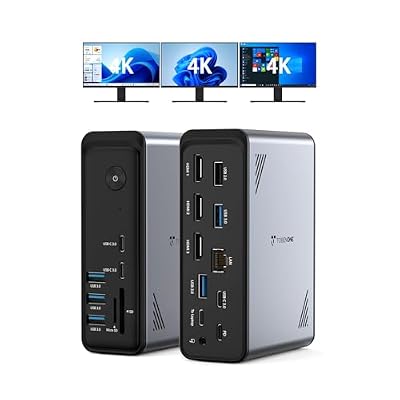
TobenONE 18 in 1 Laptop Docking Station 3 Monitors,Triple 4K HDMI,9 USB C/A
Included for 'Best USB4 Docking Station in 2026' because the listing specifies Triple 4K HDMI and 9 USB C/A, details this guide uses to compare options.
View on Amazon
Anker Nano Laptop Docking Station, 13in1 Dock with Detachable 6in1 USBC Hub
Included for 'Best USB4 Docking Station in 2026' because the listing specifies 13in1 Dock with Detachable 6in1 USBC Hub, details this guide uses to compare options.
View on Amazon
WAVLINK Displaylink Docking Station 3 Monitors for Mac(M1-M5/Neo) & Windows
Included for 'Best USB4 Docking Station in 2026' as a relevant option in this category; details come from the product listing.
View on AmazonBest for simple dual-monitor setups: Anker 8-in-1 USB-C Docking Station. This is the most basic dock in the list: two HDMI outputs, wired Ethernet and a card reader, delivered over ordinary USB-C rather than USB4. If your needs are two 1080p or 1440p office screens and a charger, it covers them without paying for bandwidth you will never use. Confirm your laptop supports DisplayPort Alt Mode first.
Best premium and best for many displays: Lenovo ThinkPad USB4 Smart Dock 5500. It ships with a 135W adapter, passes up to 100W to the laptop, and supports up to four displays according to its listing name. It also adds manageability features aimed at IT departments, so it is the logical choice for a desk that has to run several monitors and charge a large laptop at the same time.
Quick Comparison
| Product | Best for | Key specs |
|---|---|---|
| Lenovo ThinkPad USB4 Dock 5000 | ThinkPad and Windows offices | 40Gbps USB4, 65W charging per listing, multiple display support, integrated cable |
| StarTech Driverless USB4 Dock | Mac and Windows without drivers | Dual 4K up to 144Hz, 100W charging, driverless design |
| Anker Prime 14-in-1 Dock | Charging many devices at once | 14 ports, dual monitor, high total power output |
| UGREEN 11-in-1 USB4 Dock | Fast dual-monitor MacBook desks | 11 ports, dual 4K at 120Hz, 40Gbps USB4 |
| Anker 8-in-1 USB-C Dock | Basic two-screen office desks | 8 ports, dual HDMI, 4K HDMI, USB-C connection |
| Lenovo ThinkPad USB4 Smart Dock 5500 | Four-display and managed desks | 135W adapter, 100W to laptop, up to 4 displays, integrated USB4 cable |
| TobenONE 18-in-1 Dock | Triple-monitor budget workstations | 18 ports, three monitors, triple 4K HDMI, 9 USB-C/A ports |
| Anker Nano 13-in-1 Dock | Desk plus travel with one product | 13 ports, detachable 6-in-1 hub, USB-C connection |
| WAVLINK DisplayLink Dock | Three monitors from a Mac | DisplayLink, three monitors, Mac M1-M5 and Windows |
How We Chose
We built this list from manufacturer specification pages, the product listings themselves and widely published technical documentation on USB4, Thunderbolt and DisplayLink. We did not run our own bench tests, and nothing here should be read as measured performance. Each dock was judged on six criteria: the actual host connection (USB4 at 40Gbps or ordinary USB-C), how many displays and at what resolution and refresh rate, how many watts reach the laptop, whether the design needs a driver, port mix for real desks (Ethernet, card readers, USB-A for older gear), and how clearly the maker documents limitations on macOS. Where a listing name states a number we repeat it, and where a spec depends on your exact laptop we say so and point you to the manufacturer page. Docks that were not labeled USB4 are included because they are listed in this category, but we describe them as what they are.
1. Lenovo ThinkPad USB4 Dock 5000 – Best for ThinkPad and Windows offices
As an Amazon Associate we earn from qualifying purchases at no extra cost to you.

The Lenovo ThinkPad USB4 Dock 5000 is a business-oriented dock that connects to the laptop over a single integrated USB4 cable and offers the full 40Gbps link. Its listing name highlights universal compatibility, 65W charging and multiple display support, and Lenovo documentation describes outputs of one HDMI 2.1 port, two DisplayPort 1.4 ports and a full-function USB-C video port. Configurations quoted by retailers include a single 8K display at 60Hz, two 4K displays at 144Hz or four 4K displays at 60Hz, although what you actually get depends on your laptop graphics, your monitors and the cable.
Key specs
- Host link: USB4, 40Gbps, integrated cable of about one meter
- Video: HDMI 2.1, two DisplayPort 1.4, one USB-C with video
- Charging: 65W to the laptop with the supplied adapter; Lenovo lists an optional larger adapter for higher output
- Network: Gigabit Ethernet
- Data: a mix of USB-A and USB-C 3.2 Gen 2 ports at the front and rear
Why it stands out
The dock is aimed at offices, so it concentrates on the unglamorous features that matter on a managed desk: locking slots for security cables, Ethernet that supports remote wake and a clean port layout with always-on charging ports at the front. Because it uses USB4 rather than a compression-based system, display output is native, which keeps latency low for text work and video calls. The 65W figure is the point to check. Many thin-and-light business laptops charge happily at 65W, but a performance laptop with a 100W or larger charger will draw down its battery under heavy load unless you move to the optional larger adapter or to the Smart Dock 5500.
Setup and real-world fit
Plan the desk around the integrated cable: it leaves the dock fixed to one side of the laptop, so measure the distance from your laptop’s port to the spot where the dock will sit. Use DisplayPort cables certified for the resolution you want, since a low-grade cable is a common reason a monitor refuses its top refresh rate. If you attach a fourth display through the USB-C video port, expect that screen to share a pipeline with the others, so check the maker’s chart for exactly which combinations are supported. After the first connection, update the dock firmware through the vendor utility, because early firmware is where most odd behavior, such as a display that wakes late, tends to be fixed.
Pros
- Full 40Gbps USB4 link with native display outputs
- Supports several high-refresh or multi-monitor layouts
- Integrated cable avoids the cable-quality lottery
- Business features such as lock slots and Ethernet management
Cons
- 65W charging out of the box is too low for many large laptops
- Macs can face display-count limits set by Apple silicon, not by the dock
- Integrated cable length is fixed, so desk layout matters
How it compares
Against the Smart Dock 5500 further down this list, the Dock 5000 gives up the larger adapter and the higher charging output in the box, in exchange for a simpler, lighter product. Against the StarTech dock it offers more video connector types, including HDMI, but it does not promise the same driverless dual-display behavior on Apple laptops. Choose it when you are on Windows or a ThinkPad and your laptop is comfortable at 65W.
2. StarTech Driverless USB4 Dock – Best for Mac and Windows without drivers

The StarTech Driverless USB4 Dock is the pick for anyone who splits time between a MacBook and a Windows machine. StarTech positions it as a USB4 dock that supports dual displays on recent Apple silicon laptops without a display driver, and the listing name promises dual 4K at 144Hz and 100W charging. The maker lists two DisplayPort outputs rather than HDMI, so you will want DisplayPort monitors or inexpensive DisplayPort-to-HDMI cables.
Key specs
- Host link: USB4, with a screw-locking host cable for a secure connection
- Video: two DisplayPort outputs; dual 4K up to 144Hz or a single 8K at 60Hz, where the high-refresh mode depends on the laptop and uses display stream compression
- Charging: up to 100W
- Network: 2.5 Gigabit Ethernet with Wake-on-LAN
- Data: USB 3.2 Gen 2 Type-A and Type-C ports plus one USB 2.0 port
Why it stands out
Most USB4 docks make Mac owners choose between native output, which on some chips limits you to a single external display, and DisplayLink-style docks, which require software and use compression. StarTech’s approach is to deliver both outputs natively through the USB4 connection, which is why it can describe itself as driverless. For an IT department, that means one fewer piece of software to deploy and patch. The 2.5 Gigabit Ethernet port is also a quiet advantage on modern networks, and the utilities StarTech lists, such as MAC address pass-through and window layout tools, are optional rather than required.
Because the 144Hz modes rely on display stream compression and certain laptop chips, read the compatibility table on the maker’s page for your exact MacBook or PC. The 100W ceiling covers most thin laptops but not every large workstation.
Setup and real-world fit
Because the outputs are DisplayPort, buyers with HDMI-only monitors need active or passive adapters, and for high refresh rates the adapter must support the bandwidth involved. Plug the monitors in before waking the laptop so the system detects both on the first handshake. The screw-locking host cable is a small but practical detail for shared desks, as it prevents a yanked cable from dropping every display at once. IT teams should note the Wake-on-LAN and MAC address pass-through options, which let a docked laptop keep its network identity. Confirm the exact refresh modes for your laptop chip on the maker’s compatibility page.
Pros
- Driverless dual-display design that works across Mac and Windows
- Up to 100W laptop charging
- 2.5 Gigabit Ethernet and Wake-on-LAN for managed environments
- Screw-locking host cable reduces accidental disconnects
Cons
- No HDMI output; adapters may be needed for HDMI monitors
- Highest refresh modes depend on laptop chip and cable quality
- Fewer card readers and audio extras than multi-port consumer docks
How it compares
Next to the UGREEN 11-in-1, which also advertises dual 4K at high refresh over USB4, StarTech trades a few convenience ports for a more enterprise-focused feature set and a locking cable. Next to the Lenovo Dock 5000, it adds Mac-friendly dual displays and higher charging output but offers fewer connector types. If your desk is mostly MacBooks, this is the safest starting point on the list.
3. Anker Prime 14-in-1 Dock – Best for charging many devices at once

The Anker Prime 14-in-1 Docking Station, described as a dual-monitor model in its listing name, is the most power-oriented dock in the group. Anker sells several dock variants under the Prime and 14-in-1 labels, including dual-display, triple-display DisplayLink and Thunderbolt 5 versions, so confirm on the product page which one you are buying. The dual-display version is described by the maker as a 160W total-output dock with multiple USB-C ports that can each supply substantial power, which makes it more of a charging station than a pure display dock.
Key specs
- Format: 14-in-1 with dual HDMI video outputs on the dual-display model
- Power: high total output across several USB-C ports, with the upstream port able to charge a laptop at up to 100W
- Network: Gigabit Ethernet
- Data: mix of 10Gbps and 480Mbps USB ports, plus an audio combo jack
- Host link: USB-C at 10Gbps rather than a 40Gbps USB4 link, according to the maker’s specification for this variant
Why it stands out
If your desk includes a phone, a tablet, earbuds and a laptop that all need charging, the ability to deliver high power on several ports at once is rare among docks. The macOS note is important: Anker states that this dual-display variant is not recommended for MacBooks with two different monitors, because both external screens show the same image. On Windows, two extended displays work normally within the limits of your laptop’s DisplayPort capability, so a quick look at your laptop’s specification sheet saves a return.
Setup and real-world fit
This dock is large enough that it works best as a permanent desk fixture rather than a travel companion. Give it ventilation, because a unit that charges several devices at once will warm up. When you connect a phone, tablet and laptop together, the total output is shared, so the upstream laptop port gets the largest allocation and the others share what remains. Windows users should check their laptop’s DisplayPort version, since DisplayPort 1.2 hosts support lower dual-monitor resolutions than DisplayPort 1.4 hosts. If you have a MacBook and two different monitors, Anker’s own guidance points you to a different dock.
Who should skip it
If your goal is two crisp 4K high-refresh monitors, skip it and choose a 40Gbps USB4 dock. If you travel often, the size works against it. If you only charge a laptop and a phone, a dock with a smaller power budget will do the same job.
Pros
- Strong total power budget for multiple USB-C charging ports
- Generous port count for peripherals
- Recognizable brand with clear documentation of limits
- Two HDMI outputs suit common office monitors
Cons
- Not a USB4 40Gbps dock in this variant, so high-refresh dual 4K is out of reach
- Mirrored displays on Apple laptops when two monitors are attached
- Larger footprint than slim horizontal docks
How it compares
The Anker Prime is the opposite of the StarTech dock: lots of charging and ports, but a modest display pipeline. It beats the simple Anker 8-in-1 in power and port count and loses to every USB4 option here on display headroom. Choose it for a Windows desk that mostly runs two office monitors and needs plenty of USB-C charging; skip it if you are on a MacBook with two different monitors.
4. UGREEN 11-in-1 USB4 Dock – Best for fast dual-monitor MacBook desks

The UGREEN 11-in-1 USB4 Docking Station targets people who want high-refresh monitors on a MacBook or a Windows ultrabook without a bulky vertical dock. Its listing name promises dual monitor output at 4K and 120Hz, and the maker describes a 40Gbps USB4 link, a flat horizontal body that slides under a monitor riser, and a short integrated host cable of roughly two and a half feet.
Key specs
- Host link: USB4, 40Gbps, integrated cable
- Video: dual 4K at 120Hz in extended mode on supported Windows and Mac laptops, or a single higher-refresh display according to the maker
- Charging: up to 115W to the laptop, with a separate high-wattage input for the dock’s own power
- Network: 2.5 Gigabit Ethernet
- Ports: HDMI, a downstream USB4 port, USB-C and USB-A data ports, card readers and an audio jack
What to know before buying
Two points deserve a second look. First, the 40Gbps bandwidth is shared among everything attached, which is normal for any dock, but it means an external drive and two 4K 120Hz screens compete for the same pipe. Second, the listing notes you should confirm whether a power adapter ships in the box; if it does not, you need a charger of sufficient wattage, and that matters because the dock’s 115W laptop figure depends on it. UGREEN also sells an older Revodok line with different specifications, so check that the model you are looking at is the USB4 version.
In practice, the 11-in-1 layout is well judged for a typical desk: SD and microSD readers at the front for photographers, a headphone jack, one fast USB-C port for a drive and a rear USB4 downstream port that lets you daisy-chain a fast external SSD.
Setup and real-world fit
The horizontal chassis is designed to sit beneath a monitor or monitor riser, which keeps cables tidy and frees desk space for a keyboard tray or notebook. Photographers will appreciate the front-facing card readers, and remote workers will appreciate the 2.5 Gigabit Ethernet if their router supports it. To reach dual 4K at 120Hz, both monitors must support that mode, the connection chain needs suitable cables, and the laptop must support the required display compression, so treat the headline figure as a ceiling and verify your own combination against the maker’s compatibility notes before ordering.
Pros
- Dual 4K at high refresh claimed over a single USB4 cable
- Up to 115W charging suits many larger laptops
- Flat design saves vertical space and fits under monitors
- 2.5 Gigabit Ethernet and card readers cover common needs
Cons
- Shared 40Gbps link limits simultaneous heavy workloads
- Power adapter inclusion should be confirmed before purchase
- Only one HDMI output; the second display may need USB-C video via an adapter
How it compares
It is the closest rival to the StarTech dock. UGREEN offers more ports and a higher charging ceiling, while StarTech leans on a driverless dual-display message and locking cable. If you value card readers and 115W charging, pick UGREEN; if you manage a fleet and want vendor documentation across many monitors, pick StarTech.
5. Anker 8-in-1 USB-C Docking Station – Best for basic two-screen office desks

The Anker Laptop Docking Station with dual monitor support and 8-in-1 ports is the plain, practical entry in this list. Despite appearing in a USB4 roundup, it is a standard USB-C dock: it relies on DisplayPort Alt Mode and multi-stream transport rather than a 40Gbps USB4 tunnel. That keeps it simple. It gives you two HDMI outputs (the listing mentions 4K HDMI), wired Ethernet, an SD and microSD reader and a few USB-A ports, and it can pass power to the laptop, with a maximum of 85W stated by the maker. Retail pages note that the charger is not included, so plan to use your laptop’s own adapter.
Key specs
- Host link: USB-C, not 40Gbps USB4
- Video: dual HDMI; resolution depends on your laptop, with 4K on one display and lower resolution when both are used
- Charging: up to 85W pass-through; external adapter required
- Network: Gigabit Ethernet
- Storage: SD and microSD card slots
Where it fits
The right buyer has a Windows laptop, two 1080p or 1440p monitors and no appetite for premium features. A common limit applies to docks of this type: the bandwidth available for video is split between the two outputs, so two screens run at lower resolution or refresh than one. If your laptop uses DisplayPort 1.4 you will usually get better results than with DisplayPort 1.2, so check the laptop’s USB-C specification. On macOS, MST docks of this kind commonly mirror rather than extend, so Mac owners should look at DisplayLink or the StarTech option instead.
It is also the most portable dock here. Its small body travels in a bag better than the horizontal and vertical USB4 docks, which makes it a fine second dock for a laptop that moves between home and office.
Setup and real-world fit
Think of this dock as a way to add ports and a second screen, not as a performance upgrade. If your laptop supports DisplayPort 1.4 over USB-C, two 1080p or 1440p screens are realistic; if it supports only DisplayPort 1.2, dual output will be limited to lower settings. Use your laptop’s own charger through the dock’s power input, and make sure it provides at least the wattage your laptop expects. A dock like this is also a sensible spare for a second location, such as a home office, where you do not need premium features.
Pros
- Simple and affordable-class design for common office needs
- Two HDMI outputs avoid adapters for most monitors
- Works with many USB-C laptops without drivers on Windows
- Compact enough for travel
Cons
- Not USB4; cannot deliver dual 4K at high refresh
- Mac laptops often see mirrored rather than extended screens
- No adapter in the box and no 100W charging
How it compares
Against the Anker Nano 13-in-1 it has fewer ports and no detachable hub but a more modest footprint. Against the Anker Prime it trades power and port count for simplicity. If you only need two ordinary monitors and Ethernet, this dock does the job.
6. Lenovo ThinkPad USB4 Smart Dock 5500 – Best for four-display and managed desks

The Lenovo ThinkPad USB4 Smart Dock 5500 is the heavyweight of the group. The listing name states a 135W adapter, support for up to four displays, 100W of power to the laptop and an integrated USB4 cable. Lenovo’s specification describes the same video outputs as the Dock 5000, with HDMI 2.1, two DisplayPort 1.4 connectors and a full-function USB-C video port, and lists configurations of one 8K display, two 4K displays at 144Hz or up to four at 4K 60Hz. The headline is the larger power supply, which lets the dock charge a laptop at 100W while still running the dock itself.
Key specs
- Host link: USB4, up to 40Gbps, integrated cable
- Power: 135W adapter, USB Power Delivery up to 100W to the laptop
- Video: HDMI 2.1, two DisplayPort 1.4, one USB-C with video
- Ports: two USB-C and four USB-A at 10Gbps, plus Gigabit Ethernet
- Management: Wake-on-LAN, PXE boot, MAC address pass-through and cloud manageability for IT teams
Why it stands out
“Smart” in the name refers mostly to management. IT administrators can track and update docks through Lenovo’s fleet tools, and features such as PXE boot support and MAC address pass-through make network policies and imaging workflows consistent across desks. For an individual user, the practical gains are the full 100W laptop charging and the same flexible video outputs as the cheaper Dock 5000. Those who run a performance laptop that needs a robust charger will notice the difference immediately.
As with every dock, the display total is limited by the laptop. A four-monitor layout needs a graphics system that can drive that many outputs, and Apple silicon laptops have their own external display limits regardless of the dock.
Setup and real-world fit
Because the dock ships with a large adapter, expect a heavier brick than on slimmer products and plan cable routing under the desk. Connect the laptop last, after monitors and peripherals, and let the dock finish its handshake before judging whether a monitor works. For IT staff, the cloud management and Wake-on-LAN features reduce desk-side visits, and PXE boot support helps with imaging. Individuals will care most about the stable 100W charging that keeps a large laptop topped up during heavy work such as video editing or software builds.
Pros
- 100W charging with a 135W adapter included
- Up to four displays on suitable hardware
- Enterprise features including PXE and cloud management
- Plenty of 10Gbps USB ports
Cons
- Priced and sized for professional use; more than many home desks need
- Four-display modes are limited to 4K 60Hz
- Large power brick takes desk or floor space
How it compares
Compared with the Dock 5000, it is the better pick for any laptop that wants more than 65W. Compared with the WAVLINK and TobenONE docks, it uses native USB4 video rather than compression, so it avoids DisplayLink quirks, but those competitors offer three monitors on Macs where native docks cannot.
7. TobenONE 18-in-1 Dock – Best for triple-monitor budget workstations

The TobenONE 18-in-1 Laptop Docking Station is built for people who want three monitors and a very long list of ports from one USB-C connection. The listing name emphasizes triple 4K HDMI, three monitors and nine USB-C and USB-A ports. Docks that advertise three external displays over a single standard USB-C cable almost always use DisplayLink-style technology, in which software on the laptop compresses the picture and sends it over USB. The listing name does not say so, so confirm the chipset and driver requirements on the product page before you buy.
Key specs
- Format: 18-in-1 with triple HDMI output for three monitors
- Ports: nine USB-C and USB-A ports in total, plus network, audio and card slots as described by the maker
- Resolution: triple 4K stated in the listing name; check refresh rate and per-screen limits on Windows versus macOS
- Host link: single USB-C connection to the laptop
How to think about it
Three-monitor docks reward a specific kind of user: a person who keeps email, a spreadsheet and a chat app visible at once and does not need game-ready frame rates. DisplayLink-type outputs are fine for documents, web pages and video calls but can introduce a little lag with fast motion, and some protected video services restrict playback on these outputs. They also use some CPU, which is rarely noticeable on a recent laptop but can matter on an older one.
Port count is the other draw. Eighteen ports is a lot, and a dock this size can solve a messy desk of keyboards, headsets, webcams and card readers. The tradeoff is that the host link is shared, so a storage drive and three monitors at once will not run at the speeds of a dedicated USB4 dock.
Setup and real-world fit
Before you plug anything in, install the driver the maker specifies and restart the laptop, because many triple-monitor docks show only a single screen until the software loads. Use the HDMI cable that came with your monitors or a high-speed certified one. On Windows, set each monitor’s resolution and refresh rate in display settings, and keep the dock’s firmware current. Since the exact chipset is not stated in the listing name, ask the seller or read the manual to confirm per-screen limits, especially if one monitor will be 4K and the others lower resolution.
Pros
- Three monitor outputs from one cable
- Very large port selection for crowded desks
- Useful for Windows laptops with limited video outputs
Cons
- Likely depends on driver software; confirm before buying
- Shared bandwidth limits simultaneous heavy loads
- Less brand documentation than Lenovo, StarTech or Anker
How it compares
It competes directly with the WAVLINK DisplayLink dock for three-monitor setups. The WAVLINK listing is explicit about DisplayLink and Mac compatibility, which gives it a clearer story for Mac users, while the TobenONE dock leans on its port count. If you are on Windows and want the most ports, TobenONE is a reasonable candidate.
8. Anker Nano 13-in-1 Dock – Best for one product at the desk and on the road

The Anker Nano Laptop Docking Station is unusual: a desktop dock with a detachable 6-in-1 hub that can be popped out and used on its own when you travel. According to Anker, the main dock offers two HDMI outputs and a DisplayPort output, USB-A and USB-C data ports, Gigabit Ethernet, an audio jack and card slots, and a high-wattage adapter that supports up to 100W power delivery. The connection to the laptop is a single USB-C cable running at 10Gbps, so this is not a USB4 40Gbps product.
Key specs
- Host link: USB-C at 10Gbps, plug-and-play without drivers
- Video: two HDMI and one DisplayPort; maker figures cover one 4K 60Hz display, two screens at 2K or three at 1080p, depending on laptop support
- Power: up to 100W pass-through with a supplied adapter
- Detachable hub: HDMI at 4K 60Hz, USB-A and USB-C data ports, SD and microSD slots, and a PD input for pass-through charging
Why it stands out
The detachable hub is the point. For a hybrid worker, it means the same product stays on the desk during the week and slips into a bag for client sites, with an HDMI output and card reader on the go. There are two caveats. First, Anker states that on macOS only one external display shows different content while the others mirror, so Mac owners should not expect three extended screens. Second, only the HDMI and DisplayPort connectors carry video; the USB-C ports are for data and power.
Because this dock relies on DisplayPort Alt Mode and multi-stream transport, the resolution you get depends heavily on your laptop’s DisplayPort version. A laptop with DisplayPort 1.4 and display stream compression support will get the most from it.
Setup and real-world fit
Mount the dock where you can reach the eject button for the hub, then keep the hub’s own cable in your laptop bag. The hub is useful for presentations, since it brings HDMI to a conference room in a single piece. At the desk, start with two displays and add a third only if your laptop supports it, since the video pipeline is shared. Charging the laptop while the hub is detached requires the separate PD input on the hub, so carry a charger that fits.
Who should skip it
Anyone with a Thunderbolt or USB4 laptop who wants two high-refresh 4K monitors should pass, because the 10Gbps host link and DisplayPort Alt Mode pipeline cap the picture. Mac users who plan on three independent screens should also look elsewhere. For general office use with one sharp monitor and a couple of lower-resolution ones, it is a flexible and well-documented product.
Pros
- Detachable hub doubles as a travel accessory
- Three video outputs and up to 100W charging
- Driverless on Windows
- Compact vertical design
Cons
- Not USB4; limited to a 10Gbps link
- Mac laptops mirror additional screens
- Multiple high-resolution screens are constrained by the video pipeline
How it compares
Against the Anker 8-in-1 it offers more ports, a third video output and the travel hub. Against UGREEN or StarTech it cannot match high-refresh dual 4K, but it is the only dock here that doubles as a portable hub.
9. WAVLINK DisplayLink Dock – Best for three monitors from a Mac

The WAVLINK DisplayLink Docking Station is aimed squarely at Mac users who want more than the single or dual external displays that Apple’s base chips support natively. The listing name says it drives three monitors and lists compatibility with Macs from the M1 generation onward as well as Windows. DisplayLink works by installing a driver that compresses screen content and sends it over USB to the dock, which decodes it and outputs to the monitors. That is how a single USB-C cable can exceed the native display limit of the laptop.
Key specs
- Technology: DisplayLink, driver required on both Mac and Windows
- Displays: three monitors; WAVLINK sells several DisplayLink docks with different chipsets, so confirm resolution and refresh on the model page
- Compatibility: Apple silicon Macs (M1 to M5) and Windows laptops with a video-capable USB-C port
- Likely extras: HDMI and DisplayPort outputs, USB ports, Ethernet, and a power delivery input for charging
Strengths and caveats
Extra Mac monitors are the clearest benefit. Without DisplayLink, a base MacBook cannot extend to three displays no matter how powerful the dock is. With it, you can run a laptop screen plus three external screens in many setups. The caveats are well known. You must install and keep updating a driver, macOS permissions for screen recording have to be granted, and protected streaming video can be blocked on DisplayLink outputs. Gaming and fast video editing are poor fits because compression adds latency.
Check the exact model number before purchasing, because WAVLINK uses similar titles across several chipsets. Some support three 4K displays at 60Hz while others handle one 4K display with two lower-resolution ones.
Setup and real-world fit
Install the DisplayLink driver before connecting the dock, restart, and grant screen recording permission when macOS asks. Without that permission, the dock will connect but screens will stay black. Use the laptop’s built-in display as one of your screens for the best results, and keep documents and communication apps on the DisplayLink monitors rather than video playback. If a major macOS update arrives, wait for the matching driver release before upgrading a work machine.
Who should skip it
If your Mac supports two native external displays and you only need two screens, a driverless USB4 dock is simpler and avoids software entirely. Skip DisplayLink if you edit video, play games or rely on protected streaming on the external screens, and skip it on locked-down corporate laptops where installing drivers or granting screen recording access requires an IT ticket. For a user who lives in documents, spreadsheets and chat windows across three monitors, the compromise is usually acceptable.
Pros
- Breaks the Mac external-display limit with three monitors
- Works on Windows as well as macOS
- Single cable to the laptop
Cons
- Driver and permissions needed; updates can lag after major OS releases
- Compression adds latency, so it is poor for gaming or fast video
- Chipset variants are easy to confuse
How it compares
For a MacBook that needs three screens, WAVLINK is more clearly documented than TobenONE. For Mac users who need only two screens, the StarTech dock avoids the driver entirely and is the better call.
How to Choose a USB4 Docking Station
Choosing a dock is mostly about matching four numbers: the bandwidth of the link, the number of displays your laptop can drive, the wattage your laptop needs and the ports you use daily. Start with the laptop, not the dock, because the laptop sets the ceiling.
Step 1: Confirm the port and the chip
Look at the USB-C port on your laptop. A port labeled with a lightning bolt is Thunderbolt, a port with a small “40” or a USB4 logo supports the full 40Gbps link, and a plain USB-C port with only a “SS 10” mark gives you 10Gbps data and may not support external displays at all. Thunderbolt 4 laptops work with USB4 docks, because Thunderbolt 4 includes everything USB4 requires. Then check the display limit of your processor: base Apple M1 and M2 laptops natively support one external display, and newer chips add a second. Windows laptops depend on their graphics system.
Step 2: Do the bandwidth math
A worked example shows why spec labels matter. An uncompressed 4K picture at 60Hz and 8 bits per color needs about 3840 x 2160 x 60 x 24 bits, roughly 11.9 Gbps of pixel data, before blanking overhead pushes it nearer 12.5 Gbps. Two of those is about 25 Gbps, which fits inside a 40Gbps USB4 link with a little left for data. At 144Hz, one 4K screen needs about 28.7 Gbps uncompressed, so two need over 57 Gbps and exceed the whole link. That is why dual 4K at 120Hz or 144Hz docks rely on display stream compression and depend on the laptop supporting it. A 10Gbps dock cannot carry even one uncompressed 4K 60Hz picture plus data, which is why it uses compression, lower resolution or DisplayPort Alt Mode channels instead.
Step 3: Decision matrix
| Your situation | Recommended pick | Reason |
|---|---|---|
| MacBook, two displays, no drivers | StarTech Driverless USB4 Dock | Native dual output across Mac and Windows |
| MacBook, three displays | WAVLINK DisplayLink Dock | DisplayLink overcomes the native limit |
| Dual 4K high-refresh with card readers | UGREEN 11-in-1 USB4 Dock | Dual 4K 120Hz and 115W charging |
| ThinkPad with 65W charger | Lenovo Dock 5000 | Matches charger and ThinkPad features |
| Performance laptop needing 100W, up to four screens | Lenovo Smart Dock 5500 | Large adapter and many outputs |
| Two ordinary office screens, Windows | Anker 8-in-1 or Anker Prime | Simple, low-complexity setups |
| Hybrid work between home and office | Anker Nano 13-in-1 | Detachable travel hub |
| Windows, three monitors, many accessories | TobenONE 18-in-1 | Three outputs and the longest port list |
Quick reference: which technology is which
| Type | Link | Strength | Weakness |
|---|---|---|---|
| USB4 / Thunderbolt 4 dock | 40Gbps | Native video, high refresh, driverless | Display count limited by laptop chip |
| DisplayLink dock | USB 3 class plus driver | Extra monitors on any laptop | Driver, latency, some protected video blocked |
| USB-C Alt Mode dock | 10Gbps class | Simple and compact | Mirrors on macOS, lower resolution with two screens |
Step 4: Power budget
Add up your laptop’s charger wattage. A thin laptop that ships with a 65W charger is happy on a 65W dock. A 16-inch performance laptop that ships with a 140W or larger charger may charge slowly or even discharge under load on a 65W or 100W dock. Remember that the dock itself consumes power for its ports and displays, so a dock with a 135W adapter delivering 100W to the laptop leaves only a small margin for peripherals.
Step 5: Cables and layout
A USB4 40Gbps link needs a certified cable. Docks with an integrated cable remove that variable, but fix the cable length at roughly one meter. Dock orientation matters too: horizontal designs slide under a monitor riser, while vertical ones free up desk space in front but need clearance behind. Finally, count ports you will actually use. A photographer needs card readers, a developer needs 2.5 Gigabit Ethernet, and a call-center worker wants stable Ethernet and audio. Do not pay for 18 ports if you plug in four devices.
Common mistakes to avoid
The first mistake is buying on port count. Eighteen ports sound impressive, but they share one link, and a dock with eight well-chosen ports and a faster host connection often serves better. The second is ignoring cable quality: a long, uncertified cable can quietly drop a USB4 link to a slower speed, which shows up as flickering monitors or a missing display. The third is overlooking power. A dock that cannot deliver your laptop’s required wattage leads to slow charging, fan noise and a battery that falls while you work. The fourth is forgetting the platform: a driverless Mac result and a Windows result are different stories, so always read the compatibility notes for your platform. The fifth is assuming that every dock called USB4 supports the same display modes, when the maker’s chart for your laptop is the only reliable guide.
Maintenance and longevity
Keep the dock’s firmware updated, because display and wake-from-sleep bugs are usually corrected in firmware. Avoid daisy-chaining several docks and hubs on one port, give the unit airflow, and unplug it during electrical storms. If a monitor goes black after waking, power-cycle the dock before replacing hardware.
Frequently Asked Questions
Is USB4 the same as Thunderbolt 4?
No, though they are closely related. Thunderbolt 4 is a stricter certification that includes the 40Gbps USB4 link plus mandatory features such as support for two 4K displays and wake from sleep. A USB4 dock will normally work on a Thunderbolt 4 laptop, and many Thunderbolt 4 docks work on USB4 hosts, but optional features can vary, so check the maker’s compatibility list.
Will a USB4 dock work with my older USB-C laptop?
Often yes, but with fewer features. The dock negotiates the best link both sides support, so a laptop with only a 10Gbps USB-C port will run the dock at that speed. Video output also requires a port that supports DisplayPort Alt Mode, so check your laptop’s specification page.
Why does my MacBook only show one external display?
Apple silicon chips limit how many external displays can be driven natively, and base chips are the most restricted. Docks that rely on multi-stream transport usually mirror rather than extend on macOS. Options include a driverless dock designed for Apple silicon, such as the StarTech listing here, or a DisplayLink dock with a driver.
Do I need a driver for a dock?
Native USB4 and Thunderbolt docks usually do not need a display driver, although some enterprise features use optional software. DisplayLink docks always need a driver on both Windows and macOS. Keep the driver updated after major system software upgrades.
How much power should a dock deliver?
Match or exceed the wattage of the charger that came with your laptop. Thin laptops often use 45W to 65W, mainstream 14-inch models 65W to 100W, and larger performance laptops 140W or more. A dock that delivers less than your laptop needs may charge slowly or fail to keep up under heavy load.
Can I use a dock with two 4K monitors at 60Hz?
Yes on a 40Gbps USB4 dock with a capable laptop, since two uncompressed 4K 60Hz streams need about 25 Gbps. Some 10Gbps USB-C docks can also drive two displays but typically at lower resolution or refresh, so read the maker’s chart for your configuration.
Are DisplayLink docks good for gaming?
Not really. DisplayLink compresses the picture in software, which adds latency and CPU use, and it is better suited to office work. For gaming, use the laptop’s built-in screen or a native display output.
Does the dock replace my laptop charger?
It can, if the dock supplies enough wattage and you have its power adapter connected. That convenience is a major benefit of single-cable docking, but keep the original charger for travel.
Our Recommendation by Situation
If you own a MacBook and want two monitors with the least fuss, choose the StarTech Driverless USB4 Dock, or the UGREEN 11-in-1 if you want card readers and higher charging. If you work on ThinkPads in an office, the Lenovo Dock 5000 suits 65W machines and the Smart Dock 5500 suits larger laptops and four-screen desks. For three screens on a Mac, the WAVLINK is the clearest option, and for three screens on Windows, TobenONE offers the most ports. For simple dual-monitor work, the Anker 8-in-1 or Prime fits, and the Anker Nano is the one to pick when the same dock must also travel.
Ready to decide? Our #1 pick for 2026 is the Lenovo ThinkPad USB4 Dock 5000.
Live price & availability on Amazon.