Last Updated: October 15, 2026
- Top 3 Picks
- Quick Comparison
- How We Chose
- 1. Satechi Thunderbolt 5 CubeDock – Best Compact Dock with a Hidden SSD Bay
- 2. UGREEN Maxidok Thunderbolt 5 Dock – Best Overall Dock with a Built-In SSD Slot
- 3. HyperDrive Next Thunderbolt 5 Dock – Best for Sharing Files Between Two Computers
- 4. ORICO Thunderbolt 5 Docking Station – Best Value Storage Dock
- 5. TERRAMASTER D1 SSD Plus – Best Add-On SSD Enclosure for Docks Without a Bay
- 6. Anker Prime TB5 Docking Station 14-in-1 – Best for Dual Displays and Strong Charging Without an SSD Bay
- 7. CalDigit TS5 Plus – Best for Maximum Ports and 10 Gigabit Ethernet
- 8. CalDigit TS5 – Best Port-Rich Dock When You Do Not Need 10GbE
- 9. iVANKY FusionDock Max 2 – Best for Apple Silicon Macs That Need Three Displays
- 10. Lenovo ThinkPad Thunderbolt 5 Smart Dock 7500 – Best for Business Desks and Multi-Monitor Setups
- How to Choose a Thunderbolt 5 Dock with SSD Storage
- Frequently Asked Questions
- Our Recommendation by Situation
The best Thunderbolt 5 dock with an SSD enclosure in this group is the UGREEN Maxidok 17-in-1. It combines a built-in M.2 NVMe slot that accepts up to 8TB drives with a native DisplayPort 2.1 output, 2.5 gigabit Ethernet, card readers, many 10 gigabit USB ports, and up to 140 watts of laptop charging. That makes it a one-cable desk hub and a fast storage bay in one box, which suits photographers, video editors, and developers who want to dock a laptop and move large files without carrying a separate drive. Only four products here, the Satechi, UGREEN, HyperDrive, and ORICO, have a built-in SSD slot. The other docks have no internal bay, so they work with an external Thunderbolt or USB4 enclosure such as the TerraMaster D1 SSD Plus.
📄 In This Review
- Top 3 Picks
- Quick Comparison
- How We Chose
- 1. Satechi Thunderbolt 5 CubeDock – Best Compact Dock with a Hidden SSD Bay
- 2. UGREEN Maxidok Thunderbolt 5 Dock – Best Overall Dock with a Built-In SSD Slot
- 3. HyperDrive Next Thunderbolt 5 Dock – Best for Sharing Files Between Two Computers
- 4. ORICO Thunderbolt 5 Docking Station – Best Value Storage Dock
- 5. TERRAMASTER D1 SSD Plus – Best Add-On SSD Enclosure for Docks Without a Bay
- 6. Anker Prime TB5 Docking Station 14-in-1 – Best for Dual Displays and Strong Charging Without an SSD Bay
- 7. CalDigit TS5 Plus – Best for Maximum Ports and 10 Gigabit Ethernet
- 8. CalDigit TS5 – Best Port-Rich Dock When You Do Not Need 10GbE
- 9. iVANKY FusionDock Max 2 – Best for Apple Silicon Macs That Need Three Displays
- 10. Lenovo ThinkPad Thunderbolt 5 Smart Dock 7500 – Best for Business Desks and Multi-Monitor Setups
- How to Choose a Thunderbolt 5 Dock with SSD Storage
- Frequently Asked Questions
- Our Recommendation by Situation
Quick answer: For most people in 2026, the best thunderbolt 5 dock with ssd enclosure is the Satechi Thunderbolt 5 CubeDock — our #1 rated choice. See the full ranked comparison, alternatives and buying advice below.
Top 3 Picks
Best overall: UGREEN Maxidok Thunderbolt 5 Dock. It offers the most complete port list among the docks with a built-in SSD bay, including a native DisplayPort 2.1 port that avoids the adapter-only video setups of some rivals. The listing names an 8TB M.2 NVMe maximum, three Thunderbolt 5 ports, and a 140W charging figure. Buy your own SSD, because the dock does not include one.

Satechi Thunderbolt 5 CubeDock with Built-in NVMe SSD Enclosure, Silver
Included for 'Best Thunderbolt 5 Dock with SSD Enclosure in 2026' because the listing specifies Silver, details this guide uses to compare options.
View on Amazon
UGREEN Maxidok Thunderbolt 5 Docking Station, 8TB M.2 NVMe SSD Support | 17-in-1, 3xTBT5, DP2.1, Dual/Single 8K@60Hz, 6x10Gbps USB-C&A, 140W Charging, 60W PD-Out,2.5GbE, 3x3.5mm Audio,Cooling System
Included for 'Best Thunderbolt 5 Dock with SSD Enclosure in 2026' because the listing specifies 8TB M.2 NVMe SSD Support and 17-in-1, details this guide uses to compare options.
View on Amazon
HyperDrive Next Thunderbolt 5 Dock with SSD Enclosure — 120Gbps Computer Docking Station with Triple 4K Display, Thunderbolt Share, M.2 PCIe Gen4 Slot, AI Module Support, USB-A, 2.5G Ethernet
Included for 'Best Thunderbolt 5 Dock with SSD Enclosure in 2026' because the listing specifies Thunderbolt Share and M.2 PCIe Gen4 Slot, details this guide uses to compare options.
View on Amazon
ORICO Thunderbolt 5 Docking Station, with 8TB M.2 NVMe SSD Enclosure Slot
Included for 'Best Thunderbolt 5 Dock with SSD Enclosure in 2026' because the listing specifies with 8TB M.2 NVMe SSD Enclosure Slot, details this guide uses to compare options.
View on Amazon
TERRAMASTER D1 SSD Plus 40Gbps M.2 NVMe SSD Enclosure (Diskless)
Included for 'Best Thunderbolt 5 Dock with SSD Enclosure in 2026' as a relevant option in this category; details come from the product listing.
View on Amazon
Anker Prime TB5 Docking Station, 14-in-1 Thunderbolt 5 Dock for Laptops | 120Gbps Max Data Transfer, Up to 8K, Dual Display, 140W Max Charging, Ethernet, SD/TF, Cooling System, for TBT 5/4 Laptops
Included for 'Best Thunderbolt 5 Dock with SSD Enclosure in 2026' because the listing specifies 14-in-1 Thunderbolt 5 Dock for Laptops and 120Gbps Max Data Transfer, details this guide uses to compare options.
View on Amazon
CalDigit TS5 Plus - Thunderbolt 5 Docking Station, 20-Ports, 10GbE LAN
Included for 'Best Thunderbolt 5 Dock with SSD Enclosure in 2026' because the listing specifies Thunderbolt 5 Docking Station and 20-Ports, details this guide uses to compare options.
View on Amazon
CalDigit TS5 Thunderbolt 5 Dock - 15 Port 240W PSU | 140W dedicated host charging, 2.5Gb LAN, SD/microSD UHS-II, 1.0m Braided Cable (Black), Audio Front and back, Space Gray
Included for 'Best Thunderbolt 5 Dock with SSD Enclosure in 2026' because the listing specifies 15 Port 240W PSU and 140W dedicated host charging, details this guide uses to compare options.
View on Amazon
iVANKY FusionDock Max 2 Upgraded 23-in-1 Intel Certified Thunderbolt 5 Dock
Included for 'Best Thunderbolt 5 Dock with SSD Enclosure in 2026' as a relevant option in this category; details come from the product listing.
View on Amazon
Lenovo ThinkPad Thunderbolt 5 Smart Dock 7500, 120Gbps Data Transfer, 180W Power Delivery, Multiple Display Support, 2.5Gbps Ethernet, Black
Included for 'Best Thunderbolt 5 Dock with SSD Enclosure in 2026' because the listing specifies 120Gbps Data Transfer and 180W Power Delivery, details this guide uses to compare options.
View on AmazonBest value for storage plus ports: ORICO Thunderbolt 5 Docking Station. It combines an M.2 slot rated up to 8TB with two downstream Thunderbolt 5 ports, HDMI, DisplayPort, USB ports, Ethernet, and a card reader in a compact aluminum body. Reviewers have called it a strong storage-dock value, though ORICO’s PCIe claims conflict with other sources, so confirm the slot speed.
Best compact Mac-style pick: Satechi Thunderbolt 5 CubeDock. The CubeDock puts an SSD bay on the bottom of a small aluminum cube, adds three downstream Thunderbolt 5 ports, and supplies up to 140W of host charging. It has no HDMI or DisplayPort, so every monitor connects through USB-C or Thunderbolt.
Quick Comparison
| Product | Best for | Key specs |
|---|---|---|
| Satechi Thunderbolt 5 CubeDock | Compact desk with a hidden SSD bay | Built-in NVMe bay, 3 downstream TB5, 2.5G Ethernet, 140W host charging |
| UGREEN Maxidok 17-in-1 | Most complete all-round dock | 8TB M.2 bay, DisplayPort 2.1, 2 downstream TB5, 2.5G Ethernet, 140W |
| HyperDrive Next Thunderbolt 5 Dock | Two-computer sharing and triple 4K | M.2 PCIe Gen 4 slot, Thunderbolt Share, 3 TB5 ports, 2.5G Ethernet |
| ORICO Thunderbolt 5 Docking Station | Value storage dock | 8TB M.2 slot, HDMI and DisplayPort, 2 downstream TB5, 140W |
| TERRAMASTER D1 SSD Plus | Add-on SSD enclosure for any dock | 40Gbps USB4, M.2 NVMe 2280, diskless, aluminum |
| Anker Prime TB5 14-in-1 | Dual display and many ports | 140W charging, HDMI 2.1 or DP 2.1, 2.5G Ethernet, no SSD bay |
| CalDigit TS5 Plus | Maximum ports and 10GbE | 20 ports, 10G Ethernet, DisplayPort 2.1, dual USB controllers |
| CalDigit TS5 | Port-rich dock without 10GbE | 15 ports, 2.5G Ethernet, 3 downstream TB5, no native video port |
| iVANKY FusionDock Max 2 | Mac users with three displays | 23-in-1, 3 downstream TB5, HDMI, 2.5G Ethernet, 140W |
| Lenovo ThinkPad Thunderbolt 5 Smart Dock 7500 | Business desks and multi-monitor setups | 180W charging, 2 DP 2.1 plus HDMI, 2.5G Ethernet |
How We Chose
We built this ranking from published specifications and reviews, not from owning or running the products. For each model we compared listing names, manufacturer spec pages, and third-party review write-ups, then weighed what matters to someone who wants both a dock and fast external storage: whether the product has a built-in SSD bay, what the bay supports (drive length and capacity), upstream charging wattage, display outputs and maximum resolutions, the mix and speed of USB, Ethernet, and card ports, cooling, and size. We also noted host compatibility, because some docks are designed around Apple Silicon Macs. Where sources disagreed, for example on slot speed or port counts, we say so and tell you to confirm on the product page. We did not repeat unverified performance claims. Because the title asks for a dock with an SSD enclosure, we kept docks without a bay in the list but labeled them clearly and paired them with an external enclosure.
1. Satechi Thunderbolt 5 CubeDock – Best Compact Dock with a Hidden SSD Bay
As an Amazon Associate we earn from qualifying purchases at no extra cost to you.

The Satechi Thunderbolt 5 CubeDock is a small aluminum cube, about 127 millimeters on a side and 52 millimeters tall, with a pop-out panel on the bottom that gives access to an NVMe SSD bay. Satechi says the bay accepts drives up to 8TB in 2230, 2242, 2260, and 2280 lengths, with speeds up to 6,000 megabytes per second depending on the SSD. The dock does not include a drive. The upstream Thunderbolt 5 port connects to your computer at up to 120 gigabits per second with bandwidth boost and supplies up to 140 watts of charging; three downstream Thunderbolt 5 ports run at 80 gigabits per second each and supply up to 15 watts. The rest of the port list includes two 10 gigabit USB-C ports, two 10 gigabit USB-A ports, UHS-II SD and microSD readers, 2.5 gigabit Ethernet, and an audio jack.
The CubeDock’s design is its selling point. It looks like a Mac mini accessory, and it adds storage without a separate box on the desk. The trade-off is video. There is no HDMI or DisplayPort, so monitors connect through the Thunderbolt 5 ports or USB-C, either directly to a USB-C monitor or through an adapter or cable. Satechi lists Windows support for a single 8K display at 144Hz or dual 8K at 120Hz, and dual 6K at 60Hz on supported Apple Silicon Macs, though real results depend on your host and cables. Fan cooling keeps the SSD in range, with a fan curve published between 20 and 40 decibels.
Key specs
- Upstream: Thunderbolt 5, up to 120Gbps with boost, up to 140W charging
- Downstream: three Thunderbolt 5 at 80Gbps, 15W each
- SSD bay: M.2 NVMe up to 8TB, multiple lengths, SSD not included
- USB: two 10Gbps USB-C, two 10Gbps USB-A
- Other: UHS-II SD and microSD, 2.5G Ethernet, audio jack
- Video: no HDMI or DisplayPort; use Thunderbolt or USB-C outputs
Pros
- Compact cube design with the SSD hidden inside
- Three downstream Thunderbolt 5 ports for monitors or fast drives
- Supports several M.2 lengths
- Active cooling for the SSD
Cons
- No native HDMI or DisplayPort output
- SSD must be purchased separately
- Power supply details differ between sources, so check the box contents
- Fewer legacy ports than the largest docks
Versus the nearest alternative: The UGREEN Maxidok has native DisplayPort and more ports, while the CubeDock has more downstream Thunderbolt 5 ports and a smaller footprint. If your monitors are USB-C or Thunderbolt, the Satechi is the neater desk piece; if you use HDMI or DisplayPort screens, the UGREEN is easier.
Setup tip: Fit the SSD with the dock unplugged, apply the supplied thermal pad if one is included, and format the drive on first connection. Use the Thunderbolt 5 cable supplied or another certified cable, because a cheap cable can cap the speed at USB 3 or 40 gigabits.
2. UGREEN Maxidok Thunderbolt 5 Dock – Best Overall Dock with a Built-In SSD Slot

The UGREEN Maxidok is a 17-in-1 Thunderbolt 5 dock with a built-in M.2 NVMe slot. The listing names the 8TB maximum, three Thunderbolt 5 ports, DisplayPort 2.1, dual or single 8K at 60Hz, six 10 gigabit USB ports, and a 140 watt charging figure. Reviewers describe one upstream Thunderbolt 5 port at 120 gigabits per second with boost and 140 watts of power, two downstream Thunderbolt 5 ports, one DisplayPort 2.1 output, three USB-C and three USB-A ports at 10 gigabits, 2.5 gigabit Ethernet, UHS-II SD and microSD readers, and three audio jacks. The internal slot is described as PCIe Gen 4 x4 with speeds up to 6,000 megabytes per second, and the dock comes with a 240 watt power adapter, a Thunderbolt cable, and an M.2 screwdriver.
The dock has no HDMI port, so HDMI monitors need an adapter. One review found that the supplied cable limited charging to 100 watts on a laptop that could take more, and a certified 240 watt rated cable restored the full 140 watts, so use a cable rated for the wattage. The dock uses an active fan with a metal chassis for cooling. Dimensions vary by source, with about 113 to 133 millimeters on a side and a weight near 870 to 880 grams including an SSD. The “8TB” in the listing refers to the maximum supported capacity, not an included drive.
Key specs
- Host: Thunderbolt 5 upstream, up to 140W charging
- Storage: M.2 NVMe PCIe Gen 4 slot, up to 8TB, SSD not included
- Thunderbolt: two downstream ports at 80Gbps, 15W each
- USB: three 10Gbps USB-C, three 10Gbps USB-A
- Video: DisplayPort 2.1; up to single 8K60 or dual 6K60 depending on host
- Network and cards: 2.5G Ethernet, SD and microSD
Pros
- Native DisplayPort 2.1 output
- Large and balanced port set
- Internal SSD bay with a screwdriver in the box
- 240W adapter allows full laptop charging
Cons
- No HDMI output
- Included cable may limit charging on some laptops
- SSD not included
- Some reviewers note a large footprint with a fan
Versus the nearest alternative: The Satechi CubeDock has an extra downstream Thunderbolt 5 port but no direct video output; the ORICO has HDMI and DisplayPort in a smaller case. Pick the UGREEN if you want the broadest port set and a single DisplayPort monitor without adapters.
Storage note: Fit a drive with a heatsink if it is the fast, hot-running kind, and check that the SSD’s height clears the bay. A Gen 4 drive that sustains writes at several gigabytes per second will warm the dock, so give it airflow, and keep your most important files backed up elsewhere because an enclosure is not redundancy.
Display note: Macs are limited by the chip in the host computer, and some models support two external displays at most. Windows laptops with Thunderbolt 5 can drive more. Check your computer’s specifications for the maximum number of displays before you plan a multi-monitor desk.
3. HyperDrive Next Thunderbolt 5 Dock – Best for Sharing Files Between Two Computers

The HyperDrive Next Thunderbolt 5 Dock (model HD2801) pairs a built-in M.2 slot with a feature most docks skip: Thunderbolt Share. The listing names 120 gigabit per second bandwidth, support for triple 4K displays, a PCIe Gen 4 M.2 slot, AI module support, USB-A ports, and 2.5 gigabit Ethernet. Hyper’s materials describe a full-size M.2 2280 PCIe Gen 4 x4 slot that accepts NVMe drives and can also take PCIe-based M.2 modules such as AI accelerators. The company’s launch announcement mentions drives up to 16TB, a figure that goes beyond other docks here, so confirm the supported capacity on the product page before buying a large drive.
Thunderbolt Share lets two computers connect to one dock and share files, peripherals, and keyboard and mouse control directly, without a network. That is useful for someone who works on a desktop and a laptop at the same desk, or who moves projects between a Windows laptop and a Windows desktop. Hyper lists three downstream Thunderbolt 5 ports, three USB-A 3.2 Gen 2 ports, a 2.5 gigabit Ethernet port, and a headphone jack, with up to 140 watts of charging for compatible laptops. The 120 gigabit figure applies to the video path with bandwidth boost, while data runs at 80 gigabits, and sources differ on the refresh rates for triple 4K, so check your use case.
Reviewers note two limits. The dock has no native HDMI or DisplayPort output, so monitors connect through Thunderbolt or USB-C, and charging is described as adequate rather than outstanding. It is built with recycled plastic in a rugged shell. Windows computers and certain Mac models can drive up to three extended displays, while other Macs and ChromeOS devices support two.
Key specs
- Upstream: Thunderbolt 5, up to 140W charging with compatible laptops
- Storage: M.2 2280 PCIe Gen 4 slot for NVMe, SSD not included
- Downstream: three Thunderbolt 5 ports, three USB-A 3.2 Gen 2
- Network: 2.5G Ethernet
- Extras: Thunderbolt Share, support for PCIe M.2 modules
- Video: no HDMI or DisplayPort; up to three displays on supported hosts
Pros
- Thunderbolt Share for two-computer workflows
- Three downstream Thunderbolt 5 ports
- Room for large NVMe drives
- Rugged build with recycled plastic
Cons
- No native video outputs
- Charging is not the strongest in this group
- Refresh-rate claims vary between sources
- Few legacy ports such as card readers
Versus the nearest alternative: The Satechi CubeDock is the closer match in format, but it adds card readers and a smaller body without Thunderbolt Share. The UGREEN gives you DisplayPort and card readers. Choose the HyperDrive if the two-computer sharing feature is something you will use.
Setup tip: Thunderbolt Share requires compatible Thunderbolt hardware and software on both computers, so confirm the requirements on the maker’s page before relying on it. Keep both operating systems and drivers updated.
4. ORICO Thunderbolt 5 Docking Station – Best Value Storage Dock
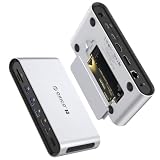
The ORICO Thunderbolt 5 Docking Station is the value pick among the docks with a built-in SSD slot. The listing names an 8TB M.2 NVMe enclosure slot. Product pages describe a 14-in-1 aluminum dock with one Thunderbolt 5 upstream port and 140 watts of power delivery, two downstream Thunderbolt 5 ports at 15 watts, three USB-A and one USB-C 10 gigabit ports, an HDMI port, a DisplayPort, 2.5 gigabit Ethernet, a SD and TF card reader, and a headset jack. It uses a 180 watt power supply, and ORICO says it uses a Thunderbolt 5 controller with 80 gigabit standard bandwidth and up to 120 gigabits in boost mode.
The M.2 slot is on the bottom behind a magnetic access plate and takes a single 2280 drive up to 8TB. ORICO claims testing speeds up to 6,000 megabytes per second and mentions PCIe 5.0, while another review describes a PCIe 4.0 slot, and one review measured about 5,200 megabytes per second. In practice, a Gen 4 drive will use whatever the slot supports, so do not buy a Gen 5 SSD expecting higher speed than the dock allows. The video outputs are HDMI and DisplayPort that each run 8K at 30Hz alone and 4K at 60Hz when both are used together, so for dual high-refresh displays you will use the Thunderbolt ports. The dock is relatively small, about 6.7 by 3.5 by 1.35 inches and 384 grams.
Key specs
- Upstream: Thunderbolt 5, 140W power delivery
- Storage: one M.2 NVMe 2280 slot, up to 8TB, SSD not included
- Downstream: two Thunderbolt 5 ports, 15W each
- USB: three USB-A and one USB-C at 10Gbps
- Video: one HDMI and one DisplayPort, plus Thunderbolt outputs
- Other: 2.5G Ethernet, SD/TF reader, headset jack
Pros
- HDMI and DisplayPort on a dock with an SSD slot
- Compact aluminum body
- Magnetic access plate for the drive
- Strong value, according to reviewers
Cons
- Conflicting claims about PCIe generation
- Only two downstream Thunderbolt 5 ports
- HDMI and DisplayPort share bandwidth when used together
- Port counts differ slightly between sources
Versus the nearest alternative: The UGREEN Maxidok has more USB ports and DisplayPort 2.1, while the ORICO is smaller and has both HDMI and DisplayPort. The ORICO is the better value; the UGREEN is the more complete dock. Compared with the Satechi, ORICO gives you real video ports in exchange for one fewer Thunderbolt 5 port.
Who it suits: Buyers who want one box that adds storage, a couple of Thunderbolt 5 ports, and both HDMI and DisplayPort to a laptop, and who do not need a large number of legacy ports. It is a reasonable fit for a student, a photographer with a single monitor, or a remote worker who wants fast scratch storage under the monitor stand.
Thermal note: A fast SSD in a compact aluminum body can get warm during long transfers. Use the thermal pad if supplied, leave space around the dock for airflow, and do not stack equipment on top.
5. TERRAMASTER D1 SSD Plus – Best Add-On SSD Enclosure for Docks Without a Bay
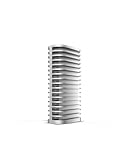
The TERRAMASTER D1 SSD Plus is not a dock. It is a 40 gigabit per second USB4 enclosure for one M.2 NVMe SSD, sold diskless. It earns a place in this list because it solves the problem that most docks here lack a storage bay. Plug it into a downstream Thunderbolt 5 port on a dock such as the CalDigit TS5 or the Anker Prime, and you have a dock with an SSD. TerraMaster says it supports one 2280 NVMe drive up to 8TB with an ASMedia ASM2464PDX controller, USB4 at 40 gigabits per second, and backward compatibility with Thunderbolt 5, 4, and 3 as well as USB 3.2 and earlier standards. The company reports real-world reads of about 3,850 megabytes per second and writes of about 3,700 with a 4TB Samsung drive on a Mac mini over Thunderbolt 5.
It is built from CNC-machined aluminum with passive cooling, silicone feet, thermal strips in the box, and a short Type-C cable. It measures about 112.5 by 60 by 33 millimeters and weighs 246 grams, and it is rated for 0 to 40 degrees Celsius in operation. Compatibility covers macOS, Windows 11, and Linux, and the file systems include exFAT, APFS, NTFS, and others. TerraMaster offers a two-year warranty and backup software for phones and Windows. The enclosure runs at 40 gigabits, so it will not use the full speed of a fast Gen 4 or Gen 5 drive.
Key specs
- Interface: USB4 at 40Gbps, backward-compatible with Thunderbolt 5/4/3
- Drive: one M.2 NVMe 2280 SSD up to 8TB, not included
- Controller: ASMedia ASM2464PDX
- Build: aluminum, fanless, 246g
- Reported speeds: about 3,850MB/s read and 3,700MB/s write in the maker’s test
- Warranty: two years per TerraMaster
Pros
- Works with any dock that has a spare Thunderbolt or USB4 port
- Fanless, silent design
- Tool-light assembly and thermal strips included
- Cross-platform file-system support
Cons
- Not a dock and not Thunderbolt 5 speed
- Takes a downstream port and a cable
- Passive cooling can throttle on long writes
- Drive sold separately
Versus the nearest alternative: Compared with the docks that have an internal bay, it costs you a port and a cable, but it lets you choose any dock and replace the drive easily. For raw speed, the internal bays on the UGREEN, Satechi, HyperDrive, and ORICO are rated by their makers up to about 6,000 megabytes per second, while the D1 tops out around 3,800 megabytes per second in the maker’s test.
Use case: Pair it with the CalDigit TS5 or Anker Prime when you want a dock with the best ports and a modest SSD on the side. Eject the drive from the operating system before unplugging, and keep a second copy of important data.
6. Anker Prime TB5 Docking Station 14-in-1 – Best for Dual Displays and Strong Charging Without an SSD Bay

The Anker Prime TB5 Docking Station (model A83B5) is a 14-in-1 dock with Thunderbolt 5, 120 gigabit per second data transfer, up to 8K video, dual display support, and up to 140 watts of charging, according to the listing. It has no built-in SSD bay, so it belongs in this list as a dock that pairs with an external enclosure. Anker lists one Thunderbolt 5 upstream port, two Thunderbolt 5 downstream ports at 15 watts each, three USB-A ports and two USB-C ports at 10 gigabits (with 45 watts shared across the front USB-C ports), one HDMI 2.1 or DisplayPort 2.1 output (only one at a time), 2.5 gigabit Ethernet, an audio jack, and SD and TF card slots. The dock supports up to 8K at 60Hz on a single display, or dual 8K at 60Hz on Thunderbolt 5 Windows laptops, and alternative modes such as dual 6K at 60Hz or dual 4K at 144Hz.
The dock is larger than some rivals, roughly 116 by 116 by 75 millimeters and about 1.1 kilograms, with active cooling and ambient lighting that some buyers will not want. It works with Windows 10 and 11 and recent versions of macOS. Anker notes that laptops with only DisplayPort Alt Mode, and Macs with standard M1, M2, or M3 chips, can drive just one external display. The card slots are UHS-I rather than the faster UHS-II found on some docks, which matters for photographers who ingest from fast cards. The box includes a Thunderbolt 5 cable, a power cable, and a 24-month warranty.
Key specs
- Upstream: Thunderbolt 5, up to 140W charging, PD 3.1
- Downstream: two Thunderbolt 5 ports at 15W each
- USB: three 10Gbps USB-A, two 10Gbps USB-C (45W shared)
- Video: HDMI 2.1 or DisplayPort 2.1, one at a time, plus Thunderbolt outputs
- Network and cards: 2.5G Ethernet, SD and TF (UHS-I)
- SSD bay: none; use an external enclosure
Pros
- 140W charging and a wide range of display modes
- Active cooling for sustained use
- Both HDMI and DisplayPort available, though not at once
- 24-month warranty
Cons
- No SSD bay
- HDMI and DisplayPort cannot be used together
- UHS-I card slots
- Larger and heavier than the compact docks
Versus the nearest alternative: The CalDigit TS5 offers more downstream Thunderbolt 5 ports and a long track record for stability but no native video port, while the Anker includes HDMI and DisplayPort. Against the UGREEN, the Anker has the stronger display modes but no SSD slot, so you would add a TerraMaster-style enclosure.
Pairing tip: Connect an external enclosure to a downstream Thunderbolt 5 port, and use the HDMI or DisplayPort for the main monitor. That gives you a dock, display, and SSD with two cables from the dock and one to the computer.
7. CalDigit TS5 Plus – Best for Maximum Ports and 10 Gigabit Ethernet

The CalDigit TS5 Plus is the most port-rich dock in this roundup. The listing names a 20-port Thunderbolt 5 dock with 10 gigabit Ethernet. Published specifications describe one Thunderbolt 5 host port, two downstream Thunderbolt 5 ports, five USB-C and five USB-A ports at 10 gigabits, DisplayPort 2.1, UHS-II SD and microSD readers, three audio jacks, and a 330 watt power supply that supports 140 watt laptop charging. Dual USB controllers give connected devices more total bandwidth than the single-controller layout in most docks. It measures about 155 by 47 by 128 millimeters and weighs around 900 grams. It has no SSD bay, so use an external enclosure through a downstream port.
Display support on Windows is listed as one 8K display at 60Hz, dual 8K at 60Hz, or triple 4K at 144Hz, depending on the host. The front USB-C port can supply 36 watts, and the two downstream Thunderbolt 5 ports also provide up to 36 watts, a higher figure than many rivals. One launch article lists DisplayPort 1.4 and a slightly different USB breakdown, but most sources, including the product page, say DisplayPort 2.1, so confirm before purchase.
The 10 gigabit Ethernet port is the feature that separates the TS5 Plus from the standard TS5. It matters if you work with a NAS or a shared storage server on a 10 gigabit switch; for ordinary internet use, 2.5 gigabit is plenty. The extra USB ports also help in studios with many drives, audio interfaces, and dongles.
Key specs
- Upstream: Thunderbolt 5, 140W charging
- Downstream: two Thunderbolt 5 ports, up to 36W each
- USB: five 10Gbps USB-C and five 10Gbps USB-A, dual controllers
- Video: DisplayPort 2.1 plus Thunderbolt outputs
- Network and cards: 10G Ethernet, UHS-II SD and microSD
- Power supply: 330W; SSD bay: none
Pros
- Twenty ports and dual USB controllers
- 10 gigabit Ethernet
- UHS-II card readers for fast ingest
- Strong downstream charging
Cons
- No internal SSD bay
- Only two downstream Thunderbolt 5 ports
- Large and heavy power supply
- The 10 gigabit port is wasted without a matching network
Versus the nearest alternative: The standard TS5 has three downstream Thunderbolt 5 ports and 2.5 gigabit Ethernet but fewer USB ports and no DisplayPort; the TS5 Plus swaps one Thunderbolt port for many more USB ports, DisplayPort, and 10GbE. Choose the Plus for a heavily wired desk.
Who it suits: Studios and home offices with a NAS, several external drives, an audio interface, card readers, and a pair of monitors. A 10 gigabit Ethernet link moves about 1.1 gigabytes per second at best, so a 500 gigabyte project folder copies in roughly 7 to 8 minutes over a fast network, compared with about 30 minutes at 2.5 gigabit. If you do not own a 10 gigabit switch or NAS, the extra capability will sit unused.
Buying note: Some retailers also sell open-box or refurbished CalDigit docks under similar names. Check the product page for the condition, warranty, and what is included, and make sure the power supply in the box matches the 330 watt rating.
8. CalDigit TS5 – Best Port-Rich Dock When You Do Not Need 10GbE

The CalDigit TS5 is the 15-port sibling of the TS5 Plus. The listing names a 240 watt power supply, 140 watt dedicated host charging, 2.5 gigabit Ethernet, SD and microSD UHS-II readers, and a one-meter braided cable. Published specifications add one Thunderbolt 5 host port and three downstream Thunderbolt 5 or USB4 v2 ports at 80 gigabits, three 10 gigabit USB-C ports, one 10 gigabit USB-A, one 480 megabit USB-A port, and three audio ports. There is no built-in HDMI or DisplayPort, so every monitor connects through a spare Thunderbolt port, either directly to a Thunderbolt or USB-C display or through a USB-C video adapter.
The TS5 supports up to three 4K monitors at 144Hz on Windows, and on macOS two 4K monitors at 240Hz or one 8K at 60Hz. The front USB-C port supplies 20 watts, while the other downstream ports provide smaller amounts. It uses a lower-rated power supply than the Plus, which suits desks with fewer bus-powered accessories. Like the Plus, it has no SSD bay, so pair it with an enclosure on one of the three downstream Thunderbolt 5 ports. That arrangement uses only one of the three, leaving two for displays.
CalDigit has a reputation for stable, well-documented docks, and the TS5’s manual lists per-port power limits. The dock draws power from a 20 volt, 12 amp input per the manual, consistent with the 240 watt rating.
Key specs
- Upstream: Thunderbolt 5, up to 140W host charging
- Downstream: three Thunderbolt 5 ports
- USB: three 10Gbps USB-C, one 10Gbps USB-A, one 480Mbps USB-A
- Network and cards: 2.5G Ethernet, UHS-II SD and microSD
- Video: no native HDMI or DisplayPort
- Power supply: 240W; SSD bay: none
Pros
- Three downstream Thunderbolt 5 ports
- Strong charging and stable reputation
- UHS-II card readers
- Smaller than the TS5 Plus
Cons
- No SSD bay or native video port
- Fewer USB ports than the Plus
- Only one fast USB-A port
- Needs adapters for HDMI monitors
Versus the nearest alternative: The TS5 Plus adds DisplayPort, 10GbE, and many more USB ports, while the TS5 keeps three Thunderbolt 5 ports for displays and storage. Compared with the Anker Prime, the CalDigit has no video port but one more Thunderbolt 5 downstream port and faster card readers.
Who it suits: Laptop users who want a dependable single-cable desk with Ethernet, card readers, and a few USB ports, and who have Thunderbolt or USB-C monitors. It is a good partner for an external NVMe enclosure, because three downstream ports leave room for storage plus two displays.
Pairing tip: Use one Thunderbolt 5 port for an external NVMe enclosure and another for a Thunderbolt or USB-C monitor. Choose high-quality certified cables for each connection, since a poor cable can limit speed and display support.
9. iVANKY FusionDock Max 2 – Best for Apple Silicon Macs That Need Three Displays

The iVANKY FusionDock Max 2 is a 23-in-1 Thunderbolt 5 dock that the listing calls Intel Certified. iVANKY describes it as built for Apple Silicon MacBooks and not for PCs or Intel-based Macs, so confirm that your computer is on the supported list before ordering. Macworld lists the port set as one upstream Thunderbolt 5 connection at 80 gigabits and 140 watts, three downstream Thunderbolt 5 ports at 15 watts each, one 10 gigabit USB-C port at 30 watts, four more USB-C ports, one 10 gigabit USB-A port, three 5 gigabit USB-A ports, three 480 megabit USB-A ports, one HDMI 2.0 port, and 2.5 gigabit Ethernet. SD 4.0 and microSD 4.0 card readers and an audio jack are on the front, and the rear has optical audio, a power input, and a lock slot.
Its headline feature is native triple-display support. Reviewers list two 6K displays at 60Hz plus one 4K display at 60Hz without DisplayLink drivers, subject to the Mac’s chip. Retailer listings say triple-display support applies to Apple Silicon Macs with Pro or Max chips, while base M-series Macs support fewer displays. The dock has no DisplayPort output, so DisplayPort-only monitors need a USB-C to DisplayPort cable. A separate 30 watt USB-C port charges a phone or tablet without drawing from the host’s 140 watt budget. A built-in fan and a floating chassis handle cooling.
The dock has no SSD bay. Add a TerraMaster-style enclosure to one of the three downstream ports. At least one review site has published a stability-focused write-up for this dock, so update firmware, use the supplied cable, and keep the dock where it can breathe. Some retailer listings show inconsistent port counts, such as one HDMI versus a dual HDMI claim, so treat iVANKY’s own specification page as the reference.
Key specs
- Host: Thunderbolt 5, up to 140W charging; designed for Apple Silicon Macs
- Downstream: three Thunderbolt 5 ports at 15W each
- USB: multiple USB-C and USB-A ports at 10Gbps, 5Gbps, and 480Mbps
- Video: HDMI 2.0 and Thunderbolt outputs; up to three displays on supported chips
- Network and cards: 2.5G Ethernet, SD 4.0 and microSD 4.0
- SSD bay: none
Pros
- Native triple-display support on supported Macs
- Separate 30W USB-C charging port
- Many USB ports and card readers
- Active cooling
Cons
- Designed for Apple Silicon only, per the maker
- No DisplayPort and only HDMI 2.0
- No SSD bay
- Display count depends on the Mac’s chip
Versus the nearest alternative: The CalDigit TS5 is better documented and works with a wider range of computers, but it lacks native video ports and the iVANKY’s triple-display design. The Anker Prime handles dual displays on PCs and Macs. Pick the iVANKY only for a Mac that is on its support list.
10. Lenovo ThinkPad Thunderbolt 5 Smart Dock 7500 – Best for Business Desks and Multi-Monitor Setups
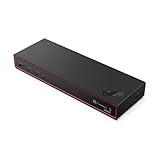
The Lenovo ThinkPad Thunderbolt 5 Smart Dock 7500 is built for managed office desks. The listing names 120 gigabit per second data transfer, 180 watt power delivery, multiple display support, and 2.5 gigabit Ethernet in black. Published specifications describe one Thunderbolt 5 host connection, two downstream Thunderbolt 5 ports, two DisplayPort 2.1 outputs, one HDMI 2.1 output, three USB-A 3.2 Gen 2 ports, two USB-C 3.2 Gen 2 ports with always-on 15 watt charging, a headphone and microphone jack, and lock slots. It ships with a 265 watt adapter, and Lenovo lists up to 180 watts of PD 3.1 output, though it does not say whether that figure includes USB charging.
Display support is the main draw. Lenovo lists up to four external displays, in two configurations: three 8K displays at 60Hz plus one 4K at 60Hz, or two 4K at 240Hz plus two 4K at 120Hz. Those modes depend on the host, graphics, monitors, and cables. The Smart Dock name refers to a cloud-based management console that IT teams can use to track and update docks, which suits companies with many desks. There is no SSD bay and no card reader, so photographers will want a USB reader or a separate enclosure for storage.
The dock targets ThinkPad users, but it follows the Thunderbolt 5 standard and should work with other Thunderbolt 5 laptops, though Lenovo-specific features may require a ThinkPad. Check compatibility on the product page. At about 585 grams, it is lighter than several docks here, and it is built with an enterprise warranty and support model in mind.
Key specs
- Host: Thunderbolt 5, up to 180W PD 3.1 with a 265W adapter
- Downstream: two Thunderbolt 5 ports at 15W
- Video: two DisplayPort 2.1 and one HDMI 2.1, up to four displays
- USB: three USB-A and two USB-C at 10Gbps
- Network: 2.5G Ethernet
- SSD bay and card reader: none
Pros
- Strongest charging figure in the list
- Three native video outputs and up to four displays
- Cloud management for IT
- Lock slots for shared desks
Cons
- No SSD bay or card reader
- Two downstream Thunderbolt 5 ports
- Some features are tied to ThinkPads
- Large adapter
Versus the nearest alternative: The Anker Prime has similar charging but fewer video outputs, and the CalDigit TS5 Plus has more USB ports and 10GbE. The Lenovo is the better fit for a managed workstation with three or four monitors; for a creator who needs storage and cards, the UGREEN or CalDigit docks fit better.
Safety note: A 180 watt charging path carries serious current. Use only the supplied adapter and a cable rated for the wattage, keep the adapter ventilated, and do not use damaged cables.
How to Choose a Thunderbolt 5 Dock with SSD Storage
Docks differ less in headline speed than in the details: how many displays they can drive, whether the SSD bay is built in, how much power they send to the laptop, and which ports they omit. Start with your computer, because it sets the ceiling for everything else.
Check your host first
A Thunderbolt 5 dock reaches its full speed only with a Thunderbolt 5 computer. A Thunderbolt 4 or USB4 laptop will connect at 40 gigabits per second and still work, but you will lose the 80 gigabit data link and the bandwidth boost for displays. Macs differ by chip: base M-series chips support one or two external displays, and Pro and Max chips support more. Windows laptops with discrete graphics usually support more displays than those with integrated graphics.
Do the bandwidth math
A 4K display at 60Hz with 10-bit color needs roughly 15 gigabits per second of raw pixel data (3840 x 2160 x 60 x 30 bits), before overhead. Three such displays need about 45 gigabits, and an 8K display at 60Hz is roughly four times one 4K, near 60 gigabits. A Thunderbolt 5 link carries 80 gigabits each way, or up to 120 gigabits in the display boost direction, so one cable can feed several monitors, but heavy video leaves less for storage.
Storage numbers follow the same logic. An 80 gigabit link is 10 gigabytes per second in theory, but a PCIe 4.0 NVMe drive tops out around 7 gigabytes per second, and the dock slots quote up to 6,000 megabytes per second. A 40 gigabit USB4 enclosure is about 5 gigabytes per second in theory and measured near 3,850 in the maker’s test. For a 500 gigabyte card dump, that works out to about 83 seconds at 6,000 megabytes per second, 130 seconds at 3,850, and roughly 8 minutes at 1,000 megabytes per second, which is typical of a 10 gigabit USB drive.
Power budget
Match the dock’s charging wattage to your laptop. A laptop that draws 140 watts under load needs a dock that can supply that continuously, and the cable must be rated for it. Remember that the dock’s power supply feeds everything: a 180 watt supply with 140 watts reserved for the host leaves about 30 watts for accessories. A bus-powered SSD, a phone, and a headset can approach that limit quickly.
Pick by situation
| Your situation | Best pick | Why |
|---|---|---|
| Want a dock and SSD in one box with a DisplayPort monitor | UGREEN Maxidok | Built-in bay, DisplayPort 2.1, many ports |
| Want built-in storage at a lower-cost class | ORICO Thunderbolt 5 Dock | Bay plus HDMI and DisplayPort |
| Small desk, USB-C monitors, Mac style | Satechi CubeDock | Compact, three downstream Thunderbolt 5 ports |
| Two computers sharing one desk | HyperDrive Next | Thunderbolt Share |
| Studio with a 10GbE NAS | CalDigit TS5 Plus plus an enclosure | 10GbE and many USB ports |
| Apple Silicon Mac with three displays | iVANKY FusionDock Max 2 | Native triple-display design |
| Office desk with three or four monitors | Lenovo Smart Dock 7500 | Three video outputs, 180W charging |
| Already own a dock, need storage | TerraMaster D1 SSD Plus | Add-on enclosure |
Ports you will actually use
List what you plug in on a normal day before you compare port counts. A photographer needs a fast card reader, ideally UHS-II, and at least two 10 gigabit USB ports for drives. A video editor values Thunderbolt 5 ports for storage and monitors. A remote worker needs Ethernet, a webcam port, and a headset jack. Note which video connector your monitors use: HDMI, DisplayPort, or USB-C. Docks with no native HDMI or DisplayPort, such as the Satechi, HyperDrive, and CalDigit TS5, need USB-C monitors or adapters, which is an easy detail to miss.
Firmware, drivers, and compatibility
Docks are small computers. Check the maker’s support page for firmware updates, and install them before you load the dock with critical work. Some features, such as Thunderbolt Share or specific display modes, require recent operating system versions or drivers. If a monitor flickers or a drive disconnects, try a different certified cable and a different port before assuming the dock is faulty.
Cables, heat, and safety
Use the cable supplied with the dock or a certified Thunderbolt 5 cable. An uncertified cable can silently cut speed or wattage. Give the dock airflow, because fast SSDs and high-wattage charging make heat. Eject drives before unplugging them, and keep important files backed up, since an external drive is not a backup.
Frequently Asked Questions
Do I need a Thunderbolt 5 computer to use these docks?
No. A Thunderbolt 4 or USB4 computer will work, but at lower speeds, and some display modes will not be available. To use the 80 gigabit data link and bandwidth boost, you need a Thunderbolt 5 host.
Does the dock include the SSD?
No. The Satechi, UGREEN, HyperDrive, and ORICO docks have an empty M.2 bay, and the TerraMaster is sold diskless. Buy an NVMe drive in a supported length and check the maximum capacity on the product page.
Which SSD should I put in the dock?
A PCIe Gen 4 NVMe drive from a reputable maker is a sound match for the bays that are rated near 6,000 megabytes per second. A Gen 5 drive will not run faster than the slot allows and tends to run hotter. Check the drive’s length and any heatsink height.
Can a dock without a bay still give me fast storage?
Yes. Connect an external NVMe enclosure to a downstream Thunderbolt or USB4 port. A 40 gigabit enclosure delivers several gigabytes per second, which is enough for most editing and backup work.
How many monitors can I connect?
It depends on both the dock and the computer. The docks here list from two to four displays, but a Mac’s chip or a PC’s graphics may set a lower limit. Check your computer’s specifications.
Will the dock charge my laptop fully?
Docks here list 140 or 180 watts of host charging. Your laptop must accept that power over USB-C Power Delivery, and the cable must be rated for it. If your laptop needs more than the dock supplies, keep its own charger handy.
Are these docks hot-swappable?
Thunderbolt devices can be connected and disconnected while running, but you should eject storage drives first. Unplugging a drive during a write can corrupt files.
Is a built-in SSD bay better than an external enclosure?
A built-in bay saves a port, a cable, and desk space, and it is tidy. An external enclosure is easier to swap between computers and lets you keep the same dock if you change drives. If you move between desks often, the enclosure’s portability is a real advantage.
Our Recommendation by Situation
For most people who want a dock and an SSD in one device, choose the UGREEN Maxidok. Take the ORICO if you want a compact built-in-bay dock with HDMI and DisplayPort, the Satechi for a small Mac-style desk, and the HyperDrive for sharing between two computers. If you prefer a dock without a bay, the CalDigit TS5 or TS5 Plus with a TerraMaster enclosure is a proven combination, the Anker Prime suits dual displays, and the Lenovo Smart Dock 7500 suits managed desks.
Ready to decide? Our #1 pick for 2026 is the Satechi Thunderbolt 5 CubeDock.
Live price & availability on Amazon.