Last Updated: October 7, 2026
- Best Monitors for Programming: The Short Answer
- Choose by Your Coding Setup
- Resolution, Size, and Pixel Density: How They Work Together
- Pick an Aspect Ratio for the Windows You Use
- USB-C: Check the Full Connection, Not Just the Port
- Ergonomics That Matter After the First Hour
- Fit the Monitor to Your Desk Before Ordering
- What to Spend
- Bottom Line
📄 In This Review
- Best Monitors for Programming: The Short Answer
- Choose by Your Coding Setup
- Resolution, Size, and Pixel Density: How They Work Together
- Pick an Aspect Ratio for the Windows You Use
- USB-C: Check the Full Connection, Not Just the Port
- Ergonomics That Matter After the First Hour
- Fit the Monitor to Your Desk Before Ordering
- What to Spend
- Bottom Line
Best Monitors for Programming: The Short Answer
For most programmers, the best monitor for programming is a 27-inch 4K IPS display with USB-C power delivery and a height-adjustable stand; choose a 32-inch 4K screen if you want more room for side-by-side windows, or a 34-inch ultrawide if your work benefits from a wide timeline or multiple panes.
Those recommendations depend on how your operating system scales text, how far you sit from the screen, and what your laptop can drive. Resolution alone doesn’t guarantee readable code: screen size, pixel density, scaling, panel finish, ports, and desk ergonomics all matter.

BenQ Programming Monitor RD280UG 28.2" 4K+, 120Hz Refresh Rate, 3:2 Aspect Ratio, Nano Matte Panel, MoonHalo Backlight, Coding Modes, 2000:1 Contrast Ratio, Eye-Care to Deliver Effortless Coding View
Included for 'Best Monitors for Programming: Sharp Text and Comfortable Coding' because the listing specifies 120Hz Refresh Rate and 3:2 Aspect Ratio, details this guide uses to compare options.
View on Amazon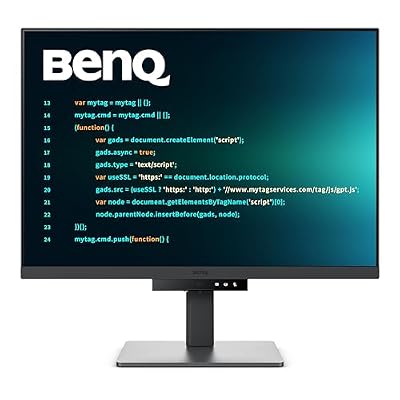
BenQ RD280U 28.2” 4K 3840x2560 3:2 Programming Monitor, Eye-Care, Nano Matte Panel, Coding Modes, MoonHalo Backlight, 90W USB-C, KVM, VESA Mount, Developer Monitor
Included for 'Best Monitors for Programming: Sharp Text and Comfortable Coding' because the listing specifies Eye-Care and Nano Matte Panel, details this guide uses to compare options.
View on Amazon
BenQ RD320UA 32” 4K 3840x2160 Programming Monitor with 2000:1 Contrast Ratio, Nano Matte Panel, MoonHalo, 90W USB-C, Coding Modes, Night Hours Protection, Ergonomic Stand, and Eye-Care Technology
Included for 'Best Monitors for Programming: Sharp Text and Comfortable Coding' because the listing specifies Nano Matte Panel and MoonHalo, details this guide uses to compare options.
View on Amazon
BenQ RD280UA 28.2” 4K 3840x2560 Programming Monitor Backlight, Ergo Flexible Arm, 90W USB-C, Fine-Coated Panel, Advanced Coding Modes, Night Hours Protection, Coding HotKey, Eye-Care Tech
Included for 'Best Monitors for Programming: Sharp Text and Comfortable Coding' because the listing specifies Ergo Flexible Arm and 90W USB-C, details this guide uses to compare options.
View on AmazonChoose by Your Coding Setup
See also: Dual Monitor Arm Best Picks by Screen Weight and Desk Type • Double Monitor Mount: Gas Spring Arms vs Fixed-Tension Arms
| Your situation | A sensible starting point | Why it fits |
|---|---|---|
| One monitor on a compact desk | 24–27 inches, 1440p | Good workspace without requiring a deep desk or aggressive scaling. |
| Sharp text and flexible window layouts | 27 inches, 4K | High pixel density gives crisp text; scaling makes interface elements comfortable to read. |
| IDE, documentation, and browser side by side | 32 inches, 4K, or 34 inches, 3440 × 1440 | A larger canvas reduces window shuffling. The ultrawide favors width; 4K offers more vertical pixels. |
| Laptop-centered setup with one-cable docking | USB-C monitor with 65–90 W power delivery | A single compatible cable can carry video, data, and laptop charging. |
| Small desk or limited viewing distance | 24–27 inches, 1440p | More manageable than a large panel viewed up close; check stand depth before buying. |
Resolution, Size, and Pixel Density: How They Work Together
Resolution is the number of pixels; screen size is the panel’s diagonal measurement. Pixel density, measured in pixels per inch (PPI), combines the two. Higher PPI can make letter edges appear smoother, but operating-system scaling determines how large text and interface controls look in practice.
| Screen and resolution | Approx. density | Practical consideration |
|---|---|---|
| 24-inch, 1920 × 1080 | 92 PPI | Budget-friendly, but code text may look less refined at typical desk distance. |
| 27-inch, 2560 × 1440 | 109 PPI | A balanced option; many people can use it with modest or no scaling. |
| 27-inch, 3840 × 2160 | 163 PPI | Very sharp; scaling is commonly used to keep text comfortably sized. |
| 32-inch, 3840 × 2160 | 138 PPI | Sharp text with more physical room for windows; often easier to read than unscaled 27-inch 4K. |
| 34-inch, 3440 × 1440 | 110 PPI | Wide workspace, but fewer vertical pixels than 4K and more head movement across the panel. |
These densities are approximate and assume the stated diagonal is the active display size. A 27-inch 4K monitor does not automatically show more usable code than a 1440p monitor: at 150% scaling, interface elements become larger, while text and graphics benefit from the higher pixel density. If possible, check that your coding tools render cleanly at your operating system’s preferred scaling.
Pick an Aspect Ratio for the Windows You Use
Most standard monitors use a 16:9 aspect ratio. It suits general work and is easy to fit on a desk. A 21:9 ultrawide, such as a 34-inch 3440 × 1440 display, can hold an editor beside a browser or terminal without a center bezel. It is a good fit for wide workflows, but it doesn’t provide as much vertical room as a 4K monitor. If you regularly inspect long files, logs, or documents, compare the screen’s vertical pixel count—not just its width.
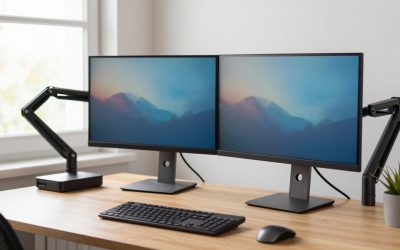
Two monitors can be more flexible than one ultrawide, but require more desk width, additional cables, and bezel alignment. Before choosing, consider whether you prefer separate full-screen workspaces or one continuous desktop.
USB-C: Check the Full Connection, Not Just the Port
A USB-C connector does not guarantee that a monitor can charge a laptop or carry a display signal. Look for explicit support for DisplayPort over USB-C or Thunderbolt, and confirm the monitor’s USB Power Delivery wattage. Around 65 W can suit many everyday laptops; some performance laptops need more or may still require their own charger.
A built-in USB hub can keep a keyboard, mouse, or webcam connected to the monitor, reducing cable clutter. Some displays also include Ethernet or a KVM switch for sharing peripherals between two computers. Verify the connection standard, power output, and supported resolution and refresh rate together; the monitor, cable, laptop, and dock can each limit the final setup.
Ergonomics That Matter After the First Hour
Prioritize a stand that adjusts for height and tilt. Swivel and pivot are useful if you share the screen or prefer a portrait view for code, but pivot is most comfortable on a panel that isn’t excessively wide. A VESA-compatible monitor offers the option of a separate arm, provided the arm supports the display’s weight and mounting pattern.
Set the display directly in front of you, roughly an arm’s length away as a starting point. The top of the screen should generally be at or slightly below eye level, so your neck stays neutral; adjust based on screen size, glasses, and posture. A glossy panel can reflect windows and overhead lights, while a matte finish usually reduces distracting reflections. Neither finish prevents eye fatigue from glare, poor lighting, or an overly small font, so adjust room lighting and editor text size too.
Fit the Monitor to Your Desk Before Ordering
Measure the desk’s usable width and depth, including space for a keyboard, mouse, and any laptop. Then check the monitor’s stand footprint and overall depth in its specifications. As a planning estimate, reserve about 24–30 inches of viewing distance for a 27-inch screen and 28–36 inches for a 32-inch or ultrawide; adjust if text looks too small or you find yourself turning your head. These are starting ranges, not ergonomic requirements.
A 34-inch ultrawide may span roughly 32 inches across, depending on its design, before allowing room for the stand. On a 48-inch-wide desk, that leaves limited space for speakers or a second display. A monitor arm can free up desk surface, but it needs a secure clamp area and a compatible desk edge. Check the desk’s material and thickness, and don’t exceed the arm maker’s weight limit.
What to Spend
As general market ranges in 2026, basic 27-inch 1440p monitors often cost about $200–$350. A 27-inch 4K model with USB-C and a height-adjustable stand commonly falls around $350–$700, while larger, ultrawide, or more fully equipped displays can run roughly $500–$1,000 or more. Prices vary by region and features. For coding, a good stand, clear text, and the right connection are usually more useful than paying extra for a high gaming refresh rate you won’t use.
Bottom Line
Start with a 27-inch 4K IPS monitor if sharp text and a versatile desk setup are your priorities. Choose 32-inch 4K for larger readable workspaces, 34-inch ultrawide for horizontal window space, or 27-inch 1440p when cost and desk fit matter more than maximum text density. Before buying, verify scaling, USB-C power and video support, stand adjustment, and the monitor’s physical footprint.
Related Reviews & Guides
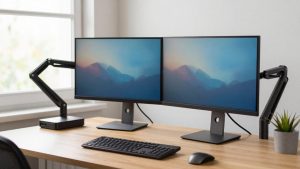
Dual Monitor Arm Best Picks by Screen Weight and Desk Type
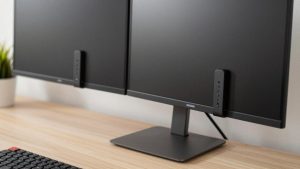
Double Monitor Mount: Gas Spring Arms vs Fixed-Tension Arms