Last Updated: September 26, 2026
Three monitors give a huge amount of workspace for trading, development, data analysis or editing, but driving them from a laptop through a single dock is one of the hardest configurations to get right. The dock, the laptop’s graphics capabilities, the display technology and the cables all have to line up. This guide explains the approaches that work, their trade-offs and how to choose a dock for three monitors.
📄 In This Review
Three ways to run three monitors from a laptop
Native Thunderbolt or USB4 with enough display streams
Some Windows laptops with Thunderbolt 4 and capable graphics can drive three or four displays through a Thunderbolt dock that has multiple outputs and supports MST. Dell documents quad-display configurations with the WD22TB4 on supported systems. Thunderbolt 5 docks such as the Kensington SD5000T5 EQ list three 4K displays at 144Hz on Thunderbolt 5 hosts.
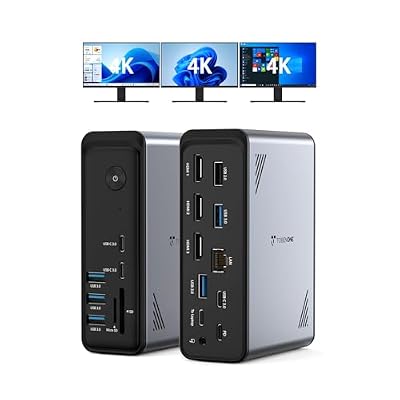
TobenONE 18 in 1 Laptop Docking Station 3 Monitors,Triple 4K HDMI,9 USB C/A
Included for 'Best docking station for triple monitor setup' because the listing specifies Triple 4K HDMI and 9 USB C/A, details this guide uses to compare options.
View on Amazon
Plugable USB-C Triple Monitor Docking Station, 13-in-1, 100W Charging
Included for 'Best docking station for triple monitor setup' because the listing specifies 13-in-1 and 100W Charging, details this guide uses to compare options.
View on Amazon
Plugable USB-C Triple Display Laptop Docking Station 3 Monitors, 15-in-1: 3X HDMI, Dual 4K or Triple (1x 4K60 + 2X 1080p) 2.5GbE, 100W PD, 30W USB-C Charge Port, Driverless for Windows, UD-MSTH3
Included for 'Best docking station for triple monitor setup' because the listing specifies 15-in-1: 3X HDMI and Dual 4K or Triple (1x 4K60 + 2X 1080p) 2.5GbE, details this guide uses to compare options.
View on Amazon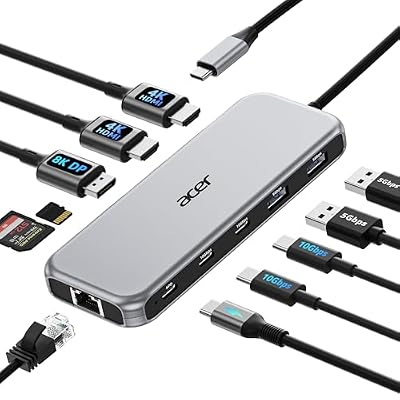
Acer Laptop Docking Station 3 Monitors, 11-in-1 USB C Docking Station
Included for 'Best docking station for triple monitor setup' because the listing specifies 11-in-1 USB C Docking Station, details this guide uses to compare options.
View on AmazonDisplayLink
DisplayLink docks, such as the Plugable UD-ULTC4K, drive one display via native USB-C and two via DisplayLink compression. They work with almost any USB-C laptop, including base Apple silicon Macs that support only one external display natively.
Hybrid
Use the laptop’s own HDMI port for one display and a Thunderbolt dock for two others. This is often the simplest way to reach three screens on a capable Windows laptop.
Comparing approaches
See also: Best Reclining Chairs: Nine Recliner Listings Compared by Mechanism, Fabric and Space Needs • Best Roku Streaming Deals Reviewed
| Approach | Laptop requirements | Performance | Drawbacks | Example |
|---|---|---|---|---|
| Thunderbolt 4 dock with MST/multiple outputs | TB4 Windows laptop with GPU supporting 3+ displays | Full native performance | Host-dependent, not on Macs beyond native limit | Dell WD22TB4 |
| Thunderbolt 5 dock | TB5 laptop | Up to 3 x 4K144 | Few TB5 laptops, adapters needed | Kensington SD5000T5 EQ |
| DisplayLink dock | Any USB-C with DP Alt Mode for first screen | Great for office work | Driver, CPU use, no HDCP, not for gaming | Plugable UD-ULTC4K |
| Laptop HDMI + dual-display dock | Laptop with HDMI and TB4 | Native | Two cables to laptop | Any TB4 dual-display dock |
Mac-specific guidance
macOS does not support MST, and each Mac chip has a fixed external display limit. M1 Max, M2 Max and later Max chips support several external displays natively, so a Thunderbolt dock plus the Mac’s own ports can reach three. Pro chips typically support two or more depending on generation. Base chips need DisplayLink for three monitors. Check Apple’s specifications for your model.
Choosing the right dock
Check GPU and port capability
Look up how many displays your laptop’s graphics can drive and whether its Thunderbolt or USB-C ports support that number. Intel Iris Xe laptops commonly support up to four displays including the internal screen; check your model.
Match outputs to monitors
Docks with three video outputs avoid adapters. The Plugable UD-ULTC4K offers three HDMI and three DisplayPort outputs; Dell’s WD22TB4 offers DisplayPort, HDMI and USB-C video.
Resolution and refresh
Three 1080p or 1440p monitors are far easier to drive than three 4K monitors. If you need high refresh rates, avoid DisplayLink and use native Thunderbolt connections.
Desk setup for three monitors
Three 27-inch monitors need about 72 inches of desk width. A triple monitor arm or stand keeps them aligned; on a standing desk, choose a dual-motor frame rated for the load. Angle side screens inward and put the most-used screen in the centre. Route all cables through the arm and into a cable tray with slack for height changes.
Budget planning
A triple-monitor dock is only part of the cost. Expect to spend roughly $150 to $300 on a DisplayLink triple dock, $250 to $400 on a Thunderbolt 4 dock and $400 or more on a Thunderbolt 5 dock. Add $60 to $250 for a triple monitor arm or stand, $15 to $30 per certified display cable and the monitors themselves. On a standing desk, a dual-motor frame with a 72-inch top is usually needed. Planning the whole system up front avoids discovering that the dock needs adapters or that the desk wobbles under three screens.
FAQ
Can a MacBook Air run three monitors?
Not natively on base chips. A DisplayLink dock such as the Plugable UD-ULTC4K can run three monitors from a MacBook Air.
Is DisplayLink good enough for three monitors?
For office work, coding and trading dashboards, yes. For gaming, video playback of protected content or colour-critical editing, use native display connections.
Bottom line
For a triple monitor setup, use a Thunderbolt dock with multiple outputs on capable Windows laptops or Max Macs, a Thunderbolt 5 dock on Thunderbolt 5 laptops, or a DisplayLink dock for base Macs and mixed fleets. Check your laptop’s display limits and each dock’s current spec sheet before buying.
Related Reviews & Guides




Best monitor arm for iMac

Best Ergonomic Office Chair for Conference Rooms